







































HubSpot Salesforce Integration: Setup Guide, Sync Architecture and RevOps Best Practices
Most mid-market and enterprise companies that run both HubSpot and Salesforce aren’t using the same platform for the same job. HubSpot runs marketing: lead capture, nurture sequences, email campaigns, web tracking, and marketing attribution. Salesforce runs sales: opportunity management, territory assignment, forecast reporting, and customer success workflows.
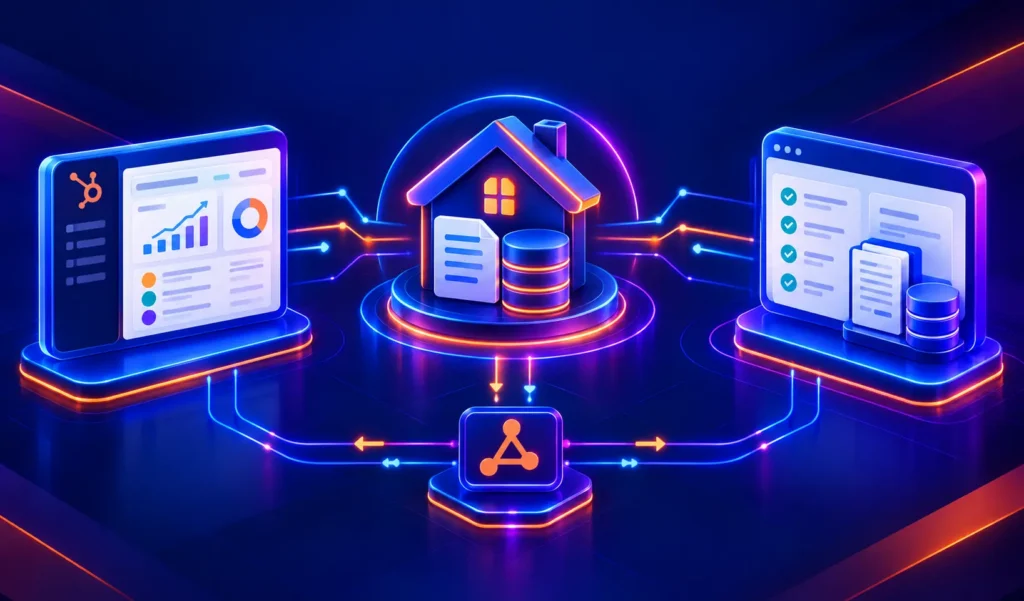
The integration connects them so that a lead nurtured in HubSpot moves to Salesforce when it’s ready for sales, and deal progression in Salesforce reflects back to HubSpot for attribution and lifecycle reporting.
HubSpot offers a native Salesforce connector one of the more mature integrations in its App Marketplace. It handles standard objects well and covers the core marketing-to-sales handoff for most teams.
But it runs into specific walls at scale: API call limits that hit with large databases, a one-way constraint on custom object sync, a 15-minute polling interval rather than real-time sync, and an object model difference between HubSpot and Salesforce that creates duplicates when not handled carefully.
We’re Integrate IQ, a HubSpot Diamond Solutions Partner with custom integration accreditation. We’ve built and fixed HubSpot Salesforce integrations across dozens of mid-market and enterprise deployments. This guide covers everything a RevOps leader needs: native setup done right, the failure modes to plan for, and the cases where a custom architecture is the cleaner path.
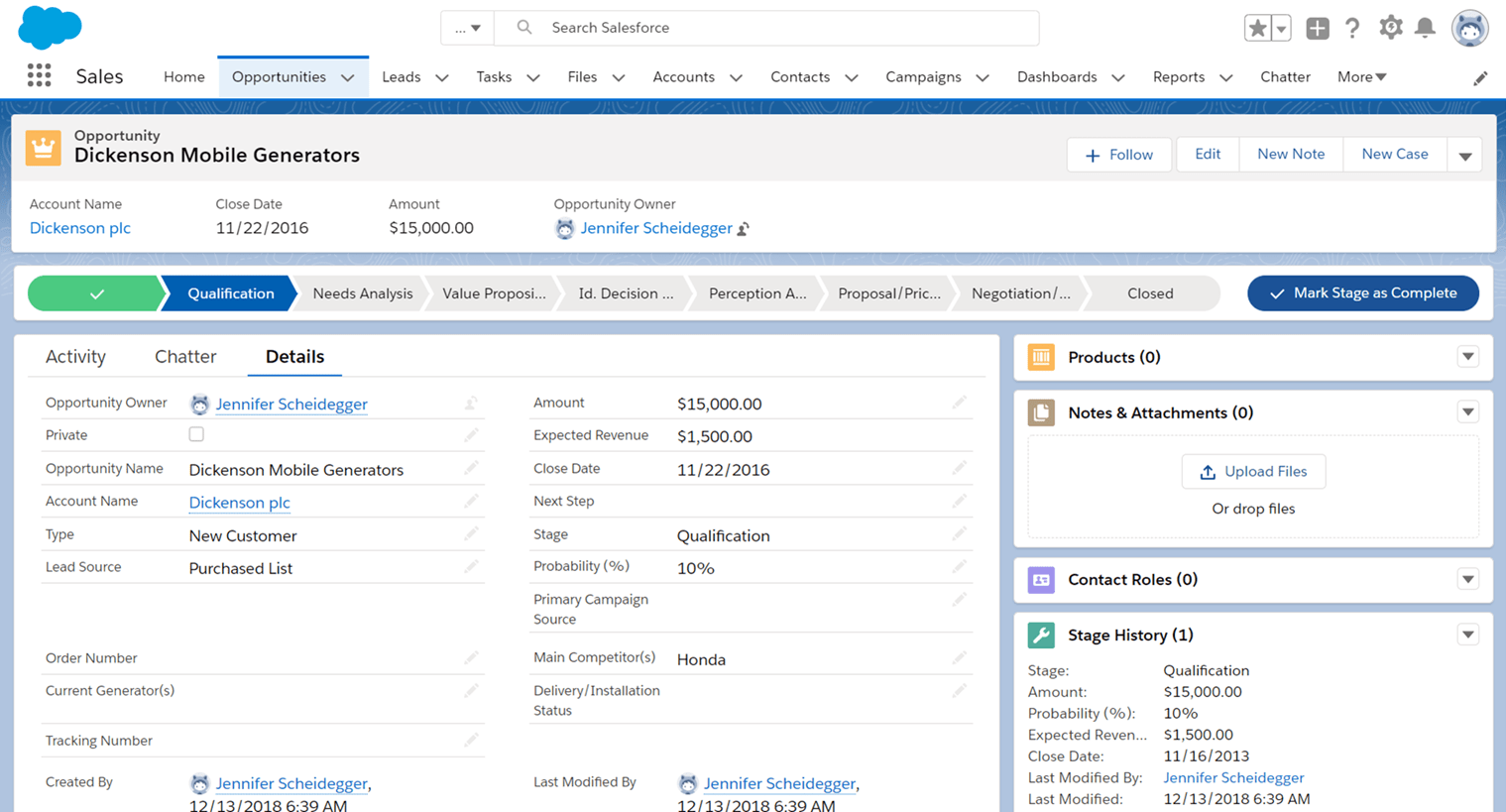
What the Native HubSpot Salesforce Integration Syncs
The native connector syncs standard objects between the two platforms. Here’s what each object maps to:
| Salesforce Object | HubSpot Object | Sync Direction | Notes |
| Leads / Contacts | Contacts | Bi-directional | Both Salesforce Leads and Contacts map to the single HubSpot Contact object this is the source of the most common setup confusion |
| Accounts | Companies | Bi-directional | Salesforce Accounts sync to HubSpot Companies when company sync is enabled |
| Opportunities | Deals | Bi-directional | Opportunity stage changes in Salesforce update deal stage in HubSpot; pipeline must be in a Salesforce-synced pipeline |
| Tasks / Activities | Tasks / Activities | Bi-directional (configurable) | Form submissions, emails, calls, meetings can sync as Salesforce Tasks |
| Campaigns | Lists (via Campaign sync) | One-way (Salesforce to HubSpot) | Salesforce campaign membership can trigger HubSpot list membership |
| Custom Objects | Custom Objects (HubSpot Enterprise) | One-way (HubSpot to Salesforce only) | Bi-directional custom object sync requires a custom integration build |
Sync frequency: HubSpot checks for new data to sync every 15 minutes. Individual record triggers (form submissions, email events, lifecycle stage changes) can fire a sync immediately. This is not real-time plan accordingly for time-sensitive sales alerts.

Turn HubSpot Into A Real-Time SMS Engine with Message IQ
 Two-Way Conversations
 Shared Team Inbox
 Automation Triggers
 Advanced Reporting
 Compliance Tools
- 98% SMS read within 3 min
- 78% Buy from first responder
- 21× More likely to qualify

*MessageIQ is an IntegrateIQ product – built natively for HubSpot by the same team.
How to Set Up the Native HubSpot Salesforce Integration
Prerequisites
- HubSpot account: Professional or Enterprise plan (the Salesforce integration is not available on Starter or Free tiers)
- Salesforce account: Professional edition or higher with API access enabled
- A Salesforce System Administrator account for the initial install
- A dedicated Salesforce integration user recommended (not a named user account if that user deactivates, the integration breaks)
Installation Steps
- In HubSpot, go to the Marketplace icon > HubSpot Marketplace. Search for Salesforce and click Install.
- Select whether you’re connecting to a Salesforce production org or sandbox. Click Log in to Salesforce and authenticate.
- Install the HubSpot managed package in Salesforce. This installs HubSpot Embed (formerly Visualforce) the sidebar widget that shows HubSpot data on Salesforce records. You can skip this step and install it later, but don’t skip the package install itself.
- Choose your sync setup method: Recommended or Advanced. For most teams, start with Recommended and refine from there. Advanced gives you granular control over each object sync from the start.
- Configure Contact/Lead sync. This is the most important decision in the setup. Choose whether HubSpot creates Leads or Contacts in Salesforce. You can only choose one not both simultaneously.
- Set up your Inclusion Segment. This is critical for API limit management. Instead of syncing your entire HubSpot database to Salesforce, create an active list (e.g., ‘Lifecycle Stage is MQL or later’) and use it as your inclusion segment. Only records in this list sync to Salesforce.
- Configure Deal/Opportunity sync. Turn on the deal sync toggle. Ensure company sync is also enabled, or deal-company associations won’t carry over.
- Save and let the initial sync run. Initial sync of large databases can take several hours.
The Leads vs. Contacts Problem and How to Avoid the Duplicate Trap
This is the most common setup mistake in HubSpot Salesforce integrations. Salesforce has two separate objects for people: Leads (pre-opportunity prospects) and Contacts (people associated with an Account). HubSpot has one: the Contact object.
When you configure the integration, you choose whether HubSpot creates Leads or Contacts in Salesforce. Here’s the downstream consequence of each choice:
| Choice | What Happens in Salesforce | Risk |
| Create Leads | HubSpot contacts sync as Salesforce Leads | When a Lead converts to a Contact in Salesforce (after a deal is won), if HubSpot’s ‘auto-create companies’ setting is on, a duplicate Company record is created in HubSpot |
| Create Contacts | HubSpot contacts sync directly as Salesforce Contacts | Contacts must have an associated Account in Salesforce, or the company association breaks. Works cleanly if your Salesforce org is organised around Accounts |
Best practice: If your Salesforce org uses Accounts and you want clean company-level reporting, sync HubSpot contacts as Salesforce Contacts. If your team uses a Leads-first approach, sync as Leads but turn off HubSpot’s ‘automatically create and associate companies’ setting to prevent the duplicate Company problem.
A note on deduplication: the connector matches records on email address. If a Salesforce Lead and a HubSpot Contact have different email addresses for the same person, they create separate records. Consistent email hygiene in both systems is non-negotiable.
Managing Salesforce API Call Limits
This is the most common operational failure point in a running HubSpot Salesforce integration. Salesforce imposes a daily API call limit based on your edition and number of users. A single contact sync between HubSpot and Salesforce can use up to 4 API calls per record. Syncing 50,000 contacts at 4 calls each uses 200,000 API calls before any other Salesforce integrations or automations run.
When the daily Salesforce API limit is hit, the HubSpot-Salesforce sync halts entirely until the limit resets. Teams wake up to stale data, delayed MQL routing, and broken pipeline reports.
Three Tactics to Protect Your API Budget
- Use an Inclusion Segment. This is the single most effective API management tool. Create a HubSpot active list containing only the contacts you actually need in Salesforce typically MQL and later lifecycle stages. Set this list as your integration’s Inclusion Segment. Only contacts on this list sync to Salesforce. A typical mid-market company with 200,000 contacts in HubSpot might only have 8,000 MQLs reducing API calls by 96%.
- Use Selective Sync in Salesforce. Restrict which Salesforce records HubSpot can access by limiting the permissions of the Salesforce integration user via Profile and Role settings. This prevents HubSpot from reading (and consuming API calls on) Salesforce records that don’t need to sync to HubSpot.
- Monitor API call usage actively. In HubSpot’s Salesforce integration settings, the Sync Health tab shows API calls used in the last 24 hours. Set up a Salesforce API usage alert (available in Salesforce Setup) to notify your team before the limit is reached, not after it’s been hit.
Native Connector Limitations RevOps Leaders Need to Know
| Limitation | Impact | Workaround or Custom Path |
| 15-minute sync interval | Not real-time time-sensitive sales alerts (hot lead notifications) may be delayed | Individual record triggers (form submission, lifecycle change) fire immediately; for true real-time, custom webhook integration is needed |
| Custom objects: one-way only | HubSpot Enterprise custom objects can sync to Salesforce, but bidirectional custom object sync isn’t supported natively | Custom API integration for bidirectional custom object sync |
| One Salesforce instance per HubSpot account | Companies with multiple HubSpot portals connecting to one Salesforce need careful setup to avoid cross-contamination | Selective sync and inclusion segments per portal; complex setups benefit from custom integration architecture |
| Multi-currency: number only | Salesforce opportunity amounts sync as raw numbers without currency conversion HubSpot shows the number but not the converted value | Custom integration can apply exchange rate logic before writing to HubSpot |
| Pipeline count limit by tier | The number of Salesforce pipelines that can sync to HubSpot is limited by your Sales Hub subscription tier | Upgrade tier or architect which pipelines actually need to sync |
| Leads without contact roles | Salesforce opportunities associated with accounts but no contact roles don’t trigger lifecycle stage transitions in HubSpot | Add Opportunity Contact Role records in Salesforce before relying on lifecycle automation |
Data Ownership: Which System Wins Per Field
One of the most important architectural decisions in a HubSpot Salesforce integration is defining which system owns each field. When both systems update the same field and the 15-minute sync runs, one overwrites the other. Without clear ownership rules, you end up with fields toggling back and forth between values.
A practical ownership model for most RevOps teams:
- HubSpot owns: Original source, UTM parameters, marketing email engagement, form submission history, HubSpot lead score, lifecycle stage up to MQL
- Salesforce owns: Opportunity stage, close date, deal amount, sales-assigned lifecycle stage (SQL and beyond), territory assignment, account hierarchy
- Shared fields (Salesforce wins on conflict): Job title, phone, company name, address because sales reps in Salesforce often have more current information from live conversations
Configure your field mapping conflict resolution in HubSpot’s Salesforce integration settings to ‘Prefer Salesforce’ for shared fields where Salesforce is the authoritative update source.
See your 12-month revenue impact with HubSpot CRM
Enter your current numbers — visitors, leads, deal size — and get a personalized projection based on real HubSpot customer benchmarks.
Calculate My ROI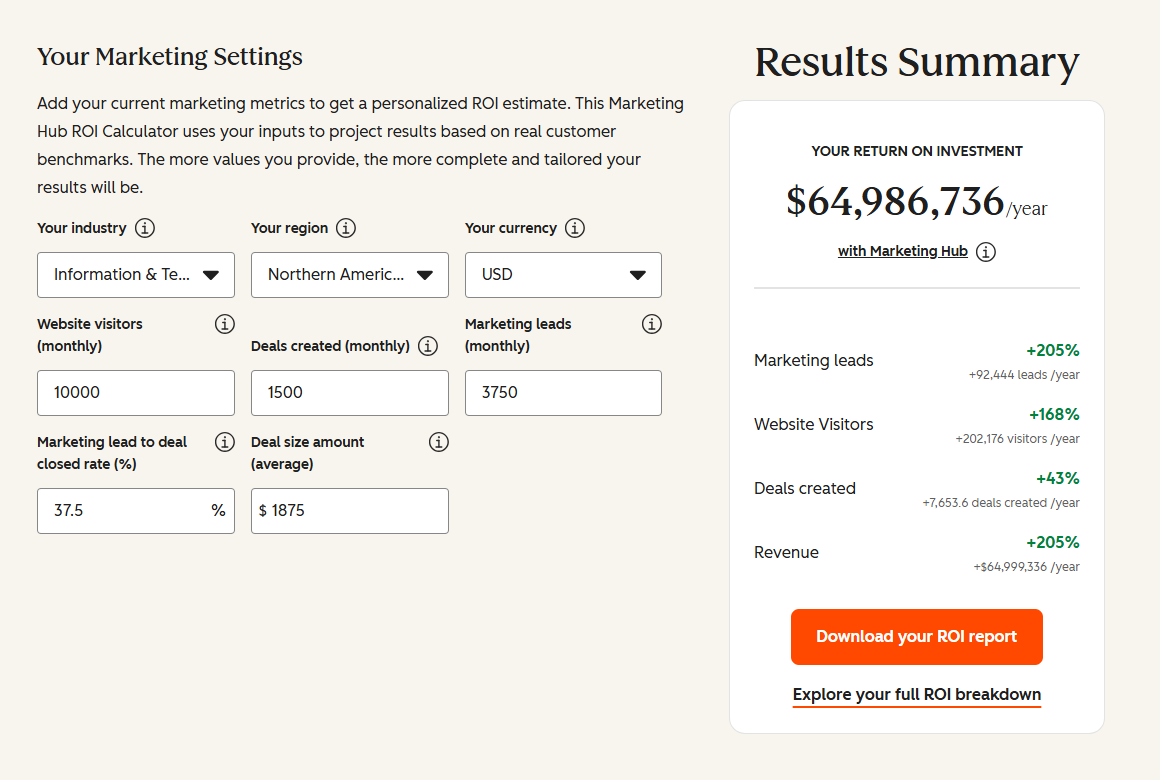
When the Native Connector Isn’t the Right Architecture
For most teams doing a straightforward marketing-to-sales handoff leads in HubSpot, opportunities in Salesforce the native connector covers the requirement. These are the scenarios that outgrow it:
- Bidirectional custom object sync. If you have Salesforce custom objects (subscription records, service contracts, quote objects, territory data) that need to enrich HubSpot records and trigger automation, the native connector can’t do this bidirectionally. A custom integration built on both platforms’ APIs handles it.
- Real-time sync requirements. Sales teams that need immediate notification when a hot lead hits HubSpot can’t rely on a 15-minute polling interval. A custom webhook-driven integration fires within seconds of the trigger event.
- Complex data transformation. If data needs to be transformed between systems for example, Salesforce Territory field values need to map to HubSpot Segment properties with different naming conventions the native connector applies simple field mapping only. Custom transformation logic requires a custom build.
- High-volume databases hitting API limits consistently. If your database size and sync frequency regularly approach your Salesforce API ceiling even with inclusion segments, a batched custom sync with intelligent API management is more reliable than the native connector.
For complex Salesforce integration architectures, our integration process covers how we scope and build custom HubSpot-Salesforce connections for enterprise RevOps teams. We also build HubSpot NetSuite integration for companies where both a CRM and ERP need to connect to HubSpot.

Table of Contents
- HubSpot Salesforce Integration: Setup Guide, Sync Architecture and RevOps Best Practices
- What the Native HubSpot Salesforce Integration Syncs
- How to Set Up the Native HubSpot Salesforce Integration
- The Leads vs. Contacts Problem and How to Avoid the Duplicate Trap
- Managing Salesforce API Call Limits
- Native Connector Limitations RevOps Leaders Need to Know
- Data Ownership: Which System Wins Per Field
- When the Native Connector Isn’t the Right Architecture