













HubSpot PandaDoc Integration: Automate Proposals, Track Documents and Close Deals Faster
The HubSpot PandaDoc integration connects your CRM pipeline directly to your document automation platform. When a deal reaches the proposal stage, a PandaDoc document can generate automatically from a template with every relevant deal property company name, deal value, line items, contact details already populated.
When the prospect signs, the HubSpot deal stage updates and a post-sale onboarding workflow fires. No manual document creation. No chasing down signature status. No re-entering deal data.
PandaDoc’s integration with HubSpot is one of the more capable native connectors in HubSpot’s ecosystem. It runs inside HubSpot records rather than requiring a separate tab, syncs line items bidirectionally with PandaDoc pricing tables, and surfaces document status (sent, viewed, signed) directly on deal records. The full proposal-to-signature loop can run automatically.
We’re Integrate IQ, a HubSpot Diamond Solutions Partner with custom integration accreditation. This guide walks through setup, variable mapping, workflow automation, and the full proposal-to-onboarding loop that most teams want but few build end to end.
What the HubSpot PandaDoc Integration Does
| Capability | What It Enables |
| Variable / token mapping | HubSpot deal, contact, and company properties auto-populate PandaDoc template fields when a document is created no manual data entry |
| Line items bidirectional sync | HubSpot deal line items sync to PandaDoc pricing tables; prices updated in PandaDoc sync back to HubSpot deal line items |
| Document creation from HubSpot records | Create PandaDoc documents directly from a HubSpot Deal, Contact, or Company record using the PandaDoc module |
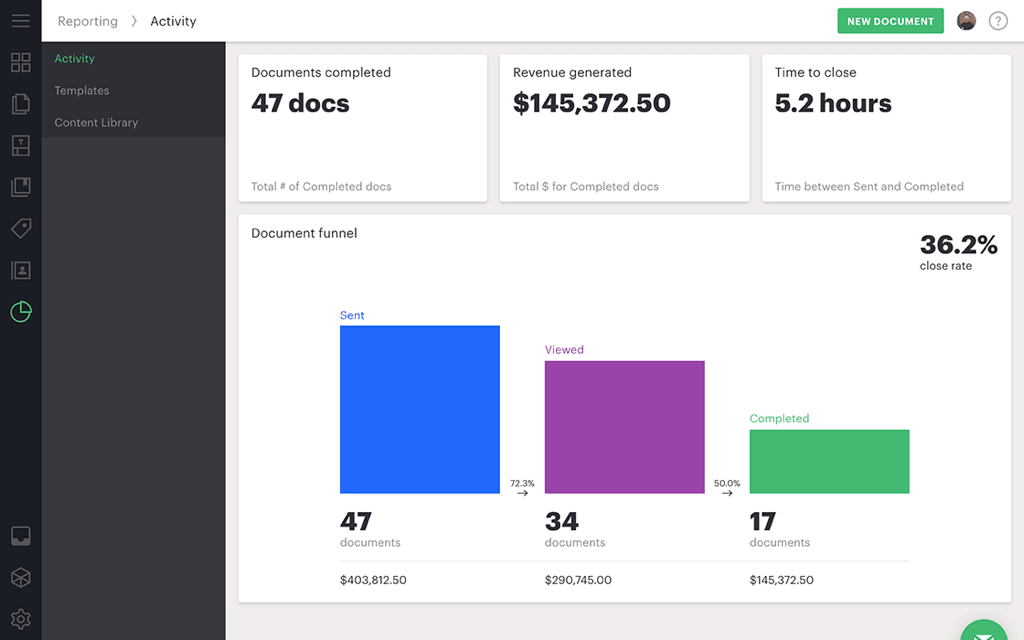
| Document status tracking in HubSpot | Real-time document status (sent, viewed, signed) appears on the HubSpot deal record timeline |
| HubSpot workflow triggers | PandaDoc document creation can be triggered by HubSpot workflow actions automatically at a specific deal stage (requires External Automations add-on) |
| Deal stage update on signature | When a PandaDoc document is signed, a HubSpot workflow can update the deal stage and trigger post-sale automation |
| Viewed alert for follow-up timing | When a prospect opens a document, PandaDoc notifies the sender useful for triggering a follow-up task in HubSpot |

Turn HubSpot Into A Real-Time SMS Engine with Message IQ
 Two-Way Conversations
 Shared Team Inbox
 Automation Triggers
 Advanced Reporting
 Compliance Tools
- 98% SMS read within 3 min
- 78% Buy from first responder
- 21× More likely to qualify

*MessageIQ is an IntegrateIQ product – built natively for HubSpot by the same team.
How to Set Up the HubSpot PandaDoc Integration
The integration connects through PandaDoc’s settings first, then manages from inside HubSpot.
Step 1: Connect from PandaDoc
- In PandaDoc, go to Settings > Integrations. Find HubSpot and click Connect.
- A new window opens. Click Grant Access, then Connect app. This authorises PandaDoc to read and write to your HubSpot account.
- Return to HubSpot. Open any Deal, Contact, or Company record. You’ll see the PandaDoc module appear in the right sidebar.
Who can install: PandaDoc Account Owner or Admins with Admin permissions in HubSpot.
Step 2: Configure Variable Mapping in Your PandaDoc Template
Variables are the tokens that pull HubSpot data into your PandaDoc documents. Every HubSpot property standard and custom is available as a variable.
- In PandaDoc, open a template. Go to Extensions in the right panel and select HubSpot.
- Click Add to document > Connect. Your HubSpot account is now linked to this template.
- Add variables to your template. Click on the text area where you want HubSpot data to appear. Insert a variable token for example, {{deal.dealname}} for the deal name, {{contact.firstname}} for the contact’s first name, {{company.name}} for the company name.
- To see all available tokens for a deal, open any HubSpot deal record, click the gear icon > Record customization > Customize the left sidebar, then scroll to the PandaDoc module and click Actions > Show PandaDoc tokens.
Custom properties work too. Any custom property you’ve created in HubSpot for Deals, Contacts, or Companies appears in the corresponding PandaDoc token list automatically. If you built a custom ‘Contract Term (months)’ property on the Deal object, it’s available as a variable in PandaDoc templates without any additional configuration.
Step 3: Create a Document from a HubSpot Deal Record
- Open a HubSpot Deal record. Locate the PandaDoc module in the right sidebar.
- Click Create Document. Select your saved template.
- In the Add recipients step, assign contacts to signing roles. HubSpot contacts associated with the deal appear in the dropdown automatically.
- Review the populated document. All variable tokens should now show the deal’s actual data. Add any required signature fields, initials fields, or text fields.
- Confirm the document name, sender, recipients, and email subject. Click Send document.
The document status now appears on the HubSpot deal timeline. When the prospect opens the document, you receive a notification.
Automating Document Creation with HubSpot Workflows
Instead of a sales rep clicking ‘Create Document’, you can trigger document creation automatically when a deal reaches a specific pipeline stage.
Important: this requires the External Automations add-on. Workflow automation from HubSpot to PandaDoc requires PandaDoc’s External Automations feature. On PandaDoc’s Business plan, External Automations is a paid add-on ($39/month per account). On Enterprise, it’s included. This is the most commonly missed detail when teams plan this automation they expect it to work with the base integration and discover the add-on requirement mid-setup.
Once External Automations is active:
- In HubSpot, go to Automation > Workflows > Create Workflow > Deal-based.
- Set the trigger: Deal Stage is ‘[Your Proposal Stage]’ for example, ‘Proposal Sent’.
- Add action: Scroll to Connected Apps > PandaDoc. Select ‘Create Document from Template’. Choose the appropriate template. Map any additional deal properties that need to populate the template.
- Review and publish the workflow.
Now, every deal that moves to your Proposal stage automatically generates a PandaDoc document from the correct template, populated with that deal’s data, and sent to the associated contacts without anyone touching a button.
Updating HubSpot Deal Stage When a Document is Signed
The reverse automation is equally valuable: when a prospect signs a PandaDoc contract, HubSpot updates automatically.
- In HubSpot, go to Automation > Workflows > Create Workflow > Deal-based.
- Set the trigger: PandaDoc document status changes to ‘Completed’ (fully signed by all parties).
- Add action: Set Deal Stage to ‘Closed Won’ (or your equivalent stage).
- Add further actions: Enrol the associated contact in an onboarding email sequence. Create a task for the account manager to schedule a kickoff call. Notify the finance team via a HubSpot internal notification. Update any custom deal properties like ‘Contract Signed Date’.
The result: a contract is signed in PandaDoc, HubSpot moves the deal to Closed Won, the customer receives a welcome email sequence, the account manager gets a kickoff task, and finance gets notified all within seconds of the final signature, with no human intervention.
The Full Proposal-to-Onboarding Loop
Here’s the complete automated workflow end to end:
| Trigger / Event | Automated Action |
| Deal moves to ‘Proposal’ stage in HubSpot | PandaDoc generates proposal from template, pre-populated with deal data; sends to prospect contacts |
| Prospect opens the PandaDoc document | Sales rep receives notification in PandaDoc and HubSpot activity timeline; optional: HubSpot workflow creates a follow-up task |
| Prospect views but doesn’t sign within 48 hours | HubSpot workflow (triggered by viewed status + time delay) sends a follow-up email from the sales rep |
| Prospect signs all pages | PandaDoc sends ‘Completed’ status to HubSpot; HubSpot workflow: deal stage → Closed Won, contact enrolled in onboarding sequence, account manager task created, finance notified |
| Proposal not signed in 7 days | HubSpot workflow sends a gentle re-engagement email; sales rep gets a task to follow up by phone |
Teams that build this full loop typically report 40-75% reductions in proposal turnaround time, and deal stages in HubSpot that actually reflect the real state of each opportunity without any manual updates from sales reps.
See your 12-month revenue impact with HubSpot CRM
Enter your current numbers — visitors, leads, deal size — and get a personalized projection based on real HubSpot customer benchmarks.
Calculate My ROI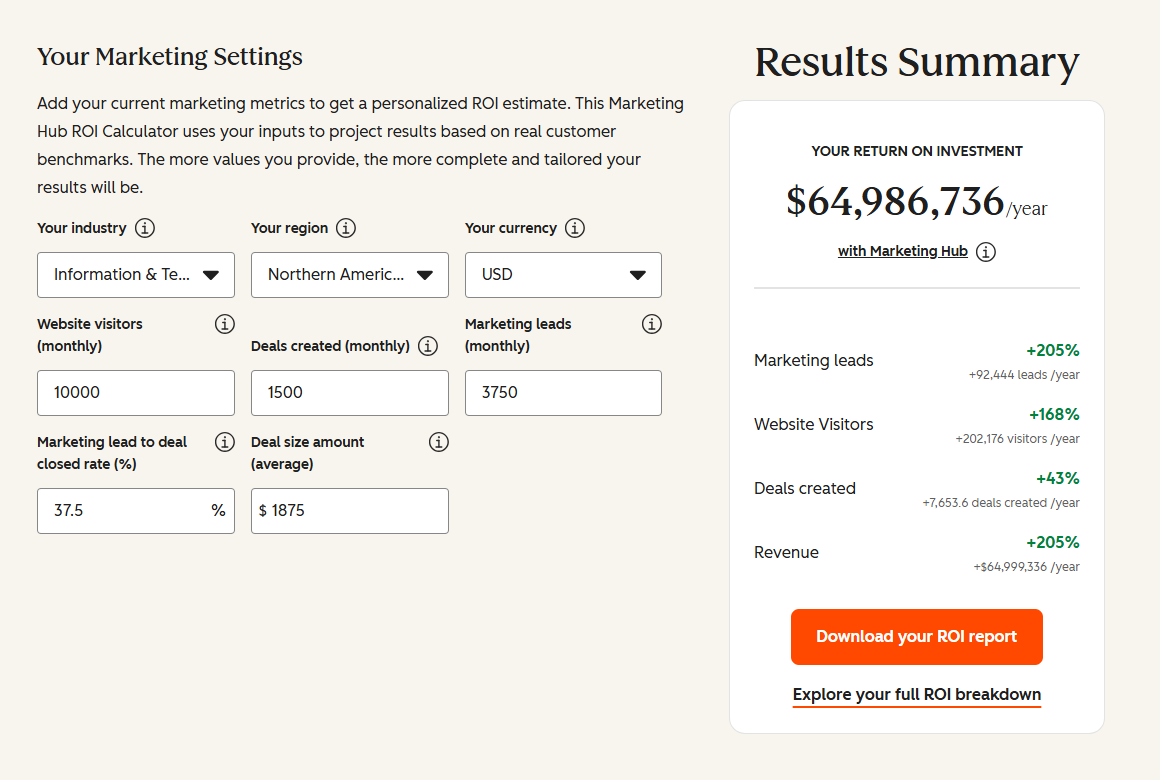
Line Items and Products: Bidirectional Sync
One of the most underused features of the HubSpot PandaDoc integration is bidirectional line item sync. When you add HubSpot deal line items (from your HubSpot Products library) to a deal, those items populate the PandaDoc pricing table automatically when a document is created from that deal. When a sales rep or customer modifies pricing in the PandaDoc document adds a quantity, applies a discount, changes a configuration those changes sync back to the HubSpot deal’s line items.
This is the foundation of CPQ (Configure, Price, Quote) automation inside HubSpot. Sales reps configure pricing in PandaDoc using the visual pricing table, and the deal value in HubSpot updates automatically to reflect the final agreed price. Finance and RevOps teams always have the correct deal value without a separate data entry step.
For teams needing deeper CPQ functionality or complex pricing logic, our custom HubSpot integration services cover CPQ builds that go beyond what the native connector supports.

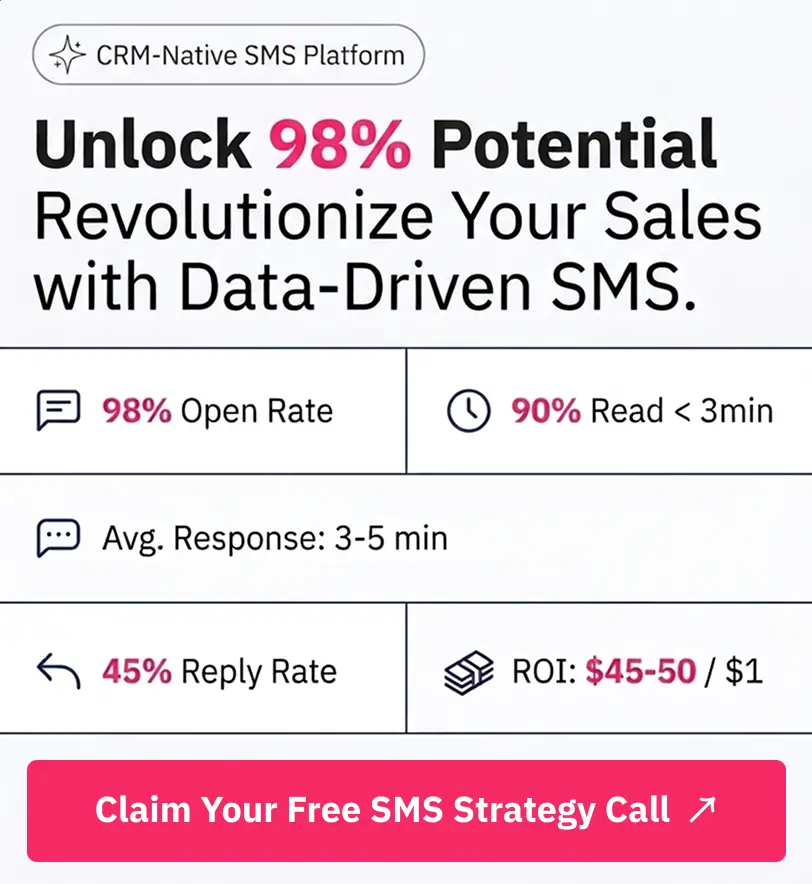
Table of Contents
- HubSpot PandaDoc Integration: Automate Proposals, Track Documents and Close Deals Faster
- What the HubSpot PandaDoc Integration Does
- How to Set Up the HubSpot PandaDoc Integration
- Automating Document Creation with HubSpot Workflows
- Updating HubSpot Deal Stage When a Document is Signed
- The Full Proposal-to-Onboarding Loop
- Line Items and Products: Bidirectional Sync