





































What is a HubSpot Gmail integration?
A HubSpot Gmail integration is a connection that logs email activity, opens, and clicks from Gmail onto HubSpot contact records, and lets reps send tracked emails, templates, and sequences using their Gmail address. It keeps communication data in Gmail visible inside HubSpot so reporting, automation, and follow-up all run from one system.
How does the HubSpot Gmail integration work?
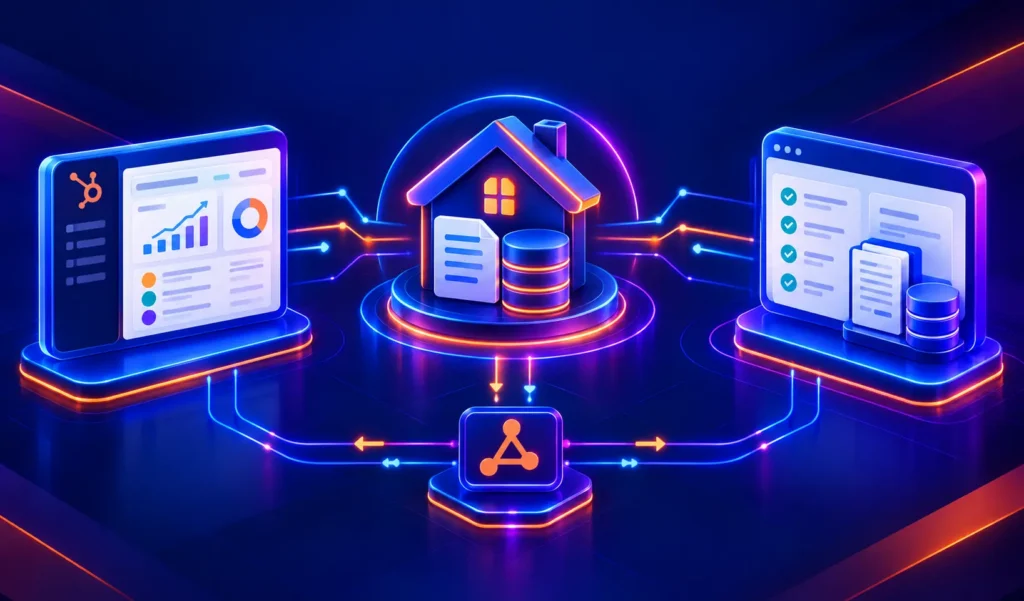
It works through the Gmail API. Connecting your inbox in HubSpot Settings authorizes HubSpot to send from your Gmail address and log replies, while the Chrome Extension or Workspace add-on places a CRM sidebar inside Gmail. Custom builds go further, applying routing rules, domain filters, and contact creation logic at the system level.
Does HubSpot have a native Gmail integration?
Yes. HubSpot’s native Gmail integration is free and connects one personal inbox per user for tracked sending, logging, and calendar sync. It cannot connect shared inboxes or Google Groups, apply custom routing logic, or create contacts by rule. Teams that need system-level email data typically move to a custom-built integration.
How long does a HubSpot Gmail integration take to build?
The native HubSpot Gmail connection takes under an hour per user. A custom Gmail integration, for shared inboxes, routing logic, or high-volume logging, takes about 8 weeks: two weeks of discovery, three of build and staging, one for historical backfill, and two for testing, cutover, and hypercare.
Can HubSpot and Gmail sync bi-directionally?
Yes. Emails sent from HubSpot appear in your Gmail sent folder, and emails sent from Gmail log to HubSpot contact records through the extension or BCC address. In a custom build, sync direction is set per data type, so Gmail owns the communication record while HubSpot owns lifecycle stage, ownership, and engagement scoring.
What data can sync between HubSpot and Gmail?
Sender and recipient details, message subject, body, timestamps, thread context, attachments, open and click events, calendar meetings, and follow-up tasks. Each Gmail data point maps to a HubSpot object: contacts, email activities, deals, tasks, and attachments. A custom integration adds field-level control so only relevant email data enters the CRM.
HubSpot Gmail Integration: All Three Setup Methods, Key Features, and Team Rollout
The HubSpot Gmail integration is one of the most-used connections in HubSpot’s ecosystem and it deserves more than a one-minute setup guide. Sales reps live in Gmail. Every time a rep switches to HubSpot to log a note, look up a contact’s deal stage, or enrol someone in a follow-up sequence, they’re losing flow and time. The integration’s real value isn’t the connection itself; it’s what it lets your team stop doing manually.
There are three distinct ways to set up the HubSpot Gmail connection, each suited to a different workflow and device environment. Picking the wrong one creates gaps particularly for mobile users and teams deploying across a whole organisation. This guide covers all three, what each actually does, and how to get the most out of it at a team level.
Three Ways to Connect HubSpot and Gmail
| Method | What It Connects | Best For | Mobile Support? |
| Personal inbox connection (HubSpot Settings) | Links your Gmail address to HubSpot’s email composer; emails sent from HubSpot use your Gmail address; open/click tracking activates | Sending tracked emails and sequences from HubSpot using your Gmail sender identity | No, desktop/web HubSpot only |
| HubSpot Sales Chrome Extension | Full CRM sidebar inside Gmail, contact record, email history, templates, sequences, meeting links inline in your inbox | Sales reps who work primarily in Gmail on Chrome desktop | No, Chrome desktop only |
| Google Workspace Marketplace Add-on | Same CRM sidebar features as Chrome Extension but works in any modern browser and in Gmail’s iOS/Android mobile app | Teams with mixed browsers, or reps who handle email on mobile | Yes, iOS and Android Gmail app supported |
Most sales teams end up using both the personal inbox connection AND the Chrome Extension together the first links the sender address and enables tracking, the second brings the CRM sidebar into Gmail.
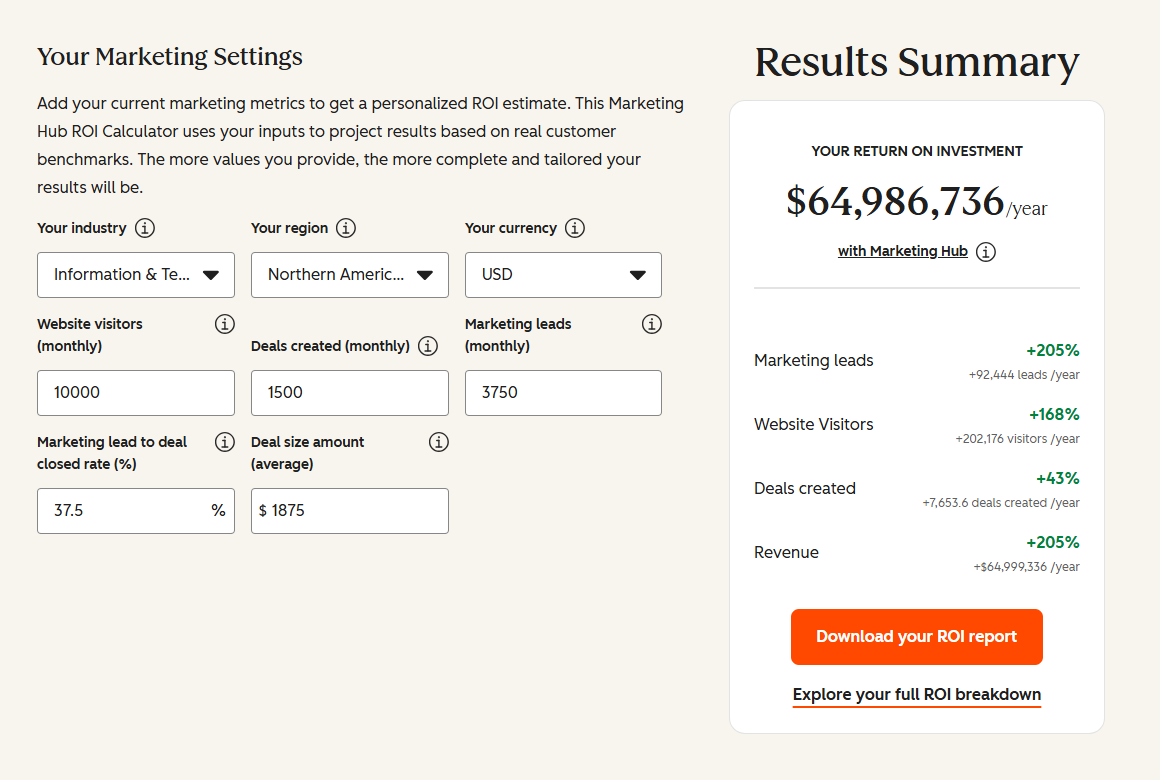
Free ROI Calculator
See your 12-month revenue impact with HubSpot CRM
Enter your current numbers — visitors, leads, deal size — and get a personalized projection based on real HubSpot customer benchmarks.

Turn HubSpot Into A Real-Time SMS Engine with Message IQ
 Two-Way Conversations
 Shared Team Inbox
 Automation Triggers
 Advanced Reporting
 Compliance Tools
- 98% SMS read within 3 min
- 78% Buy from first responder
- 21× More likely to qualify

*MessageIQ is an IntegrateIQ product – built natively for HubSpot by the same team.
Method 1: Connecting Your Gmail Inbox in HubSpot Settings
This method links your personal Gmail address to HubSpot’s email platform. Once connected, emails you send from HubSpot’s compose window go from your Gmail address and every open and click registers on the contact’s HubSpot record in real time.
- In HubSpot, go to Settings icon (top navigation) > General > Email tab.
- Click Connect personal email, then select Gmail.
- Read the permissions disclosure. HubSpot will access your Gmail data email headers, subject lines, and bodies to power logging and tracking. Click Continue.
- A Google popup prompts you to select your Gmail account and grant permissions. Click Allow.
- Your Gmail inbox is now connected. Emails sent from HubSpot’s compose window use your Gmail address as the sender.
What this enables: Send tracked emails from HubSpot using your Gmail address. Schedule sends. Log emails to contact records automatically. Real-time open and click notifications. Google Calendar sync for meetings. Sequence automation using your Gmail sender identity.
Key limitation: Connects one personal email address per user not a shared or department inbox. Users with a View-Only seat can’t connect personal email.
Method 2: HubSpot Sales Chrome Extension
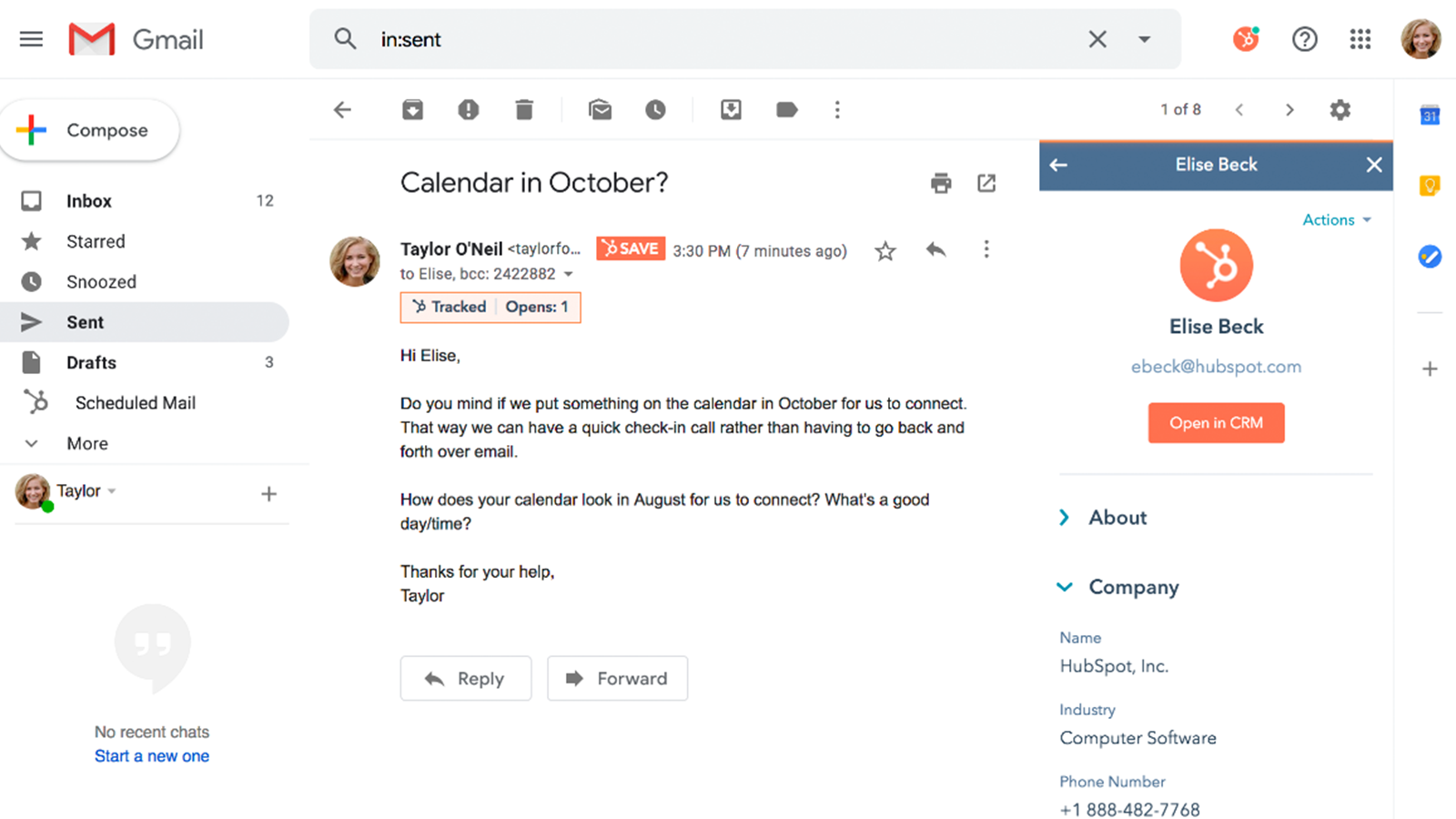
The Chrome Extension brings a HubSpot CRM sidebar directly into your Gmail inbox. For sales reps who live in Gmail on Chrome desktop, it’s the fastest way to get CRM context without ever switching tabs.
Installation
- After connecting your inbox in HubSpot Settings, you’ll see a prompt to install the Chrome Extension. Or search ‘HubSpot Sales’ directly in the Chrome Web Store.
- Log in with your HubSpot credentials.
- Open Gmail. The HubSpot panel appears in the right sidebar.
What the Extension Shows
- Contact record: Company, lifecycle stage, open deals, lead score, last activity for whoever you’re emailing
- Email history: Complete HubSpot-logged email thread with this contact
- One-click email logging: Log emails sent directly from Gmail to the HubSpot contact record with a single click
- Templates: Access your HubSpot template library in Gmail’s compose window; tokens auto-populate with contact data
- Sequences: Enrol a contact in a HubSpot follow-up sequence from Gmail requires Sales Hub Professional
- Meeting links: Insert your HubSpot booking link into any compose window
- Real-time open alerts: Desktop notification when a prospect opens your email; option to log a follow-up task immediately
Practical value: Before a follow-up call, a rep opens the email thread in Gmail. The HubSpot sidebar shows deal stage, last meeting notes, which emails the prospect opened, and their company context. No tab-switching. No CRM lookup. The context is right where the rep is working.
Method 3: Google Workspace Marketplace Add-On
For teams that don’t use Chrome, or for reps managing email on iPhone or Android, the Workspace Marketplace add-on delivers the same core CRM sidebar features as the Chrome Extension across any browser and in the Gmail mobile app.
- In Gmail, click the Google Apps grid icon (top-right) and search Google Workspace Marketplace for ‘HubSpot’.
- Find the HubSpot add-on and click Install. Grant permissions and connect your HubSpot account.
- The HubSpot panel appears in Gmail’s right sidebar on desktop and in the Gmail mobile app.
Admin deployment: Google Workspace administrators can deploy the add-on to every user in the organisation from Google Admin console in a single action. This is the correct rollout path for sales teams of 20+ reps far faster than asking each rep to install individually. The Chrome Extension has no equivalent bulk deployment.
HubSpot Gmail Email Tracking: How It Works and Its Limits
When you send an email from HubSpot using your connected Gmail address, HubSpot inserts a tracking pixel. When the recipient opens the email:
- Open time and date records on the contact’s HubSpot timeline
- Number of opens (repeat opens show as additional events)
- Link clicks and which specific links were clicked
Limitation: Tracking pixels can be blocked. Apple Mail’s Mail Privacy Protection pre-loads images including tracking pixels which registers false opens. Gmail’s image caching can do the same. Use open tracking as a directional signal, not a hard fact. Click tracking is more reliable since it requires the recipient to actually interact with a link.
Deliverability in 2026: Why Bulk Sender Rules Matter for HubSpot-Gmail Sequences
Tracking accuracy is one problem. Whether your emails arrive at all is a separate, bigger one, and it has changed significantly since 2024.
As of November 2025, Google, Yahoo, and Microsoft fully enforce bulk sender rules for any domain sending 5,000 or more emails to Gmail addresses within 24 hours. This classification happens at the domain level, not per mailbox, so a sales team’s combined HubSpot sequence volume across every connected Gmail account can cross that threshold even if no individual rep sends anywhere near 5,000 emails themselves. Non-compliant domains no longer just get routed to spam; they receive permanent rejection, a 550 error, meaning the email never arrives at all.
Compliance requires three things: SPF, DKIM, and DMARC authentication with the From-domain properly aligned to the domain validated by SPF or DKIM (a record existing isn’t enough if alignment fails); a spam complaint rate kept under 0.3%, with 0.1% as the practical target providers actually expect; and a functioning one-click unsubscribe through List-Unsubscribe email headers, which is different from an unsubscribe link in the footer.
A specific, common trap directly relevant to HubSpot users: SPF has a hard limit of 10 DNS lookups. Companies running HubSpot alongside other sending tools, Klaviyo, Salesforce, and Zendesk are common combinations, frequently exceed that limit without realizing it, which causes SPF to fail silently across every tool sending from that domain, not just the one that pushed it over the limit. SPF flattening or subdomain delegation resolves this, but it requires deliberate DNS architecture review, not something HubSpot configures automatically when you connect Gmail.
- Domain-Level Bulk Sender Threshold Monitoring. Track aggregate sending volume across the whole team’s connected Gmail accounts, not just individual reps, since Google evaluates sending at the domain level.
- SPF Record Consolidation Across Multiple Sending Tools. Audit every tool sending from your domain, HubSpot included, against the 10-DNS-lookup limit before it causes a silent, hard-to-diagnose deliverability failure.
- DMARC Alignment Verification, Not Just Record Existence. Confirm the From-domain actually aligns with the SPF- or DKIM-validated domain; a DMARC record that exists but doesn’t align provides false confidence and still gets rejected.
- Spam Rate Monitoring via Google Postmaster Tools. Set up Postmaster Tools to track complaint rate against the sub-0.3% ceiling, ideally sub-0.1%, so a deliverability problem surfaces before reply rates quietly collapse.
- List-Unsubscribe Header Implementation for Sequence Sends. Confirm HubSpot sequences sent through a connected Gmail address include a functioning List-Unsubscribe header, not just a footer link, since bulk sender rules require the header-level mechanism specifically.
Running HubSpot Sequences from Gmail
With the Chrome Extension or Workspace add-on active, you can enrol a contact in a HubSpot email sequence directly from your Gmail inbox. The sequence runs in the background sending personalised follow-ups on a set schedule, pausing automatically when the contact replies. Sequences require Sales Hub Professional or higher. This is the most commonly missed plan requirement teams that set up the extension and then can’t find the sequence button are usually on Starter.
The key advantage of enrolling from Gmail: you’re in the conversation context already. You read an email, decide the prospect needs a nurture sequence, and enrol them in 15 seconds without opening HubSpot.
Google Calendar Sync with HubSpot
Connecting Gmail also activates Google Calendar sync with HubSpot. Meetings scheduled in HubSpot appear on your Google Calendar automatically. Meetings booked through a HubSpot meeting link (shared with prospects) land in both calendars simultaneously and log as activities on the contact record in HubSpot.
BCC Logging: The Gmail to HubSpot Fallback
Some emails get sent directly from Gmail rather than through HubSpot’s compose window quick replies, emails on mobile before the add-on is set up, emails from a personal device. For these, BCC logging is the fallback: HubSpot generates a unique BCC address per user (Settings > General > Email). Add it to any Gmail message and HubSpot logs that email to the matching contact record automatically.
Gmail Integration Team Rollout: What Actually Drives Adoption
- Start with the Chrome Extension or Workspace add-on, not the inbox connection alone. The sidebar’s immediate value seeing a contact’s deal stage and email history inline in Gmail drives adoption faster than explaining the inbox sync abstractly.
- Build a shared email template library before launch. The biggest daily time-saver from the Gmail integration isn’t tracking it’s pre-built templates that pull contact tokens. Build 10-15 core templates before rollout so reps have something to use from day one.
- Set selective logging, not ‘log everything’. Logging every email creates noise in HubSpot. Configure preferences to log emails connected to contacts already in HubSpot, not all personal email.
- Sequences are a Sales Hub Pro feature don’t promise them to Starter users. Manage expectations before rollout or you’ll spend time on support tickets from reps who can’t find the sequence button.
- Use Google Admin for company-wide add-on deployment. Don’t ask each rep to install manually. Deploy the Workspace Marketplace add-on to everyone from Google Admin console in one step.
See your 12-month revenue impact with HubSpot CRM
Enter your current numbers — visitors, leads, deal size — and get a personalized projection based on real HubSpot customer benchmarks.
Calculate My ROI
Native Connector vs. Custom: When HubSpot Gmail Needs More
The native HubSpot Gmail integration is a personal productivity tool it works per-user, not at a system level. For teams with advanced requirements, the native connection has limits:
- It can’t sync a team or shared Gmail inbox (Google Groups, shared inboxes) to HubSpot only personal addresses
- It doesn’t create HubSpot contacts from inbound emails automatically that requires Zapier or a custom workflow
- Complex email routing logic (e.g., route inbound emails from specific domains to specific HubSpot owners automatically) requires additional automation
For these scenarios, our custom HubSpot integrations team can scope the right architecture. See how our process works.

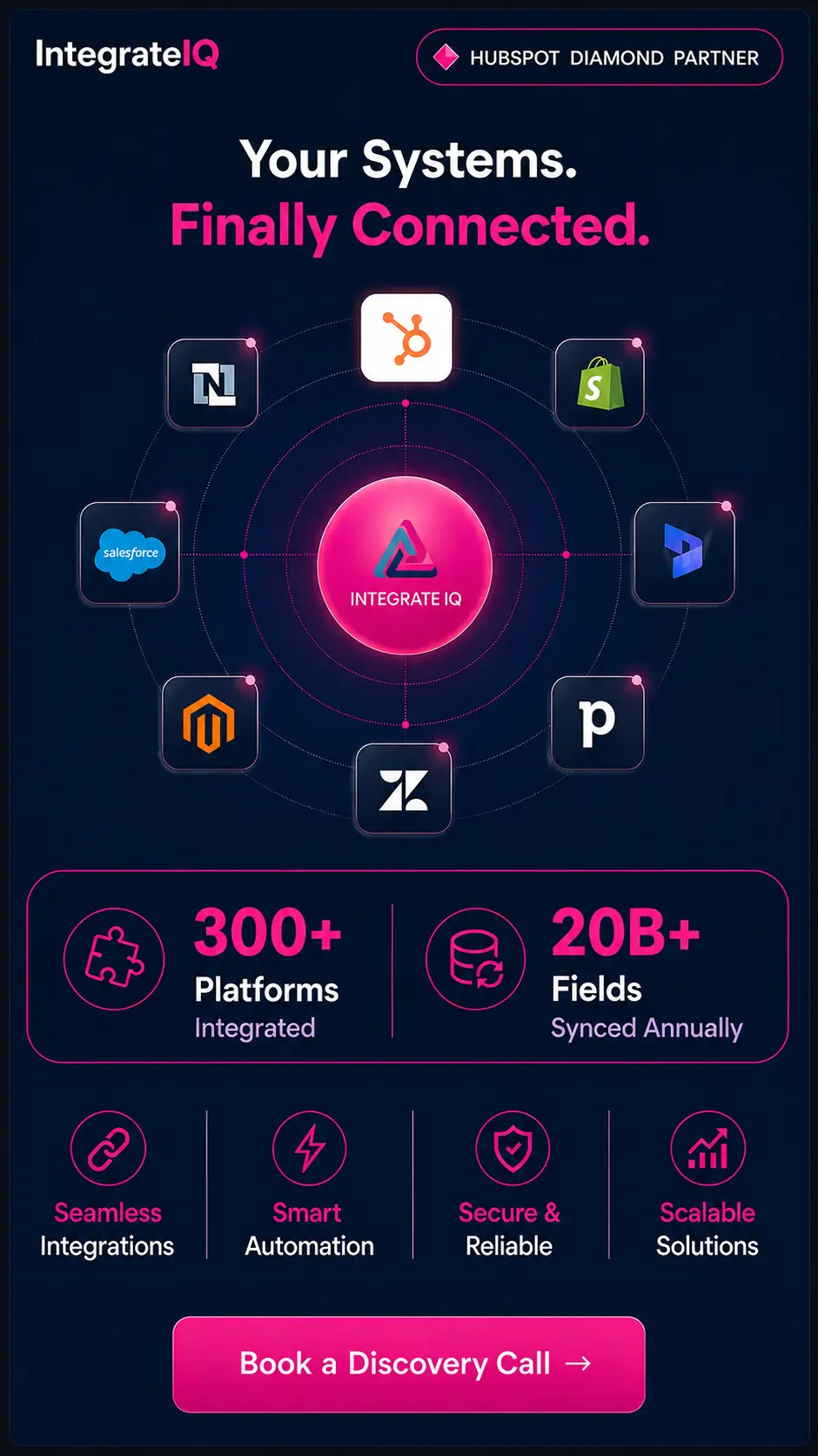
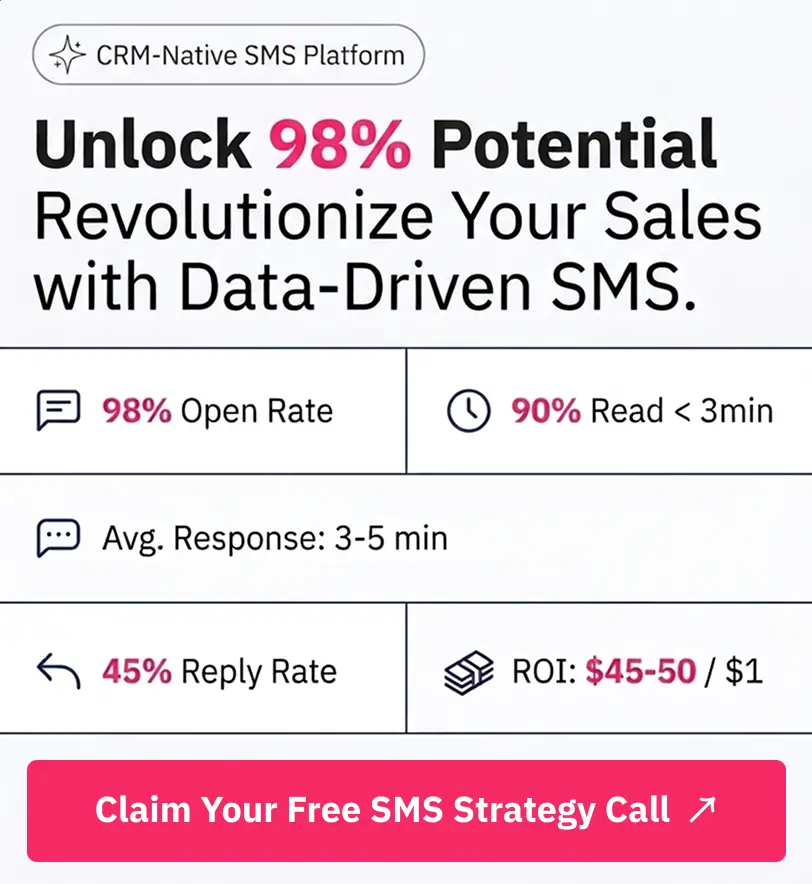
Table of Contents
- What is a HubSpot Gmail integration?
- How does the HubSpot Gmail integration work?
- Does HubSpot have a native Gmail integration?
- How long does a HubSpot Gmail integration take to build?
- Can HubSpot and Gmail sync bi-directionally?
- What data can sync between HubSpot and Gmail?
- HubSpot Gmail Integration: All Three Setup Methods, Key Features, and Team Rollout
- Three Ways to Connect HubSpot and Gmail
- Method 1: Connecting Your Gmail Inbox in HubSpot Settings
- Method 2: HubSpot Sales Chrome Extension
- Method 3: Google Workspace Marketplace Add-On
- HubSpot Gmail Email Tracking: How It Works and Its Limits
- Deliverability in 2026: Why Bulk Sender Rules Matter for HubSpot-Gmail Sequences
- Running HubSpot Sequences from Gmail
- Google Calendar Sync with HubSpot
- BCC Logging: The Gmail to HubSpot Fallback
- Gmail Integration Team Rollout: What Actually Drives Adoption
- Native Connector vs. Custom: When HubSpot Gmail Needs More