



























HubSpot PhoneBurner Integration: What Works, What Breaks, and How to Set It Up Right
The HubSpot PhoneBurner integration is a native connector in HubSpot’s App Marketplace and for its core use case, it delivers. PhoneBurner dials contacts at 60-80 per hour, drops voicemails in one click, sends outcome-based emails automatically, and logs all of it to HubSpot contact records. For US-based outbound sales teams grinding through high call volumes, that’s a meaningful productivity gain.
Where teams hit friction is bidirectional field sync for custom properties. The HubSpot Community thread on the PhoneBurner integration is titled ‘PhoneBurner Integration is a Flaming Pile of Garbage’ written by a sales ops professional who ended up building 49 workflows to get 6 properties to sync bidirectionally, with incomplete results. That’s a real risk to flag before committing to the setup.
We’re Integrate IQ, a HubSpot Diamond Solutions Partner with custom integration accreditation. This guide covers what the native integration actually does, the friction points worth knowing about, and how PhoneBurner compares to the main alternatives.
What PhoneBurner Is
PhoneBurner is a power dialer for outbound sales teams. Reps load a contact list, launch a dial session, and PhoneBurner handles the dialing no waiting for rings, no manual number entry. When a call connects, the rep talks. When it goes to voicemail, one click drops a pre-recorded message and the dialer moves to the next contact. Between calls, PhoneBurner automatically sends outcome-based emails.
The result: a rep can reach 60-80 contacts per hour versus 15-20 with manual dialing.
PhoneBurner also includes ARMOR Answer Rate Monitoring, Optimization, and Remediation which monitors caller IDs for spam labelling and rotates numbers to protect answer rates. It supports up to 5 simultaneous lines and includes a built-in CRM. One important constraint: PhoneBurner dials US and Canadian numbers only.
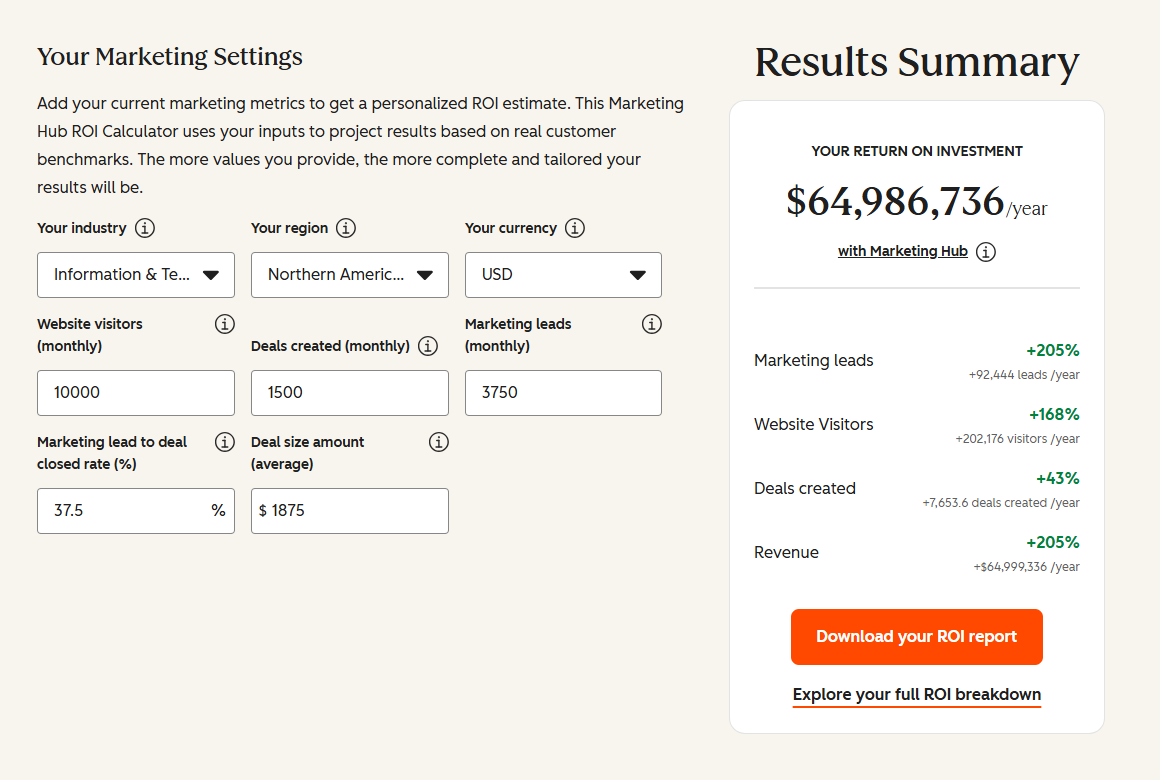
Free ROI Calculator
See your 12-month revenue impact with HubSpot CRM
Enter your current numbers — visitors, leads, deal size — and get a personalized projection based on real HubSpot customer benchmarks.

Turn HubSpot Into A Real-Time SMS Engine with Message IQ
 Two-Way Conversations
 Shared Team Inbox
 Automation Triggers
 Advanced Reporting
 Compliance Tools
- 98% SMS read within 3 min
- 78% Buy from first responder
- 21× More likely to qualify

*MessageIQ is an IntegrateIQ product – built natively for HubSpot by the same team.
What the Native HubSpot Integration Does
The native PhoneBurner HubSpot connector installs from HubSpot’s App Marketplace and creates a 2-way sync between the two platforms:
| Feature | Direction | What It Enables |
| Contact sync | Bidirectional | Contacts created or updated in either system sync to the other reps dial from PhoneBurner with current HubSpot contact data |
| Call activity logging | PhoneBurner to HubSpot | Every call logs automatically on the HubSpot contact record date, duration, outcome, notes no manual logging |
| Voicemail drop | PhoneBurner action | Pre-recorded voicemails dropped in one click, logged to HubSpot contact as a call activity |
| Outcome-based email sends | PhoneBurner action, HubSpot logs | Emails triggered automatically by call disposition (e.g., Left voicemail sends follow-up email) activity logged in HubSpot |
| HubSpot workflow triggers from dispositions | PhoneBurner to HubSpot | Call outcomes in PhoneBurner can trigger HubSpot workflows lifecycle stage updates, task creation, sequence enrollment |
Setup takes minutes: install from HubSpot Marketplace, connect both accounts from PhoneBurner’s Integration Settings page, map fields, and import contacts into PhoneBurner from HubSpot lists.
The Bidirectional Field Sync Problem
This is the issue that trips up teams with complex HubSpot setups. The native PhoneBurner integration syncs standard contact fields cleanly. For custom properties proprietary lead status values, custom call outcomes, territory fields the bidirectional sync requires HubSpot workflows to push updates from one system to the other. For simple setups with a handful of custom properties, this is manageable. For teams with many custom properties and complex field dependencies, the workflow requirement multiplies quickly.
The root cause: PhoneBurner’s integration doesn’t use HubSpot’s Operations Hub Data Sync it uses a webhook-and-workflow mechanism where each field update triggers a corresponding HubSpot workflow action. For 6 custom fields synced bidirectionally, you may need 12 or more workflows (one per direction per field), plus error handling for conflicts.
How to Reduce the Workflow Count
- Limit custom field sync scope: Only sync the fields you’ll actively use for filtering, workflow enrollment, or reporting in HubSpot. Don’t try to mirror every PhoneBurner field.
- Use HubSpot Operations Hub Data Sync where possible: For contact-level standard field sync, Operations Hub Data Sync handles it without individual workflows. The pain is specific to custom properties and call outcome fields.
- Design dispositions before setup: Map your PhoneBurner call dispositions to HubSpot lifecycle stage or deal stage values before installing the integration. Retroactively remapping after setup is significantly more work.
- Consider a custom integration for complex setups: For teams with many custom properties, a custom integration built on PhoneBurner’s API and HubSpot’s API handles the full field sync logic without the workflow multiplication problem.
Key Limitations
| Limitation | Detail |
| US and Canada only | PhoneBurner dials US and Canadian numbers exclusively. International teams cannot use it for non-US/CA outbound calling. |
| Complex custom field sync requires many workflows | Bidirectional sync for custom properties requires HubSpot workflows per field per direction multiplies quickly for complex setups. |
| PhoneBurner’s built-in CRM can create source-of-truth confusion | PhoneBurner has its own CRM. Teams using HubSpot as primary CRM must configure the integration so HubSpot stays the source of truth, not the reverse. |
| No parallel dialing (up to 5 lines, not true parallel) | PhoneBurner supports up to 5 simultaneous lines but is not a true parallel dialer like Orum or Salesfinity, which can dial 6-10+ lines simultaneously. |
| Call outcome notes not updatable directly in HubSpot activity log | You can create custom HubSpot properties to capture PhoneBurner call notes, but native HubSpot call activity log entries can’t be directly updated by PhoneBurner. |
PhoneBurner vs Kixie vs Aircall for HubSpot
| Factor | PhoneBurner | Kixie | Aircall |
| HubSpot Marketplace rating | 4.4/5 | 4.6/5 (highest rated) | 4.3/5 |
| Dialing speed | 60-80 contacts/hour | Up to 10 lines parallel | Standard power dialing |
| International calling | US and Canada only | US/Canada + international | 40+ countries |
| Native HubSpot field sync quality | Good for standard fields; complex for custom properties | Strong native sync; click-to-call from HubSpot | Good native integration; requires setup |
| Spam protection | ARMOR active monitoring and number rotation | Basic caller ID management | Basic |
| Best for | High-volume US outbound teams who need speed and ARMOR protection | SMB teams wanting click-to-call inside HubSpot with strong integration | Teams needing international calling with solid CRM logging |
For enterprise teams running large inside sales operations, we also build custom integrations for HubSpot Talkdesk integration and HubSpot RingCentral integration contact centre platforms with deeper call routing and reporting architecture.
See your 12-month revenue impact with HubSpot CRM
Enter your current numbers — visitors, leads, deal size — and get a personalized projection based on real HubSpot customer benchmarks.
Calculate My ROI
When a Custom Integration Adds Value
The native PhoneBurner connector is the right starting point for most teams. A custom integration makes sense when:
- Your team has many custom HubSpot contact properties that need bidirectional sync with PhoneBurner and the workflow multiplication problem is creating maintenance overhead
- You need to route inbound PhoneBurner calls to specific HubSpot deal owners based on territory or account assignment logic
- Call outcome data needs to map to complex HubSpot deal stage updates with conditional logic that the native connector can’t handle
- You’re running PhoneBurner alongside multiple other calling tools and need a unified activity logging layer in HubSpot
We’re a HubSpot Diamond Solutions Partner with custom integration accreditation. 55 million fields synced daily. 98.5% client retention rate. Most builds go live in 8 weeks. See how our integration process works.
Setting Up the PhoneBurner HubSpot Integration: Quick Steps
For teams starting fresh, here is how the native connector installs:
- In HubSpot, go to the App Marketplace and search for PhoneBurner. Click Install App and follow the authorisation prompts.
- In PhoneBurner, log in and go to the Integration Settings page. Click the HubSpot logo and connect your account. This activates the sync from the PhoneBurner side.
- Map your contact fields: match HubSpot contact properties to their PhoneBurner equivalents. Standard fields (name, email, phone, company) map by default. Custom properties require manual mapping.
- Import your HubSpot contacts into PhoneBurner by going to Contacts > Import, upload from HubSpot, and map the Record ID to HubSpot CRM ID for deduplication.
- Launch a dial session. Call activity logs to HubSpot automatically once the session completes.
One configuration worth setting up from the start: if your team uses Zoom meetings or internal calls through Zoom, ensure your company email domain is added to exclusion lists so internal activity does not create unwanted CRM records. For teams also managing meeting scheduling, our HubSpot Calendly integration guide covers how meeting bookings and call follow-ups can work in parallel.
PhoneBurner and HubSpot Source of Truth
PhoneBurner includes its own built-in CRM a useful feature for teams that want to run outreach entirely within the dialer. For teams using HubSpot as their primary CRM, this creates a configuration decision: which system is the source of truth for contact data? The recommended setup for HubSpot-primary teams is to treat HubSpot as the master record and configure sync direction accordingly. Contact record updates should flow from HubSpot to PhoneBurner, not the reverse. Call activity and outcomes flow from PhoneBurner to HubSpot. This keeps HubSpot as the authoritative contact database while PhoneBurner handles the dialing layer.