












Explore this article with AI:
Broken HubSpot integrations share one frustrating trait: they often fail silently. No alert fires, no workflow throws an obvious error, and no one on your team notices until a sales rep asks why a lead that came in last Tuesday still shows no activity in HubSpot. By then, days of data are missing, your automation ran on stale records, and figuring out what broke takes longer than it should.
Fixing a broken HubSpot integration starts with understanding what actually breaks and where to look for it. The root causes fall into a predictable set: field mapping mismatches, expired OAuth tokens, permissions gaps, duplicate records blocking sync, API rate limit exhaustion, and conflict rules silently overwriting data. Each one has a specific diagnostic path and a specific fix.
We’ve processed over 20 billion records annually across 300+ platform integrations as a HubSpot Diamond Solutions Partner with custom integration accreditation. The failure patterns repeat. This guide covers the ones we see most often, where to find the evidence in HubSpot’s own tooling, and how to fix them so they stay fixed.
Free estimator
Know what your HubSpot project costs before the first call.
Select your services and get a transparent price range in minutes. No sales call needed to get a number.
Connect HubSpot to your ERP, billing platform, or database field mapping, custom logic, and support included.
Pipelines, workflows, email templates, and reporting configured for how your team actually works.
Live, role-based sessions with recordings and written guides built around a custom plan for your team.
HubSpot Partner
Client retention
Platforms integrated
What a Broken HubSpot Integration Actually Looks Like
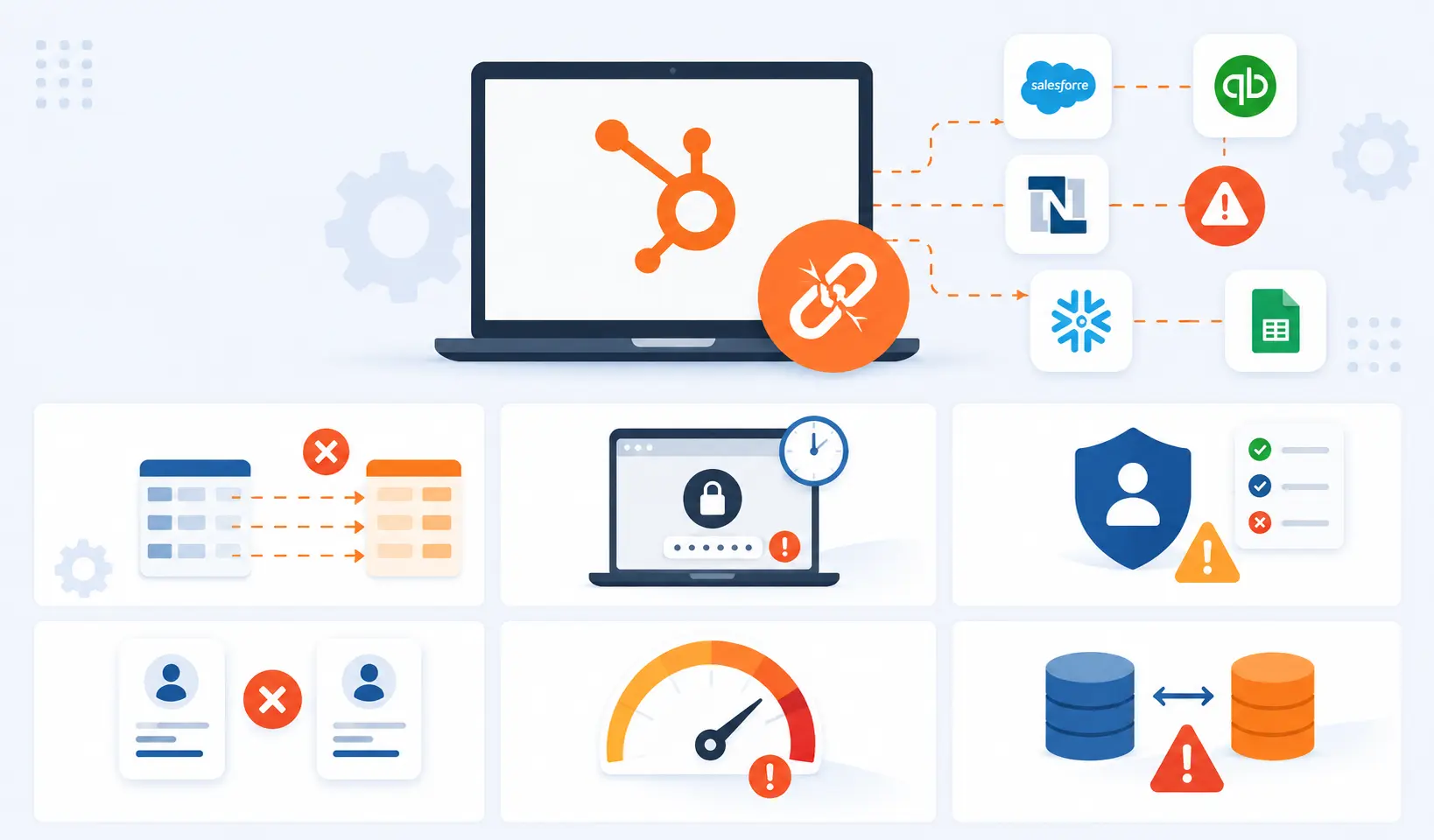
Before jumping to fixes, get clear on what’s happening. Broken integrations don’t always announce themselves. These are the most common symptoms your team will notice first:
- Contact records in HubSpot aren’t updating when changes happen in the connected system (Salesforce, NetSuite, a ChMS, an ERP)
- Workflows are triggering on outdated property values because the integration stopped syncing days ago
- Duplicate contact or company records appearing in HubSpot from the same source system
- Deal stages in HubSpot not reflecting opportunity stages in Salesforce or your ERP
- Automation emails going to the wrong people because list membership is built on stale data
- Reports showing numbers that don’t match what your source system shows
- A connected app showing “Connected” in HubSpot’s settings but not actually syncing any records
That last one is particularly dangerous. A “Connected” status only confirms that the authentication handshake is valid. It says nothing about whether individual records are actually syncing. An integration can look healthy at the app level while throwing errors on hundreds of records underneath.
Where to Look First: HubSpot’s Sync Health Tools
HubSpot gives you two main places to investigate integration failures before you start digging into the connected system.
Connected Apps Sync Health
Go to Settings > Integrations > Connected Apps, then open the specific integration and find the Sync Health tab. This shows you a count of sync errors, the categories of error types, and which records are affected. Two numbers matter here: the error event count (how many times an error occurred) and the affected record count (how many unique records have a problem). Don’t prioritize by event count. Prioritize by records affected.
HubSpot lets you filter errors by type and export the affected record list. Export it. The error categories map directly to the fix each one needs, which the sections below cover.
API Usage Dashboard
Go to Reports > Integrations > API Usage. This shows your daily API call consumption across all connected tools. If you’re hitting the ceiling consistently, that’s your rate limit problem manifesting. Look for spikes that correspond to times when sync failures started. High call volumes from a single integration often mean it’s retrying failed calls, which compounds the problem.
Workflow Enrollment History
For automation failures, open the specific workflow and check its enrollment history. HubSpot shows which contacts enrolled, when, and whether they completed or got stuck at a specific action. A workflow that’s stopped enrolling new contacts entirely usually points to a property-based trigger that’s no longer receiving updated values, which means the integration feeding that property has gone quiet.

Turn HubSpot Into A Real-Time SMS Engine with
Message IQ

Two-Way Conversations

Shared Team Inbox

Automation Triggers

Advanced Reporting

Compliance Tools
-
98%
SMS read within 3 min -
78%
Buy from first responder -
21×
More likely to qualify
3–5 min avg response
$45–$50 ROI / $1

*MessageIQ is an IntegrateIQ product – built natively for HubSpot by the same team.
The Six Root Causes of Broken HubSpot Integrations
1. Field Mapping Mismatches
Field mapping errors are the most common integration failure we diagnose. They happen when a property type in HubSpot doesn’t match the field type in the connected system. A dropdown property in Salesforce won’t sync cleanly to a plain text property in HubSpot. A multi-select in HubSpot can’t map to a single-select in your ERP. A number field in one system mapped to a text field in another causes the sync to reject values or silently drop them.
These errors often get caught during initial setup. What catches teams off guard is that they resurface when someone adds a new required field to Salesforce or your ERP after the integration was configured. HubSpot doesn’t know about that new field. Records that hit that field during sync fail, and nobody configured an alert for it.
How to fix it: Pull your field mapping configuration from the Connected Apps settings. Check each mapped pair for type compatibility: dropdowns to picklists, number to number, checkbox to boolean. For Salesforce specifically, HubSpot maintains a compatibility chart. For custom integrations, check the field type definitions in both APIs. Remap mismatched pairs and re-sync the affected records.
2. Expired OAuth Tokens
OAuth tokens are what let a connected app prove its identity to HubSpot’s API on every call. HubSpot issues short-lived access tokens (valid for roughly 30 minutes) backed by longer-lived refresh tokens. When the refresh token expires or gets revoked, the integration loses its ability to re-authenticate, and sync stops completely.
What causes token revocation: a team member manually disconnecting and reconnecting the app, a change in the app’s OAuth scopes after the initial authorization, a password change on the HubSpot account that was used to authenticate the integration, or HubSpot’s security heuristics flagging unusual token behavior. Some of these happen without anyone realizing the downstream impact.
How to fix it: Go to Settings > Integrations > Connected Apps and look for any app showing a reauthorization prompt. Follow the reconnect flow. For custom integrations built on HubSpot’s API, check your token management logic: the integration should request a new access token using the refresh token before each call if the current token is within 60 seconds of expiry. A 401 error response on an API call is the signal that the token is expired. Don’t retry on 401. Re-authenticate, then retry the original call.
3. Permissions Gaps
HubSpot integrations authenticate through a specific user account or a dedicated integration user. If that user lacks permission to read or write a particular field or object, the sync silently skips or fails on records that touch that field. In Salesforce integrations, this surfaces as an “Insufficient access or missing record” error in the sync health report.
Permissions gaps frequently emerge after org changes: a team member’s Salesforce account that was used as the integration user gets deactivated when they leave the company, a new custom object gets created in the connected system with restricted field-level security, or someone tightens a validation rule that now blocks the integration user’s writes.
How to fix it: Create a dedicated integration user account in both HubSpot and the connected system. Give it a descriptive name (hubspot-integration@yourcompany.com). Grant it full read/write access to every object and field the integration needs. Never tie your integration to a named employee’s account. For Salesforce specifically, assign the integration user a dedicated Profile and Role with full object visibility, then check field-level security on any field throwing permissions errors.
4. Duplicate Records Blocking Sync
HubSpot deduplicates contacts by email address. One email address, one contact record. Salesforce allows multiple Lead and Contact records for the same person. When HubSpot tries to sync a Salesforce record and finds a duplicate email in its own database, the sync throws an error and neither record updates. Both stay stale.
This gets worse with multiple integrated tools. If Outreach, a marketing automation platform, and Salesforce all push records to HubSpot, the same person can arrive through three channels with slightly different email formatting (test@company.com vs TEST@Company.com), creating three separate contact records that all block each other’s future syncs.
How to fix it: Run HubSpot’s deduplication tool under Contacts > Actions > Manage Duplicates. Merge records based on email address first, then company domain. In Salesforce, align your duplicate management rules to match HubSpot’s email-based deduplication logic before re-enabling the sync. For organizations running multiple tools that push to HubSpot, define which system owns contact creation and suppress record creation in the others.
5. API Rate Limit Exhaustion
HubSpot enforces API call limits per day and per 10-second window. Salesforce has its own daily API call ceiling shared across every connected tool. When a high-volume sync, a bulk import, or a retry loop from a failing integration consumes the daily limit, subsequent calls queue up, fail, or get dropped entirely until the limit resets at midnight UTC.
Rate limits are a structural problem, not a configuration error. They show up in growing organizations where data volume has outpaced the original integration design. Bulk updates processed overnight, a marketing team running large list imports, and an ERP pushing invoice updates all competing for the same API quota will eventually hit the ceiling.
How to fix it: Check your API usage dashboard for daily consumption trends. If you’re consistently above 80% of your limit, you need to reduce call volume or increase your allocation. Tactical fixes: implement selective sync (only sync records that match specific criteria rather than your entire database), batch API calls where the API allows it, spread bulk updates across multiple days instead of running them overnight in one shot, and use HubSpot’s webhook subscriptions instead of polling for changes.
6. Conflict Rules and Data Overwrites
Conflict rules define which system wins when both sides have updated the same field. If your conflict rules are misconfigured or absent, data flip-flops between values every time the sync runs. A deal stage that keeps resetting to a previous value, a contact property that undoes manual updates, a company record that won’t hold its correct address: these are all conflict rule failures.
HubSpot’s native connectorslet you set sync direction per field: always use HubSpot, always use the connected system, or use most recently updated. Custom integrations need this logic built explicitly. When it’s missing, the integration defaults to last-write-wins, and whichever system synced most recently overwrites the other, regardless of which had the correct value.
How to fix it: Document which system owns each data type. Salesforce owns opportunity data; HubSpot owns marketing engagement data. Configure conflict rules to reflect actual ownership. For Salesforce integrations specifically: set Salesforce as the authority for deal/opportunity stage, deal amount, and close date. Set HubSpot as the authority for lifecycle stage, lead source, and marketing properties. Test with a small record batch before applying changes broadly.
Quick-Reference Diagnosis: Match Your Symptom to the Fix
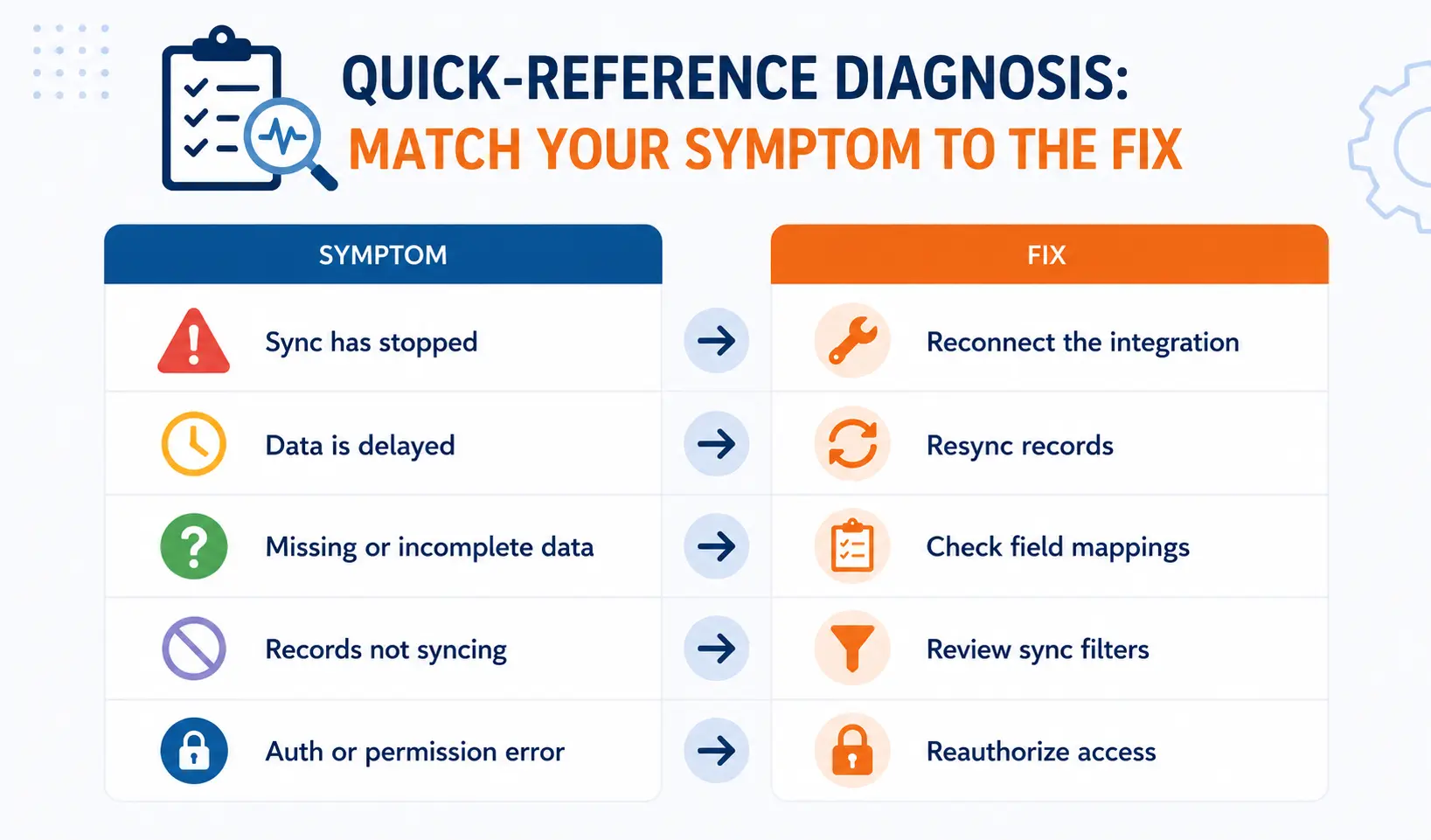
| Symptom | Likely Root Cause | First Place to Check |
| Records not updating in HubSpot | OAuth expiry or permissions gap | Settings > Connected Apps > Sync Health |
| Data flip-flopping between two values | Missing or wrong conflict rules | Field-level sync direction settings |
| Duplicate contacts multiplying | Multi-tool record creation without dedup rules | Contacts > Manage Duplicates |
| Workflows firing on wrong contacts | Stale property values from broken sync | Workflow enrollment history + sync health |
| Integration shows Connected but nothing syncs | OAuth token revoked or rate limit hit | API Usage dashboard + token status |
| Specific field never syncs correctly | Field type mismatch in mapping | Field mapping configuration in Connected Apps |
| Sync works sometimes but not others | API rate limit exhaustion | Reports > Integrations > API Usage |
| Records fail only for certain users | Permissions gap on integration user | Integration user field-level security |
When the Native Connector Is the Problem, Not the Configuration
Most broken HubSpot integrations trace back to configuration errors. Some trace back to the native connector’s fundamental design limitations. Knowing the difference saves hours of debugging the wrong thing.
Native marketplace connectors are built for standard use cases with predictable data structures. They handle contact, company, and deal sync for most common scenarios. They break down when your data model has custom objects the connector wasn’t built for, when you need real-time bidirectional sync that the connector handles with 30-minute polling intervals, when you’re managing high data volumes that consistently hit rate ceilings, or when your business logic requires field transformations that the connector doesn’t support.
The tell is when you’ve checked every configuration setting, fixed every error in the sync health report, and the integration still produces wrong data or drops records. That’s the native connector hitting its design ceiling. At that point, the fix is an architectural one: move to a custom API integration built specifically around your data model and business rules.
Custom integrations give you full control over field mapping logic, sync frequency, error handling with retry queues, conflict resolution, and monitoring. They’re more work to build, but they don’t fail for the same reasons native connectors do. We deliver custom integration projects in eight weeks from kickoff, and they handle the data complexity that marketplace apps weren’t designed for. We’ve processed over 55 million fields synced daily across these types of builds.
How to Prevent HubSpot Integration Failures Before They Happen
Fixing a broken integration is reactive. Building one that doesn’t break is a design decision made at the start. These are the practices that separate integrations that stay reliable from ones that need constant maintenance.
- Use a dedicated integration user account in every connected system. Never authenticate through a named employee’s account. When they leave or change their password, your integration breaks silently.
- Document your field mapping decisions in a shared reference document. Include field type on both sides, sync direction, conflict rule, and the owner who made the decision. When someone adds a new field to Salesforce six months later, they need to check this doc before assuming the integration handles it.
- Set up sync error notifications in HubSpot’s Connected Apps settings. Daily digest alerts give enough visibility without being noisy. Weekly is too slow; you want to know within 24 hours when records start failing.
- Run a monthly sync health review. Open the Sync Health report for each connected app, check the error count trend, and investigate any new error categories. Most integration decay is gradual. A monthly review catches it before it becomes a crisis.
- Test before deploying changes to either system. A new validation rule in Salesforce, a new required field in your ERP, or a schema change in a connected database can break a working integration. Test integration behavior in a sandbox before pushing changes to production.
- Implement selective sync from day one. Don’t sync your entire database if you only need specific record types flowing between systems. Use inclusion lists or filter criteria to limit sync scope. Less data moving means fewer failures and better API limit headroom.
Frequently Asked Questions
Why does my HubSpot integration show Connected but not sync any records?
A Connected status only confirms that the OAuth authentication is valid. Individual records can still fail to sync for field mapping, permissions, picklist value mismatch, or duplicate record reasons. Open the Sync Health tab inside your Connected App settings to see the actual error categories and which records are affected. The authentication status and the sync health status are two separate things.
How do I find out which records are failing to sync in HubSpot?
Go to Settings > Integrations > Connected Apps, open the relevant integration, and navigate to the Sync Health tab. HubSpot shows a breakdown of error types and lets you filter by category. You can export the list of affected records for each error type. Prioritize by the number of records affected, not the number of error events. One record can generate multiple error events, so event count overstates the actual scope of the problem.
What causes HubSpot data to keep resetting to old values?
This is a conflict rule failure. When both HubSpot and the connected system have updated the same field, and no conflict rule defines which system wins, the integration defaults to last-write-wins. Whichever sync runs most recently overwrites the other. Fix it by explicitly configuring field-level sync direction in your integration settings: choose which system owns each field and set it to always use that system’s value. For custom integrations, this logic needs to be built into the integration code itself.
Why do HubSpot sync errors cause duplicate records?
HubSpot deduplicates contacts by email address. If the same person exists in your connected system with slight variations in their email (capitalization differences, a second email address, or a formatting inconsistency), HubSpot creates separate contact records instead of recognizing them as the same person. Multiple tools pushing the same contacts to HubSpot through separate integrations compounds this. Fix duplicates through HubSpot’s deduplication tool, then align duplicate management rules in the connected system to match HubSpot’s email-based deduplication before re-enabling the sync.
When should I replace a native HubSpot connector with a custom integration?
Move to a custom integration when you’ve resolved every configuration issue and the native connector still produces unreliable data. Specific triggers: your data model includes custom objects the connector wasn’t built for, you need real-time sync and the connector polls every 30 minutes, you’re consistently hitting API rate limits despite reducing sync scope, or your business logic requires field transformations the connector doesn’t support. Native connectors are the right starting point for standard use cases. Custom integrations are the right architecture when your requirements have outgrown what a marketplace app can reliably handle.
How long does it take to fix a broken HubSpot integration?
Configuration fixes (field mapping corrections, OAuth re-authentication, permissions updates, conflict rule changes) typically resolve in hours to a few days depending on the scope of affected records. Data cleanup after a prolonged sync failure (merging duplicates, correcting stale values, re-enrolling affected contacts in workflows) can take one to two weeks. Full integration rebuilds for situations where the native connector has hit its limits run eight weeks from project kickoff, covering requirements, development, testing, and data migration.
What’s the most common reason HubSpot integrations break after working fine for months?
The most common delayed failure is a change in the connected system that nobody flagged to the integration owner. A new required field added to Salesforce, a validation rule tightened in your ERP, a deactivated user account that was authenticating the integration, or a schema change in a connected database. Integrations don’t randomly stop working; something changes. When an integration breaks after a period of stable operation, the first question is always: what changed in either system in the past two to four weeks?
See your 12-month revenue impact with HubSpot CRM
Enter your current numbers — visitors, leads, deal size — and get a personalized projection based on real HubSpot customer benchmarks.
Still Getting Errors After Working Through the Fixes?
Some integration failures are configuration problems you can resolve in an afternoon. Others reveal that the native connector isn’t built for what your data actually requires, and no amount of reconfiguration changes that. If you’ve worked through the diagnosis steps above and your integrations still drop records, produce stale data, or throw errors you can’t trace, the architecture needs a proper review.
We’ve built and repaired HubSpot integrations across 300+ platforms, processing over 20 billion records annually with a 98.5% client retention rate. We can audit your current integration setup, identify whether the issue is a fixable configuration problem or a structural one, and scope what a proper build looks like. Most integration projects go live in eight weeks. Start the conversation at contact us or learn how we approach integration architecture at HubSpot integration process .

Table of Contents
- What a Broken HubSpot Integration Actually Looks Like
- Where to Look First: HubSpot's Sync Health Tools
- The Six Root Causes of Broken HubSpot Integrations
- Quick-Reference Diagnosis: Match Your Symptom to the Fix
- When the Native Connector Is the Problem, Not the Configuration
- How to Prevent HubSpot Integration Failures Before They Happen
- Frequently Asked Questions
- Why does my HubSpot integration show Connected but not sync any records?
- How do I find out which records are failing to sync in HubSpot?
- What causes HubSpot data to keep resetting to old values?
- Why do HubSpot sync errors cause duplicate records?
- When should I replace a native HubSpot connector with a custom integration?
- How long does it take to fix a broken HubSpot integration?
- What's the most common reason HubSpot integrations break after working fine for months?
- Still Getting Errors After Working Through the Fixes?