













Explore this article with AI:

A HubSpot API data mismatch happens when the data you read through the API doesn’t match what the HubSpot UI shows, or what a connected system expects to receive. The fix almost always traces to one of four things: the API speaks in internal property names and values while the UI shows friendly labels, a property type doesn’t match the value you’re sending, a date or enumeration value is formatted wrong, or you’re reading a record before a write finished propagating. You can confirm most of them with a single call to the property schema endpoint.
What a HubSpot API data mismatch is: An API data mismatch is any discrepancy between the data HubSpot stores, the data its API returns, and the data a connected application reads or writes. It differs from an outright API failure. A mismatch often returns a clean 200 response while still putting the wrong value on a record, which makes it harder to catch than a request that errors out loud.
We build and maintain these integrations as a HubSpot Diamond Solutions Partner with custom integration accreditation, and API data mismatches are one of the most common reasons a working integration quietly starts producing wrong data. This guide is the HubSpot API data mismatch fix playbook we actually use: how to diagnose the mismatch, the specific fixes for every common case, how to prevent mismatches at the source, and how to tell when a mismatch is really a symptom of a deeper architecture problem.
Free estimator
Know what your HubSpot project costs before the first call.
Select your services and get a transparent price range in minutes. No sales call needed to get a number.
Connect HubSpot to your ERP, billing platform, or database field mapping, custom logic, and support included.
Pipelines, workflows, email templates, and reporting configured for how your team actually works.
Live, role-based sessions with recordings and written guides built around a custom plan for your team.
HubSpot Partner
Client retention
Platforms integrated
What a HubSpot API Data Mismatch Actually Is
A HubSpot API data mismatch covers several distinct problems that look alike from the outside. Group them by type and the fix becomes obvious, because each category has a different root cause and a different owner.
- Schema mismatches. A property exists in one place and not another, or its type changed after your integration was built.
- Representation mismatches. The API speaks in internal names and values. The UI shows labels. Same data, different surface, and your code reads the wrong one.
- Value mismatches. The value you send isn’t a valid option, isn’t the right type, or isn’t formatted the way HubSpot expects.
- Timing mismatches. You read a record before a write finished propagating, so the API hands you the old value.
- Partial-write mismatches. A batch request succeeded for most records and silently failed for a few.
Naming the category first saves hours. A representation mismatch is a five-minute mapping fix. A schema mismatch after a HubSpot release means versioning your integration. A timing mismatch isn’t a data problem at all. Diagnosing without categorizing is how teams patch the same mismatch three times and never fix it.
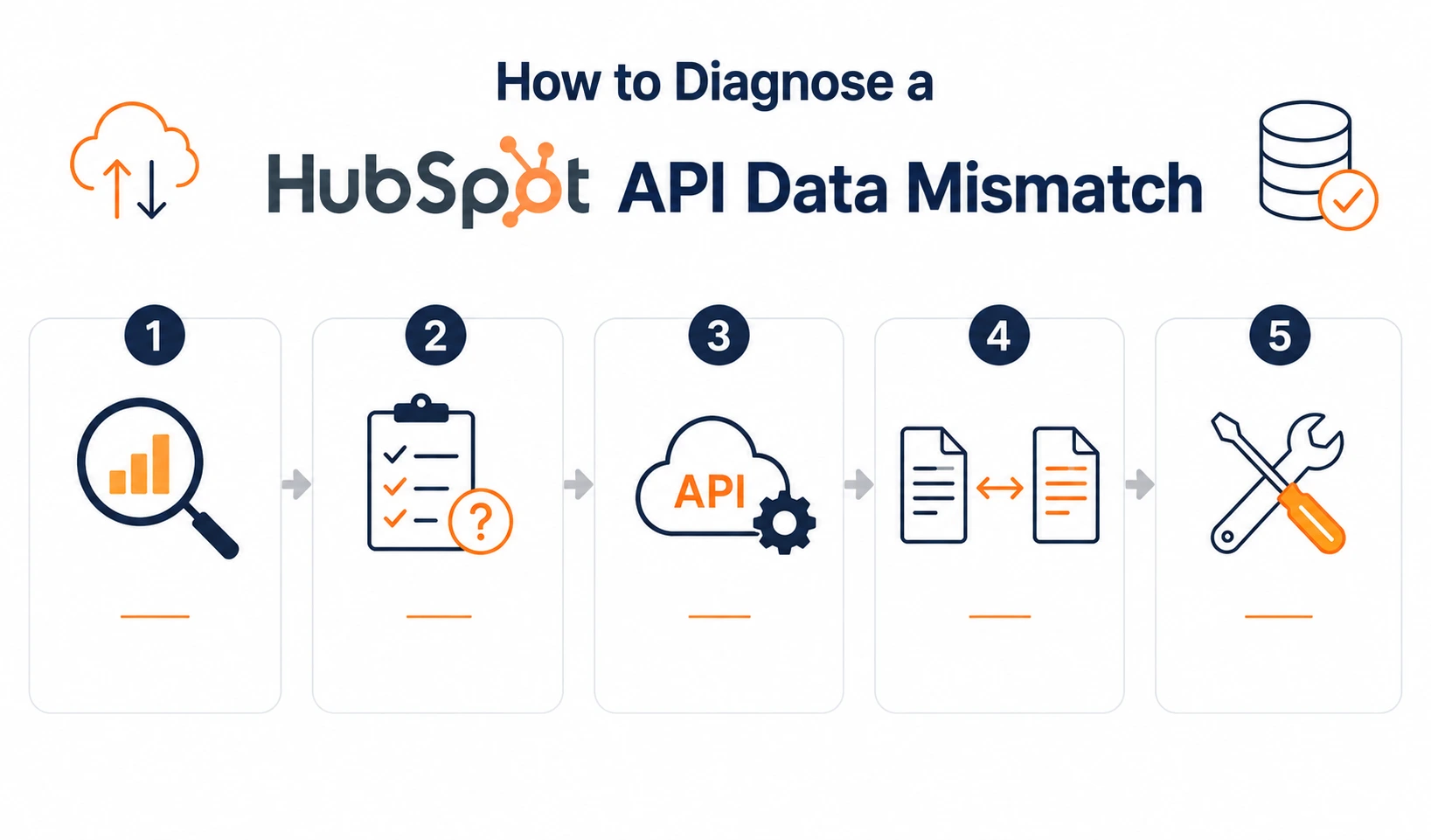
How to Diagnose a HubSpot API Data Mismatch
Run these checks in order. They move from the fastest, most common cause to the deepest, so you isolate the category before you change a line of code.
- Reproduce against the property schema. Call the properties endpoint for the object you’re working with. It returns every property’s internal name, type, fieldType, and option set. Compare what you’re sending to what the schema actually defines. The majority of mismatches die right here.
GET https://api.hubapi.com/crm/v3/properties/{objectType}
- Inspect the raw API response, not your parsed object. Log the actual JSON HubSpot returned. A value that looks wrong in your application may be perfectly correct in the response, which moves the bug into your own deserialization code rather than HubSpot’s.
- Read the error context fields. HubSpot’s CRM object APIs return a structured error with message, code, and context fields. The context names the exact property and the exact reason a value was rejected. Parse it, don’t just log the status code.
- Check internal value against display label. For enumeration properties, the API expects the internal value, not the label a user sees in the UI. Pull the options array from the schema and confirm which one your code is sending.
- Add objectWriteTraceId on batch writes. Include a unique objectWriteTraceId for each input and enable multi-status responses. The response then groups results by status and tells you exactly which records failed and why.
- Check the call log and rate-limit headers. HubSpot’s call log shows recent API activity, and the X-HubSpot-RateLimit headers tell you how close you are to the ceiling. A throttled call can return partial or incomplete data that reads as a mismatch.
- Re-read after a short delay. If the value comes back correct on a second read a few seconds later, you have a propagation timing mismatch, not a data integrity problem. That distinction changes the entire fix.
By the end of these seven steps you know the category. Now apply the matching fix below.

Turn HubSpot Into A Real-Time SMS Engine with
Message IQ

Two-Way Conversations

Shared Team Inbox

Automation Triggers

Advanced Reporting

Compliance Tools
-
98%
SMS read within 3 min -
78%
Buy from first responder -
21×
More likely to qualify
3–5 min avg response
$45–$50 ROI / $1

*MessageIQ is an IntegrateIQ product – built natively for HubSpot by the same team.
The Most Common HubSpot API Data Mismatches and How to Fix Them
Most HubSpot API data mismatches fall into nine recurring cases. Here’s what each one looks like in practice and exactly how to fix it.
A Property Appears in the API but Not in the HubSpot UI
This is one of the most-searched mismatch scenarios. The properties endpoint returns labels like “Industry Group” or “Employee Range,” and nobody can find them in Data Management. Three causes account for almost all of it. The property sits inside a property group your team isn’t looking at. The property is HubSpot-defined or hidden, so it doesn’t appear in the standard custom-property view. Or the account has hit its custom property limit, so a new property couldn’t be created and your code is reading a different or stale one.
The fix: search property settings by internal name rather than label, confirm whether the property is hidden or HubSpot-defined, and check the live custom property count against your plan’s limit.
Internal Values vs Display Labels
This is the single most common representation mismatch. A dropdown property shows “Enterprise” in the UI, but its internal value is something like “tier_3” or “ENT.” Send the human-readable label through the API and HubSpot either rejects it or stores nothing usable.
The fix: always read the options array from the property schema and write the internal value, never the label. Build a label-to-internal-value map in your integration code and refresh it from the schema. Hardcoding the label is how this mismatch gets shipped to production.
Type Mismatch Errors
A single-line text property mapped to a number field, or a HubSpot picklist mapped to an open-text field in a connected system. Sending letters into a number property, or an unmapped value into an enumeration, triggers errors or silent data loss. HubSpot’s own Salesforce connector raises this explicitly as a Type mismatch error when the property type and the field type are not compatible.
The fix: confirm property type and fieldType match on both sides before you map anything. Text maps to text, number to number, enumeration to enumeration with aligned option sets. If a platform move keeps surfacing these, our Salesforce-to-HubSpot migration work reconciles every field type before import.
Date and Datetime Mismatches
HubSpot stores date properties as midnight UTC and expects either epoch milliseconds or an ISO 8601 string. Send a local-time date, or a value carrying a time component into a date-only property, and the record lands a day off. This is the quietest mismatch on the list, because the value looks almost right and passes a casual review.
The fix: normalize every date to UTC midnight before sending it. For datetime properties, send a full ISO 8601 timestamp in UTC. Test explicitly with timezones on both sides of the international date line, because that’s where the off-by-one-day bug hides.
VALIDATION_ERROR: Property Values Were Not Valid
HubSpot returns a VALIDATION_ERROR category with a message such as “value was not one of the allowed options” or “field name value is invalid.” The value reached HubSpot but failed a validation rule: a picklist value that isn’t a defined option, an email address that isn’t a valid format, or an unsupported character in a text field.
The fix: validate before you send. Check email and phone formats, confirm every enumeration value against the live option set, and strip characters HubSpot won’t accept. Validation at the form or application layer prevents the bad value from ever reaching the API.
PROPERTY_DOESNT_EXIST
The API returns PROPERTY_DOESNT_EXIST when you write to a property name that isn’t in the schema. The usual culprits are a typo in the internal name, a display label used where an internal name belongs, or a property that was deleted or renamed after your integration shipped.
The fix: pull the live property schema at deploy time and validate every property name your integration writes against it. Treat a missing property as a build-time failure, not a runtime surprise.
Multi-Select and Checkbox Formatting
Multi-select properties accept multiple internal values separated by a semicolon. Boolean checkbox properties accept only the strings “true” or “false.” Send “yes,” “Yes,” or a comma-separated list and HubSpot rejects the write or stores a single value.
The fix: join multi-select values with a semicolon, and confirm each value exactly matches an internal option including punctuation and casing. Convert booleans to the literal strings “true” and “false” before the call.
Stale Reads and Propagation Lag
You write a value, immediately read the record back, and get the old value. HubSpot’s API is not always read-your-write consistent, and the search endpoints in particular lag behind direct object reads while indexes update.
The fix: don’t read straight after a write just to confirm it. Trust the write response. If you genuinely need to verify, read the object directly by its ID rather than through a search query, and allow a short delay. A timing mismatch fixed as a data mismatch wastes real engineering time.
Partial Failures in Batch Endpoints
A batch create or update returns a 200, and a few records still didn’t write. Without multi-status responses enabled, those failures are invisible, and the mismatch hides inside what looks like a successful batch.
The fix: enable multi-status responses by including a unique objectWriteTraceId for every input in the batch. HubSpot then groups the results by status and names each failed record with its error, so no failure can disappear into an aggregate success.
Use this table as a fast lookup when a value comes back wrong:
| Mismatch type | What you see | The fix |
|---|---|---|
| Property in API, not in UI | Schema returns a label nobody can find | Search by internal name; check hidden/HubSpot-defined; check property limit |
| Internal value vs label | Write rejected or stores nothing | Write the internal value from the options array, not the label |
| Type mismatch | Type mismatch error; data loss | Align property type and fieldType on both sides |
| Date off by a day | Record lands on the wrong date | Normalize to UTC midnight; send ISO 8601 in UTC |
| VALIDATION_ERROR | “Value was not one of the allowed options” | Validate format and enumeration values before sending |
| PROPERTY_DOESNT_EXIST | Write fails on a property name | Validate property names against the live schema at deploy |
| Multi-select / boolean | Only one value stored, or rejected | Semicolon-separate values; use “true”/”false” strings |
| Stale read | Old value returned right after a write | Trust the write response; read by ID, not search |
| Batch partial failure | 200 response, records missing | Enable multi-status with objectWriteTraceId |
How to Fix HubSpot API Data Mismatches at the Source
The fastest HubSpot API data mismatch fix is the one you never have to make, because the integration was built so the mismatch can’t happen. Here’s how we build integrations that hold their data integrity over time.
- Pull the property schema, don’t assume it. Fetch the properties endpoint at deploy time and on a schedule. Validate every property name, type, and option set your code depends on. A schema that changed underneath your integration is the root of most schema mismatches.
- Version your schema mapping. Keep an explicit, versioned map of internal names, types, and option sets. When HubSpot or the connected system changes a field, you update the map in one place instead of hunting through scattered code.
- Validate before every write. Check formats, enumeration values, and required properties before the API call. HubSpot’s own guidance is to validate data before sending, because a value caught at your layer never becomes a record-level mismatch.
- Use trace IDs and idempotent writes. Apply objectWriteTraceId on batch writes and key your upserts on a stable identifier. You always know what wrote, what didn’t, and you can safely retry without creating duplicates.
- Handle rate limits deliberately. Standard HubSpot accounts allow 100 requests per 10 seconds. Respect the Retry-After header, apply exponential backoff for 429 and 5xx responses, and batch requests where the endpoint supports it. A throttled call that returns partial data is a mismatch waiting to surface.
- Log every request and response. Centralized logging keyed by request ID turns a vague “the data looks wrong” report into a five-minute investigation. HubSpot’s developer portal lets you correlate logs by request ID to trace a specific write.
- Reconcile on a schedule. Run a nightly job that compares record counts and key field values between HubSpot and the connected system. Scheduled reconciliation catches drift before a sales rep or a finance lead does.
Our HubSpot integration services team builds every connector this way. We sync millions of fields a day for clients, and the integrations stay accurate because the schema is validated, versioned, and reconciled rather than assumed.
Native Connector vs Custom API Integration: Where Mismatches Come From
Where your data mismatch originates depends on how the integration was built, and the two main approaches fail in different ways. Knowing which one you’re on tells you how much control you have over the fix.
| Factor | Native connector / iPaaS | Custom API integration |
|---|---|---|
| Mismatch visibility | Hidden behind a mapping UI; surfaces as opaque sync errors | Every field exposed in your own logs |
| Control over the fix | Limited to what the connector exposes | Full control of mapping and transformation |
| Schema change handling | Vendor decides; you wait for an update | You version, test, and ship it yourself |
| Setup speed | Fast, configuration-driven | Slower, engineering-driven |
| Best fit | Standard objects, moderate volume | Complex schemas, custom objects, real-time needs |
| Mismatch prevention ceiling | Capped by the connector’s options | As thorough as you build it |
Use a native connector or an iPaaS tool when the objects are standard, the volume is moderate, and the connector exposes the mappings you need. It’s fast and needs little maintenance.
Use a custom API integration when you need control over exactly how every field maps, transforms, and validates. That control is the only way to fully close off the mismatches in this guide. Our full-stack development team builds custom HubSpot integrations with schema versioning and validation built in from day one.
Decision trigger: If you keep hitting the same data mismatch and the native connector won’t let you change the mapping or transformation that causes it, you’ve outgrown the connector. That’s the point to move to a custom API integration.
When an API Data Mismatch Points to a Deeper Problem
Honest scoping saves money, so here’s where a mismatch isn’t a bug to patch. It’s a symptom of something structural.
- Recurring mismatches after every HubSpot release. Your integration assumes a frozen schema. The fix is schema versioning and change-log monitoring, not another patch on the symptom.
- The same field mismatches across thousands of records. A mapping or transformation rule is wrong at the design level. Fixing records one batch at a time treats the output, not the cause.
- Mismatches that appear only at high volume. Rate limiting is corrupting writes under load. The integration needs a queue, backoff, and possibly a rearchitecture rather than a settings change.
- HubSpot and an ERP disagreeing on the same customer. When HubSpot and a system like NetSuite hold different values for the same record, the two data models were never reconciled. That’s an architecture conversation. Our HubSpot and NetSuite integration work starts with the data model precisely to prevent this.
Saying this plainly is the difference between an integration you can trust and one that generates a new mismatch ticket every week. We turn down patch-only scopes when the real fix is structural, because a connected system you can’t trust costs more than the rework. Our client integration case studies show what the structural fix looks like in practice.
Frequently Asked Questions
Why does the HubSpot API show a property I can’t find in the UI?
The property is usually inside a property group you aren’t viewing, or it’s a HubSpot-defined or hidden property that doesn’t appear in the standard custom-property list. It can also mean the account hit its custom property limit. Search property settings by the internal name the API returned rather than the display label, and check your plan’s property count.
What causes a HubSpot API type mismatch error?
A type mismatch happens when the HubSpot property type and the value or connected field type are not compatible, such as sending text into a number property or mapping a picklist to an open-text field. Confirm the property type and fieldType match on both sides before mapping, and align enumeration option sets so values transfer cleanly.
Why is my date one day off after syncing through the HubSpot API?
HubSpot stores date properties as midnight UTC. If you send a local-time date or a value with a time component, the record can land on the wrong day. Normalize every date to UTC midnight before sending it, and use a full ISO 8601 timestamp in UTC for datetime properties.
How do I fix “property values were not valid” from the HubSpot API?
That VALIDATION_ERROR means the value reached HubSpot but failed a rule, such as a picklist value that isn’t an allowed option or an email in an invalid format. Read the error context to find the exact property, then validate the value against the live property schema and the expected format before you send the request.
Why does the HubSpot API return old data right after I update a record?
HubSpot’s API is not always read-your-write consistent, and search endpoints lag behind direct object reads while indexes update. Trust the write response instead of reading immediately to confirm it. If you must verify, read the object directly by ID and allow a short delay rather than querying through search.
How do I catch records that fail inside a successful batch request?
Enable multi-status responses by including a unique objectWriteTraceId for each input in the batch. HubSpot then groups results by status and names every failed record with its specific error, so a partial failure can’t hide inside a 200 response.
Can a native HubSpot connector cause data mismatches?
Yes. Native connectors and iPaaS tools hide field mapping behind a UI, so type and option mismatches surface as opaque sync errors you can’t always fix. If a connector won’t let you change the mapping causing the mismatch, a custom API integration gives you the control to resolve it.
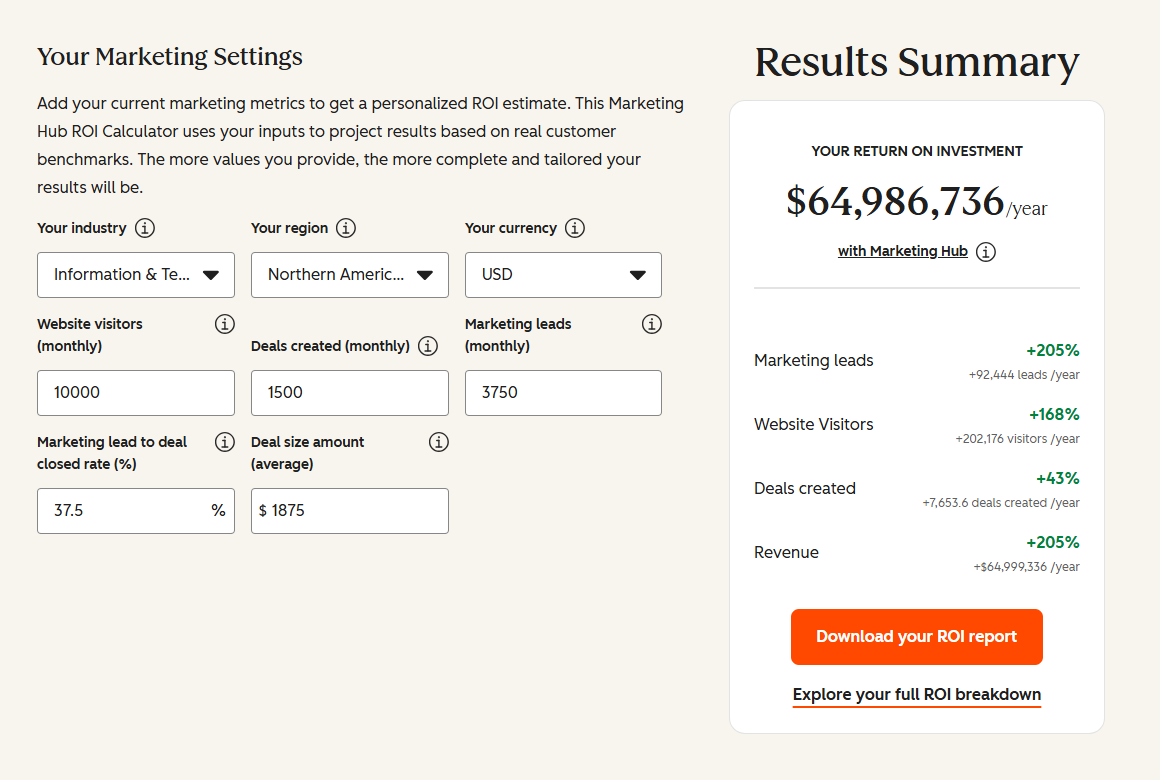
See your 12-month revenue impact with HubSpot CRM
Enter your current numbers — visitors, leads, deal size — and get a personalized projection based on real HubSpot customer benchmarks.
Resolve the Mismatch at the Root, Not the Symptom
If your HubSpot API data mismatch keeps coming back after every patch, the integration assumes a schema it doesn’t control, and the real fix is structural. We’ve connected 300-plus systems to HubSpot as a Diamond Solutions Partner with custom integration accreditation, and we sync millions of fields a day for clients whose CRM, ERP, and marketing data has to agree. Our 98.5% client retention rate comes from building integrations that validate, version, and reconcile their data instead of hoping it stays aligned.
See how we scope and build on our HubSpot integration process page, or book a HubSpot integration audit and we’ll trace your API mismatches to their root cause. Most integration projects go live in about 8 weeks from kickoff.


Table of Contents
- What a HubSpot API Data Mismatch Actually Is
- How to Diagnose a HubSpot API Data Mismatch
- The Most Common HubSpot API Data Mismatches and How to Fix Them
- A Property Appears in the API but Not in the HubSpot UI
- Internal Values vs Display Labels
- Type Mismatch Errors
- Date and Datetime Mismatches
- VALIDATION_ERROR: Property Values Were Not Valid
- PROPERTY_DOESNT_EXIST
- Multi-Select and Checkbox Formatting
- Stale Reads and Propagation Lag
- Partial Failures in Batch Endpoints
- How to Fix HubSpot API Data Mismatches at the Source
- Native Connector vs Custom API Integration: Where Mismatches Come From
- When an API Data Mismatch Points to a Deeper Problem
- Frequently Asked Questions
- Resolve the Mismatch at the Root, Not the Symptom