

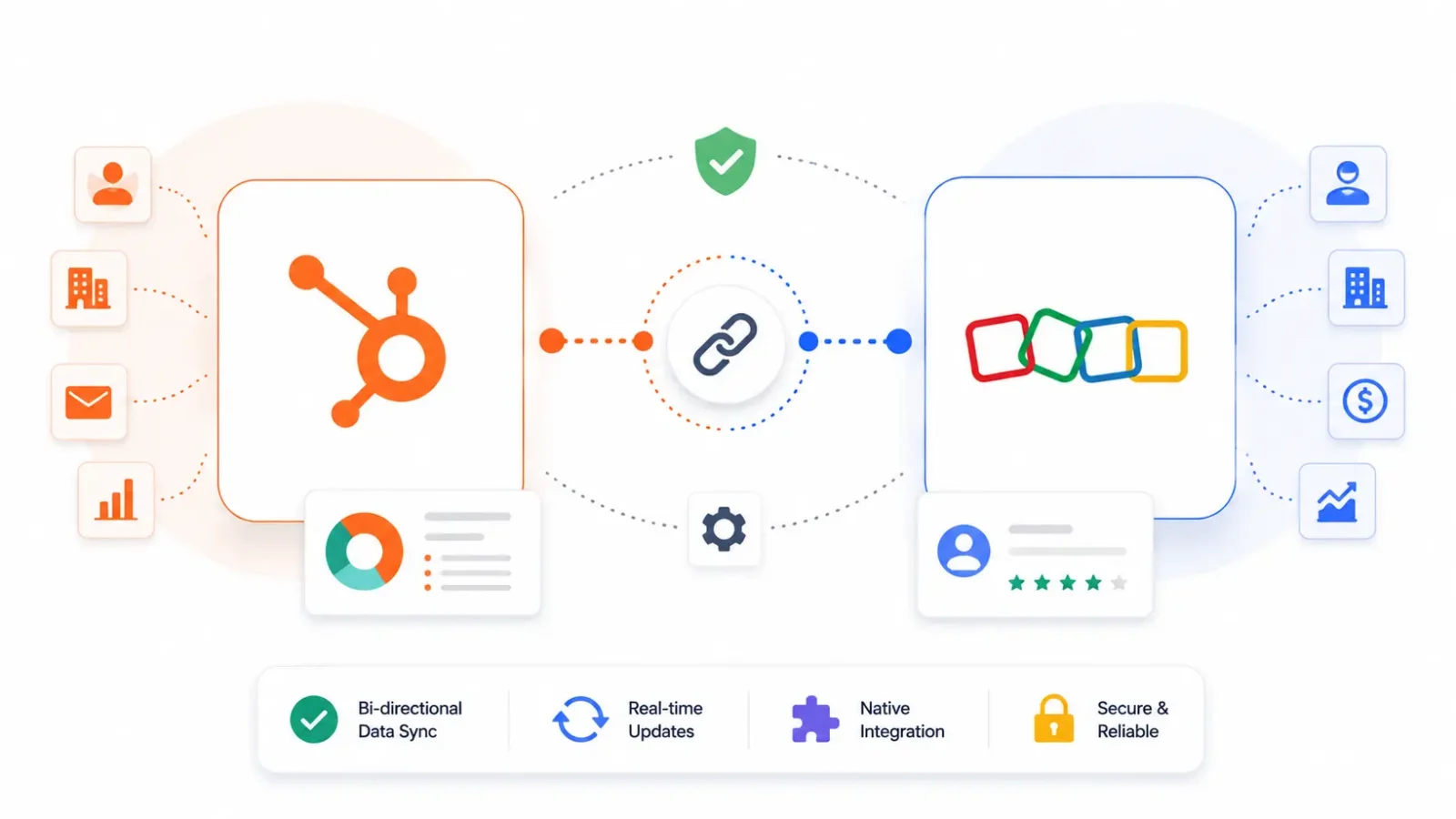
The ‘HubSpot Zoho integration‘ question lands differently depending on which direction you’re coming from. Some teams run Zoho CRM for sales and want HubSpot’s marketing automation on top. Some are deep inside the Zoho One suite CRM, Desk, Books, Campaigns, Analytics and need HubSpot to sit alongside some of those apps rather than replace them. And a growing number of teams have already decided to move off Zoho and want to understand what a proper Zoho to HubSpot migration actually involves.
A HubSpot Zoho integration connects one or more Zoho apps to HubSpot so data flows between them without manual re-entry. A Zoho to HubSpot migration moves your CRM data permanently into HubSpot’s object model and retires Zoho as your system of record. These are different problems. The integration path is messier than most teams expect because Zoho’s data model is structurally different from HubSpot’s in ways that matter. The migration path has its own traps chiefly around the Leads vs. Contacts separation in Zoho that doesn’t exist in HubSpot.
We’ve built both types of engagements as a HubSpot Diamond Solutions Partner with custom integration accreditation. Here’s the honest breakdown of what each path requires and where the failures happen.
Free estimator
Know what your HubSpot project costs before the first call.
Select your services and get a transparent price range in minutes. No sales call needed to get a number.
Connect HubSpot to your ERP, billing platform, or database field mapping, custom logic, and support included.
Pipelines, workflows, email templates, and reporting configured for how your team actually works.
Live, role-based sessions with recordings and written guides built around a custom plan for your team.
HubSpot Partner
Client retention
Platforms integrated
Key Takeaways
- Zoho CRM separates Leads and Contacts into distinct objects. HubSpot uses a unified Contact model with Lifecycle Stage to track progression. This is the single biggest structural difference and it shapes every integration and migration decision.
- The native HubSpot-Zoho CRM connector syncs contacts and basic deal data but doesn’t reach Zoho’s custom modules, Blueprints, or cross-app data from Zoho One products like Books or Desk.
- Running HubSpot alongside the full Zoho One suite long-term creates significant data governance overhead. It works best as a transitional state.
- Zoho custom modules don’t migrate via API-based tools. They require middleware or custom scripting a commonly skipped step that causes post-migration data gaps.
- HubSpot enforces strict API rate limits. Mass migration from Zoho must run in batches with quota management, or records get skipped silently.
- Integrate IQ delivers HubSpot-Zoho integrations and migrations in 8 weeks from kick-off for standard scope.
Why Teams Run HubSpot and Zoho at the Same Time
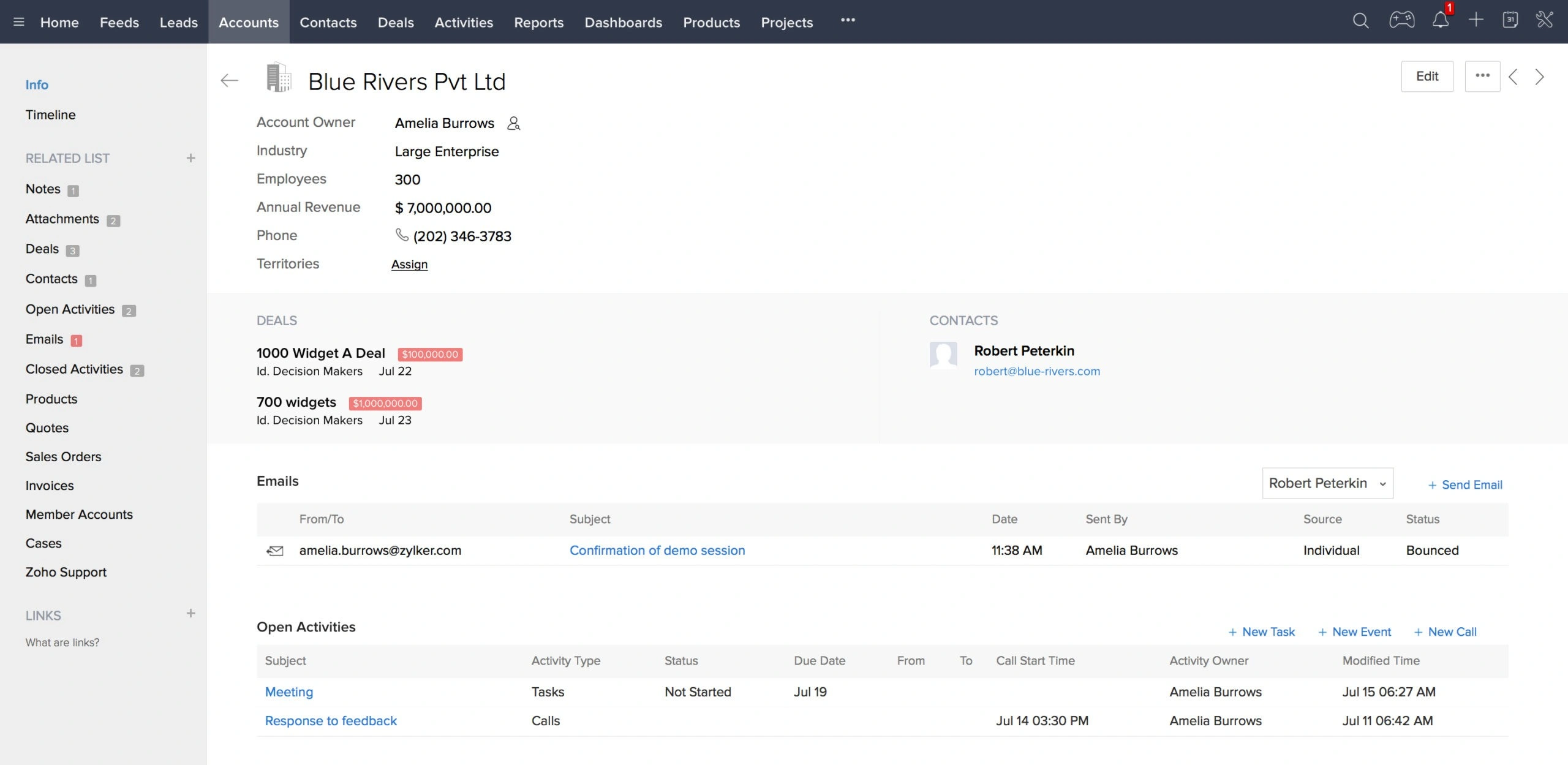
The Zoho One suite is genuinely broad. For companies running Zoho CRM, Zoho Desk, Zoho Books, Zoho Campaigns, and Zoho Analytics under one license, the appeal is tight internal integration between apps that know each other. HubSpot doesn’t replace that entire stack on day one.
Common parallel-use scenarios we see:
- Marketing on HubSpot, sales operations on Zoho CRM the marketing team wants HubSpot’s lead nurturing, automation, and attribution. Sales refuses to leave Zoho’s pipeline view. Both need to see the same leads.
- HubSpot Marketing Hub purchased by a new CMO at a company already running Zoho CRM. The CRM isn’t going anywhere yet, but marketing needs HubSpot to talk to it.
- Zoho Desk running as the service layer while HubSpot handles sales and marketing. Support tickets need to associate with HubSpot contacts and deal records.
- A company mid-migration they’ve started HubSpot onboarding but Zoho is still live with active pipeline and six months of sales activity inside it.
None of these are ideal long-term architectures. Two CRMs means two contact databases, two sets of ownership rules, two sync points that drift, and double the data governance work. But they’re real operational states that need engineering rather than judgment.

Turn HubSpot Into A Real-Time SMS Engine with
Message IQ

Two-Way Conversations

Shared Team Inbox

Automation Triggers

Advanced Reporting

Compliance Tools
-
98%
SMS read within 3 min -
78%
Buy from first responder -
21×
More likely to qualify
3–5 min avg response
$45–$50 ROI / $1

*MessageIQ is an IntegrateIQ product – built natively for HubSpot by the same team.
The Zoho Data Model Difference That Every Integration Gets Wrong
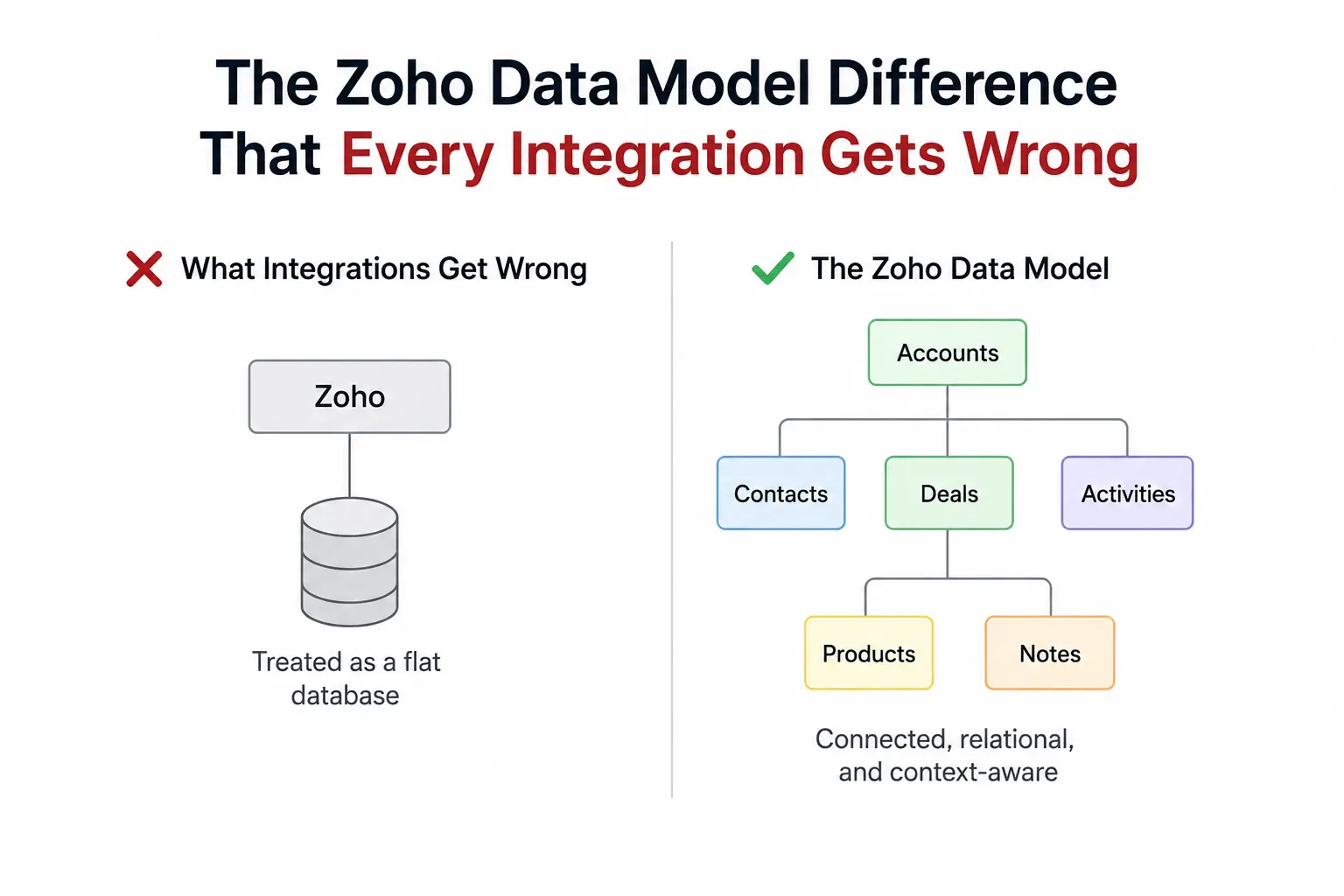
Before you map a single field between HubSpot and Zoho, you need to understand how differently the two platforms model the same business data. This isn’t a minor detail. It’s the root cause of most HubSpot Zoho integration failures.
Leads vs. Contacts: The Core Structural Problem
Zoho CRM separates Leads and Contacts into two distinct objects. A Lead is an unqualified prospect. A Contact is a qualified person associated with an Account. When a Lead gets qualified, Zoho converts it creating a Contact, an Account, and optionally a Deal and the Lead record is archived. The association history between them is tracked but the object types are separate.
HubSpot uses a unified Contact model. Every person is a Contact from day one. Lifecycle Stage Subscriber, Lead, MQL, SQL, Opportunity, Customer tracks where they are in the funnel. There’s no separate Lead object in HubSpot’s standard data model.
For an integration, this means you need a mapping decision upfront: do Zoho Leads sync to HubSpot Contacts with a specific Lifecycle Stage? Do Zoho Contacts sync separately? What happens to a Zoho Lead that gets converted while the integration is live? Most native connectors don’t handle this cleanly, which is why contact records end up duplicated or misclassified in HubSpot.
For a migration, this means merging Zoho Leads and Contacts into a single HubSpot Contact database, setting Lifecycle Stage based on the source object type, and preserving the conversion history in a way HubSpot can surface.
Zoho Accounts vs. HubSpot Companies
Zoho Accounts map to HubSpot Companies reasonably cleanly both are company-level records. The complication is Zoho’s territory and hierarchy structure. Zoho supports territory-based account assignment and parent-child account hierarchies for enterprise setups. HubSpot’s Company association model handles parent-child relationships but doesn’t have territory management natively. Territory data needs to map to a custom property or a HubSpot-side workflow rule.
Zoho Blueprints vs. HubSpot Pipeline Stage Requirements
Zoho’s Blueprint feature enforces process gates on deal stage progression; a deal can’t move from Proposal to Negotiation without specific fields being filled in or specific actions being completed. HubSpot handles this through pipeline stage requirements, required properties, and workflow automation. Blueprints don’t translate one-to-one. They need to be rebuilt in HubSpot’s workflow logic, which is a design task, not just a data migration task.
Zoho Custom Modules
Zoho lets teams create entirely custom modules think Projects, Properties, Service Contracts, or whatever your specific business tracks that doesn’t fit a standard CRM object. These modules have their own fields, associations, and workflow rules. HubSpot’s equivalent is custom objects, available on Enterprise plans.
The critical limitation: Zoho custom modules don’t migrate via standard API-based migration tools. They require either custom scripting to extract the data and map it to HubSpot custom objects, or middleware that understands both schemas. This is the most commonly skipped step in Zoho to HubSpot migrations and the most common source of post-migration data gaps.
Zoho One Cross-App Data
If your Zoho environment includes Books, Desk, Inventory, or Analytics, data from those apps lives in Zoho’s shared data layer but outside Zoho CRM itself. The native HubSpot-Zoho CRM connector only reaches Zoho CRM. Zoho Books invoice data, Zoho Desk ticket history, and Zoho Inventory stock records don’t sync natively. Each cross-app data type needs its own integration strategy.
What the Native HubSpot Zoho CRM Integration Actually Covers
HubSpot’s Operations Hub includes a native Zoho CRM data sync connector, visible in the HubSpot knowledge base as ‘Connect HubSpot and Zoho.’ It’s also available from the Zoho Marketplace side. Setup is guided and fast. Here’s what it actually does and doesn’t do.
| Capability | Native Connector | Custom API Build |
| Contact / Lead sync | Contacts sync; Lead-to-Contact separation requires manual mapping decisions | Full, with Lifecycle Stage mapping from Zoho Lead status |
| Company / Account sync | Bidirectional, standard fields | Full including territory data and hierarchy mapping |
| Deal sync | Bidirectional, basic stage mapping | Full with Zoho stage-to-HubSpot stage transformation logic |
| Custom module data | Not supported | Supported via custom object mapping |
| Zoho Blueprint logic | Not replicated | Rebuilt as HubSpot pipeline requirements and workflows |
| Zoho Desk tickets | Not included | Supported with separate Desk-to-HubSpot Ticket integration |
| Zoho Books invoices | Not included | Supported with finance-to-HubSpot integration layer |
| Historical activity logs | Not synced | Supported with extraction and transformation scripts |
| Field conflict resolution | Last-write-wins (configurable) | Explicit authority rules per field |
| Setup time | Minutes to hours | 4–8 weeks |
The native connector is the right starting point for teams that need basic contact and deal sync between HubSpot and Zoho CRM, have standard field structures on both sides, and don’t need Zoho custom module data or cross-app Zoho One data in the sync. For everything beyond that, it’s a custom build.
What Breaks in a HubSpot Zoho Integration and Why
Duplicate Contacts from Lead-Contact Separation
The most common failure: a Zoho Lead syncs to HubSpot as a Contact. The Lead gets converted in Zoho, creating a new Zoho Contact record. The integration creates a second HubSpot Contact for the same person. Now you have two contact records in HubSpot with overlapping data and split engagement history. Sales works from one, marketing from the other. Both are partially right and neither is complete.
Prevention requires explicit deduplication logic at the integration layer that detects Lead conversion events and merges rather than creates.
Sync Conflicts on Shared Fields
When both systems can write to the same contact field phone number, email, job title without a defined authority rule, last-write-wins corrupts data over time. HubSpot updates a contact’s email. Zoho overwrites it two minutes later with the old value from a form fill. This is invisible until a rep notices the email bounced, which is usually weeks after it started happening.
Zoho Tag Limits on Migration
Zoho caps tag migration at specific volumes and may pause or skip records if you hit 5,000+ skipped records in a run. Teams running large-scale migrations from Zoho without rate limit and skip-record management end up with partial datasets and no clean log of what didn’t transfer. Post-migration audits become genuinely difficult.
HubSpot’s Create Date Property
HubSpot’s system Create Date property sets automatically on record import and can’t be overwritten. If your Zoho contacts have historical create dates you need to preserve for reporting, lifecycle analysis, or attribution you need a separate custom property (e.g., ‘Original Zoho Create Date’) populated from the Zoho source data, plus a workflow that copies HubSpot’s system create date into an auditable field. This is a commonly missed migration requirement that breaks historical reporting.
Workflow Logic Doesn’t Transfer
Zoho workflow rules, approval processes, and Blueprint stages don’t map to HubSpot workflows. Every automation running in Zoho needs to be catalogued, translated into HubSpot’s workflow logic, tested, and activated before cutover. Teams that skip this step go live in HubSpot with contacts not being enrolled in sequences, leads not being assigned, and lifecycle stage changes not firing all silently, for weeks.
Multi-Currency and Price List Gaps
Zoho supports multiple price lists and multi-currency deal values at the product level. HubSpot supports multi-currency deals but has a single product catalog without native multi-price-list support. If your sales team quotes in multiple currencies across different product tiers, this requires HubSpot product properties customization or a workaround before deal data migrates cleanly.
Zoho to HubSpot Migration: What It Actually Takes
A proper Zoho to HubSpot migration isn’t a CSV export and a bulk import. It’s an architecture and data engineering project. Here’s how we scope it.
Step 1: Zoho Environment Audit
Document every Zoho module in use: Leads, Contacts, Accounts, Deals, Activities, Notes, Products, custom modules, and cross-app data from Books, Desk, or other Zoho One apps. Count records per module. Decide migration scope upfront not everything in Zoho needs to come across. Archived leads from three years ago with no activity history are a good candidate for exclusion.
Step 2: HubSpot Architecture Design Before Data Arrives
This is the step most teams skip and it causes the most rework. Design your HubSpot contact model, company structure, pipeline stages, custom properties, and custom objects before importing any data. Importing records into an unfinished HubSpot setup means rebuilding associations and re-cleaning data after the fact. Get the architecture right first.
Step 3: Field Mapping Workbook
Map every Zoho field to its HubSpot equivalent. Zoho Leads and Contacts merge into HubSpot Contacts document how Lifecycle Stage gets set for each source object. Flag every Zoho field that needs a custom HubSpot property. Document Zoho custom module fields and their HubSpot custom object equivalents. This workbook drives the entire migration and is the reference point for every validation step.
Step 4: Data Cleaning in Zoho First
Deduplicate Zoho records before extraction. Standardize phone number formats, email casing, and date formats. Remove records that aren’t in scope. Running deduplication after migration means doing it in HubSpot with partial data significantly harder. Running it in Zoho while you still have Zoho’s native dedup tools available is the right sequence.
Step 5: Staged Import with Batch Management
Import follows a strict order: Companies first, then Contacts with company associations, then Deals with contact and company associations, then Activities and Notes attached to the correct contact timelines. Each phase validates before the next begins. HubSpot enforces API rate limits on mass imports batch your imports with quota management and retry logic, or records get skipped without visible error messages.
Step 6: Custom Module Migration
Zoho custom modules don’t transfer through standard import tools. Extract custom module data via Zoho’s API, map it to HubSpot custom object schema, and import via HubSpot’s custom objects API. This step requires custom scripting and is typically the most time-intensive part of a complex Zoho migration.
Step 7: Workflow and Automation Rebuild
Catalogue every active Zoho workflow rule, approval process, and Blueprint stage. Rebuild each one as a HubSpot workflow, pipeline stage requirement, or automation rule. Test each workflow in HubSpot’s sandbox before production cutover. Sales operations needs to sign off on lead assignment rules, lifecycle stage transitions, and notification triggers before the team goes live.
Step 8: Sandbox Validation and Production Cutover
Run a full test migration in a HubSpot sandbox with a representative data sample. Sales, marketing, and RevOps each validate their core use cases. Confirm contact timelines, deal associations, workflow enrollment, and reporting accuracy. Agree on a cutover window, freeze Zoho data entry for the final extraction run, and cut over to HubSpot. Monitor data quality actively for two weeks post-launch.
Realistic Timelines for HubSpot Zoho Engagements
| Engagement Type | Standard Timeline | Complex Build | Key Driver |
| Native sync setup (contacts + deals, standard fields) | 1–3 days | 1 week | Lead-Contact mapping decisions, owner sync |
| Custom API integration (full data parity, parallel systems) | 4–6 weeks | 8–10 weeks | Zoho One cross-app data, custom module scope |
| Zoho to HubSpot migration (<30K records, no custom modules) | 6–8 weeks | 10 weeks | Workflow rebuild complexity, data quality |
| Zoho to HubSpot migration (30K–200K records, custom modules) | 10–12 weeks | 14–16 weeks | Custom object mapping, batch management, Blueprint rebuild |
| Full Zoho One to HubSpot consolidation (multi-app) | 14–18 weeks | 20+ weeks | Books/Desk/Analytics integration scope alongside CRM |
Integrate or Migrate: The Decision Framework
Running both systems in parallel makes sense in specific situations. Here’s when each path is right.
Integrate (keep both systems running) when:
- Different teams genuinely own different systems long-term e.g., an external sales partner running Zoho, your internal team running HubSpot
- You’re using Zoho One apps that HubSpot doesn’t replace Zoho Desk as your primary service platform, Zoho Books for accounting and only the CRM layer needs to sync
- You’re mid-migration and need a data bridge while the HubSpot build is completed
- Zoho’s territory management or Blueprint compliance enforcement is a regulatory or operational requirement your team can’t yet replicate in HubSpot
Migrate (move to HubSpot, retire Zoho CRM) when:
- Leadership needs a single source of truth for pipeline, marketing attribution, and revenue reporting that two CRMs can’t deliver
- Your team spends meaningful time reconciling contact records or deal data across both systems
- HubSpot’s marketing automation, multi-touch attribution, or service Hub capabilities are the core reason you bought HubSpot and the integration workaround limits those capabilities
- The ongoing cost of maintaining two systems licensing, governance, engineering time exceeds the migration investment
- Zoho’s pricing, scalability, or feature limitations are the reason you’re evaluating HubSpot in the first place
The teams that try to run both systems indefinitely almost always end up doing the migration anyway, just 12–18 months later with dirtier data and a more complicated HubSpot instance to clean up.
Frequently Asked Questions
Does HubSpot integrate with Zoho CRM natively?
Yes. HubSpot’s Operations Hub includes a native Zoho CRM data sync connector. It handles bidirectional contact, company, and deal syncing for standard fields and is available in both the HubSpot Marketplace and Zoho Marketplace. The native connector doesn’t reach Zoho custom modules, Zoho Blueprints, or data from other Zoho One apps like Zoho Books or Zoho Desk. Those require custom builds.
What’s the biggest difference between Zoho and HubSpot data models?
Zoho CRM separates Leads and Contacts into two distinct objects. HubSpot uses a unified Contact model where Lifecycle Stage tracks funnel progression. This structural difference means Zoho Leads and Contacts both need to map into HubSpot Contacts during a migration, with careful deduplication logic to prevent the same person ending up as two records. It also means any integration must define what happens to a Zoho Lead when it gets converted to a Contact while the sync is live.
Do Zoho custom modules migrate to HubSpot?
Not through standard migration tools. Zoho custom modules don’t have direct equivalents in HubSpot’s native import flow. Migrating custom module data requires extracting it via Zoho’s API, mapping it to HubSpot custom objects (available on Enterprise plans), and importing via HubSpot’s custom objects API. This is typically the most technical step in a Zoho to HubSpot migration and the most commonly skipped one.
How long does a Zoho to HubSpot migration take?
For standard scope under 30,000 records, no custom modules, clean source data IntegrateIQ delivers in 6–8 weeks from kick-off. Migrations with custom module data, Zoho Blueprint rebuilds, or large datasets typically run 10–16 weeks. Full Zoho One consolidations that include Desk, Books, or Analytics alongside the CRM can run 18–20 weeks depending on scope.
What happens to Zoho workflow rules during a migration?
They don’t transfer. Every Zoho workflow rule, approval process, and Blueprint stage needs to be catalogued, then rebuilt from scratch in HubSpot’s workflow engine and pipeline stage requirement settings. This is a design task, not a data task and it requires input from the sales and RevOps teams who own those processes, not just the technical migration team.
Can HubSpot integrate with other Zoho One apps besides Zoho CRM?
Yes, but not through the native Zoho CRM connector. Zoho Desk has a separate HubSpot integration available in the Zoho Marketplace that lets support teams view and manage HubSpot contacts and deals from within Desk. Zoho Books, Zoho Inventory, and Zoho Analytics don’t have native HubSpot connectors and require custom API builds or iPaaS platforms like Workato or Make to sync data with HubSpot.
Should I integrate HubSpot with Zoho or migrate from Zoho to HubSpot?
Integrate if you have a genuine long-term reason to keep both systems active a Zoho One dependency that HubSpot doesn’t replace, or a partner team that owns their own Zoho instance. Migrate if the goal is to consolidate onto HubSpot and Zoho CRM is the system being replaced. Running both indefinitely compounds data governance cost and almost always results in the migration happening anyway, just with dirtier data.
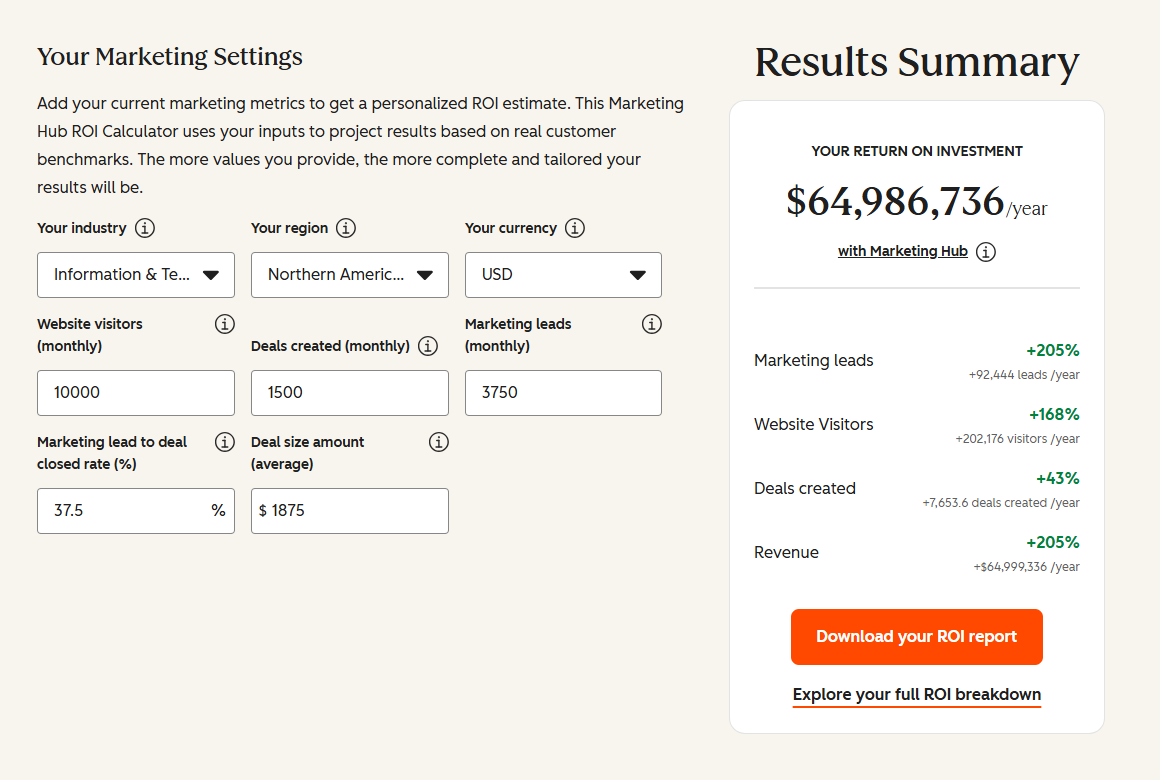
See your 12-month revenue impact with HubSpot CRM
Enter your current numbers — visitors, leads, deal size — and get a personalized projection based on real HubSpot customer benchmarks.
Start with the Right Architecture
Whether you’re building a data bridge between HubSpot and Zoho or ready to consolidate onto HubSpot entirely, the decisions you make upfront on field mapping, object model design, and data governance determine whether this works cleanly or becomes a 12-month cleanup project.
As a HubSpot Diamond Solutions Partner with 300+ platforms integrated and 98.5% client retention, we scope these engagements to surface the decisions that matter before any data moves. We deliver in 8 weeks from kick-off for standard builds. Explore our HubSpot Zoho CRM integration service, or start a scoping conversation at integrateiq.com/contact-us. We’ll map the integration or migration architecture before a single line of code runs.

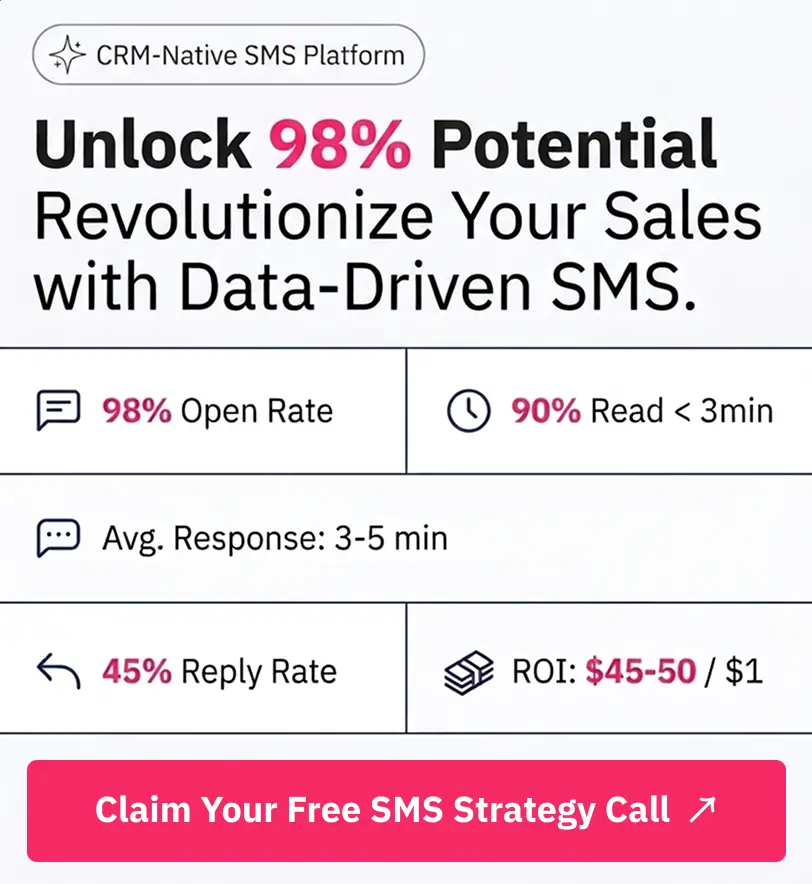
Table of Contents
- Key Takeaways
- Why Teams Run HubSpot and Zoho at the Same Time
- The Zoho Data Model Difference That Every Integration Gets Wrong
- What the Native HubSpot Zoho CRM Integration Actually Covers
- What Breaks in a HubSpot Zoho Integration and Why
- Zoho to HubSpot Migration: What It Actually Takes
- Step 1: Zoho Environment Audit
- Step 2: HubSpot Architecture Design Before Data Arrives
- Step 3: Field Mapping Workbook
- Step 4: Data Cleaning in Zoho First
- Step 5: Staged Import with Batch Management
- Step 6: Custom Module Migration
- Step 7: Workflow and Automation Rebuild
- Step 8: Sandbox Validation and Production Cutover
- Realistic Timelines for HubSpot Zoho Engagements
- Integrate or Migrate: The Decision Framework
- Frequently Asked Questions
- Start with the Right Architecture
