












Explore this article with AI:
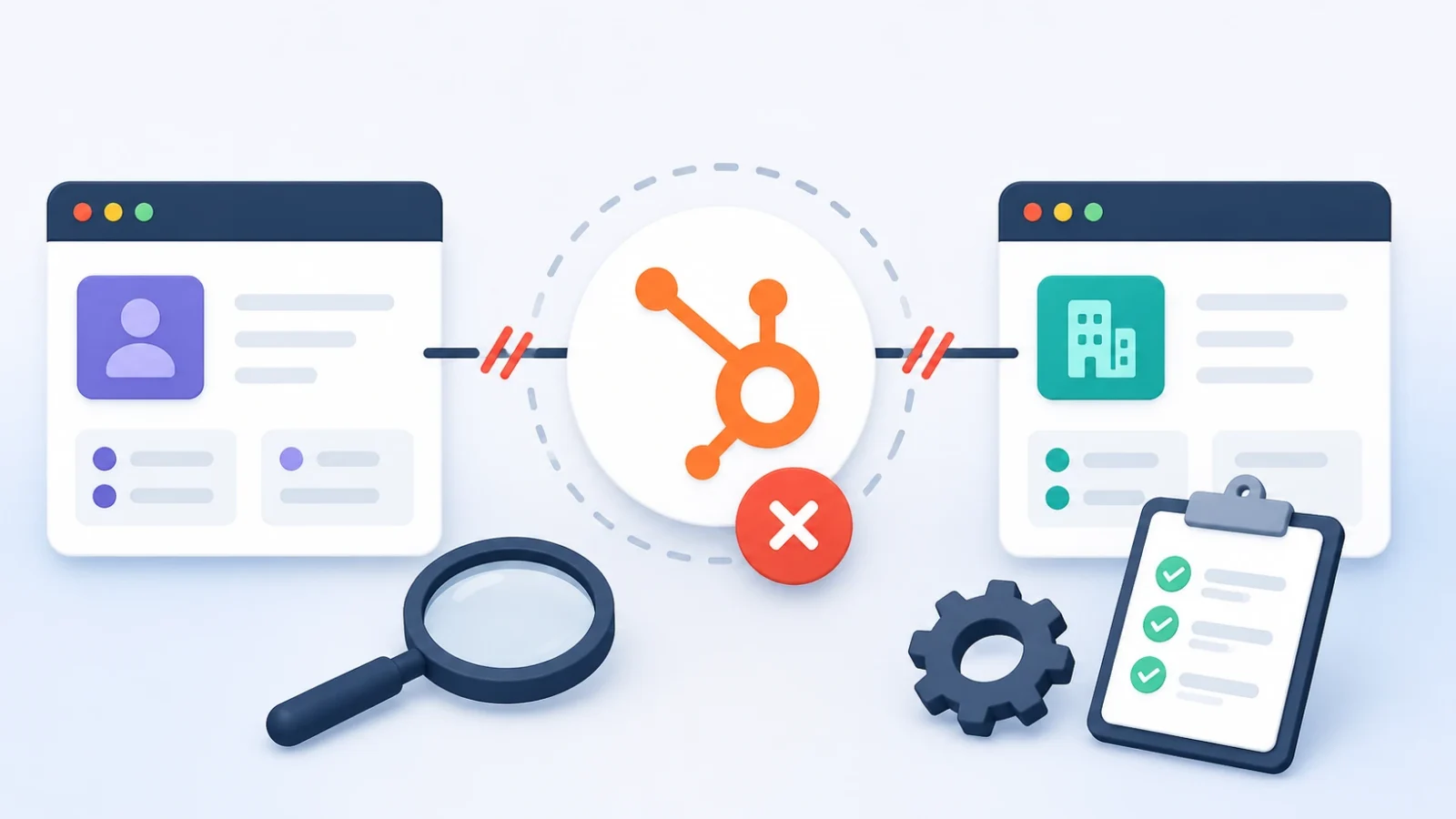
When your HubSpot data is not syncing, the cause almost always traces back to one of five things: a field mapping mismatch, a permissions gap, a conflict rule that blocks overwrites, a duplicate record, or an API rate limit. You can usually find the exact culprit inside HubSpot’s sync health screen in under ten minutes. Fixing it takes longer, because the right fix depends on which system owns the data and how the sync got scoped in the first place.
What a data sync is in HubSpot: A data sync keeps records consistent between HubSpot and another system, such as a CRM, an ERP, or a marketing tool. It runs through the native HubSpot connector, a HubSpot Data Hub sync, or a custom integration built on the HubSpot API. When the sync works, a change in one system shows up in the other. When it breaks, records go stale and your team starts trusting the wrong numbers.
We have scoped and shipped these integrations as a HubSpot Diamond Solutions Partner with custom integration accreditation, and the pattern repeats. Most HubSpot CRM sync issues aren’t mysterious. They come from setup decisions nobody wrote down. This guide walks through how to diagnose the problem, how to fix the most common failures, how to handle HubSpot two-way sync setup correctly, and what real-time data sync between HubSpot and NetSuite actually requires.
Free estimator
Know what your HubSpot project costs before the first call.
Select your services and get a transparent price range in minutes. No sales call needed to get a number.
Connect HubSpot to your ERP, billing platform, or database field mapping, custom logic, and support included.
Pipelines, workflows, email templates, and reporting configured for how your team actually works.
Live, role-based sessions with recordings and written guides built around a custom plan for your team.
HubSpot Partner
Client retention
Platforms integrated
Why Your HubSpot Data Is Not Syncing: The Root Causes
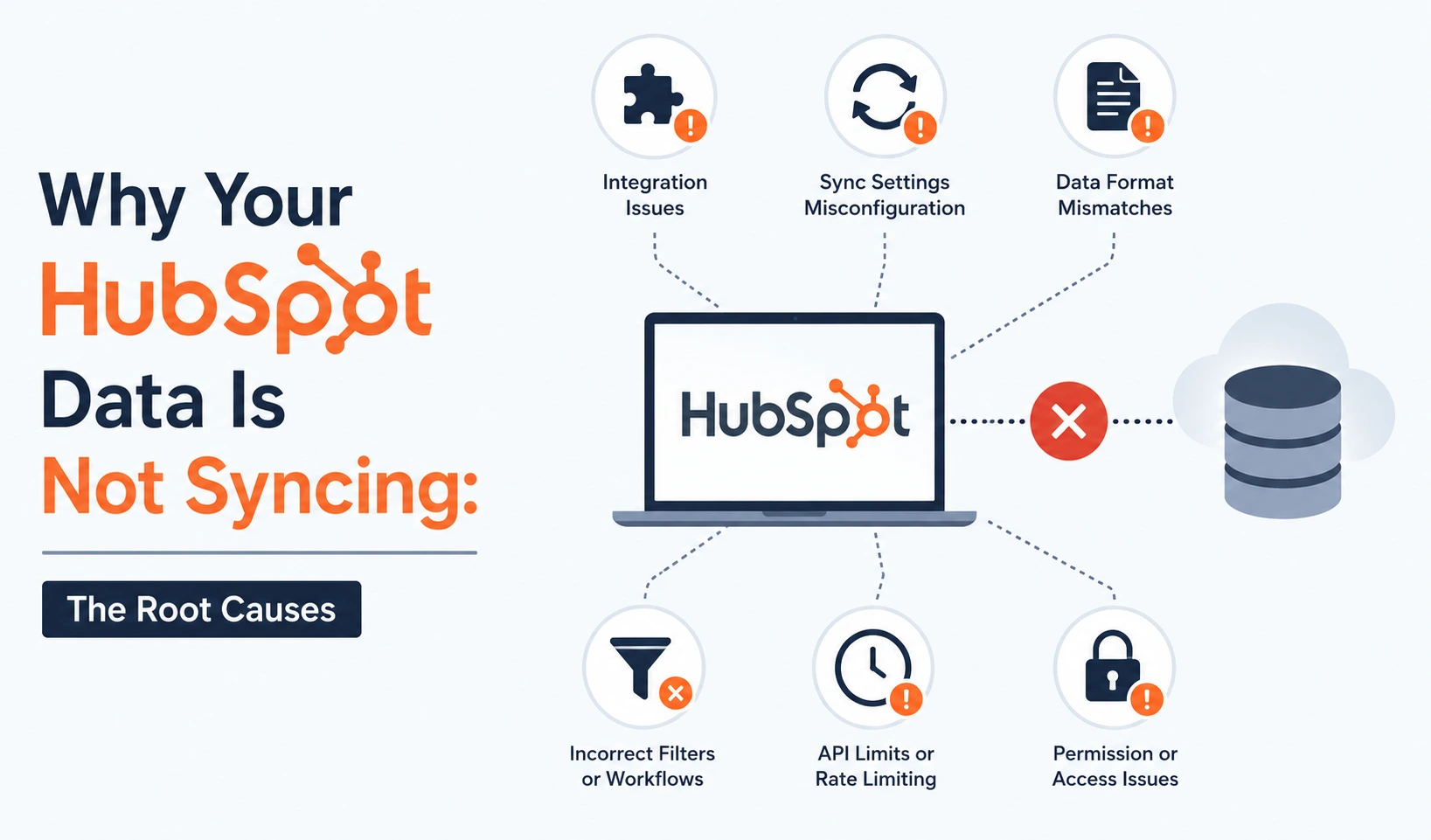
HubSpot data is not syncing for one core reason: something in the sync configuration rejects the record before it lands. The connector itself rarely goes down. What fails is a specific record, a specific field, or a specific rule.
Here are the root causes we see most often:
- Field mapping gaps. A HubSpot property has no matching field in the other app, or the two fields use incompatible types. Mapping a Salesforce picklist to a HubSpot open-text property triggers errors or silently drops data.
- Sync rules that block overwrites. Many connectors default to “update a property only if it’s blank.” Your data looks out of sync even though the connector runs fine.
- Permission and access errors. The integration user lacks read or edit rights to a field or object in the connected system.
- Duplicate records. A duplicate in either system blocks the matching record from syncing through.
- API rate limits. High-volume syncs hit the daily API call ceiling, and records queue up or fail.
- Direction and scope settings. The sync got configured one-way, or a filter quietly excludes the records you expected to see.
Why this matters: each cause has a different fix and a different owner. A field mapping gap is a ten-minute change. An API limit problem can mean rearchitecting the whole integration. You can’t fix what you haven’t isolated first.
When HubSpot Data Is Not Syncing: How to Run a Full Diagnostic
Run these checks in order. They move from the fastest to the deepest, so you catch most problems before you ever open a support ticket.
- Open the sync health screen. In HubSpot, go to Settings, then Integrations, then Connected Apps. Click the app, then open its Sync Health or Data Sync tab. HubSpot lists every record that failed and the reason it failed. Start here every single time.
- Read the error category. HubSpot groups failures into types: property mapping, permissions, picklist, duplicates, and custom code. The category tells you which system to fix and who needs to do it.
- Check the sync direction. Confirm whether the sync runs one-way or two-way, and which app wins a conflict. A “missing” update is often a one-way sync working exactly as configured.
- Review the property change history. Open a record that looks wrong and check its property history. It shows which system or workflow last wrote each field, which tells you whether the integration is even allowed to overwrite that value.
- Test with a single new record. Create one fresh record and watch it flow. A clean test isolates whether the problem hits every record or only legacy data.
- Check API usage. For Salesforce and other high-volume connectors, view the API call count for the last 24 hours. If you’re near the ceiling, the sync is throttling and records will lag.
If the diagnostic points at a setup decision rather than a single bad record, that’s your signal the integration needs rescoping, not just a quick patch.

Turn HubSpot Into A Real-Time SMS Engine with
Message IQ

Two-Way Conversations

Shared Team Inbox

Automation Triggers

Advanced Reporting

Compliance Tools
-
98%
SMS read within 3 min -
78%
Buy from first responder -
21×
More likely to qualify
3–5 min avg response
$45–$50 ROI / $1

*MessageIQ is an IntegrateIQ product – built natively for HubSpot by the same team.
The Most Common HubSpot CRM Sync Issues and How to Fix Them
Most HubSpot CRM sync issues fall into seven buckets. Here’s what each one looks like and how to fix it.
Field Mapping Mismatches
This is the single most common failure. A HubSpot property and the connected field use different types, or the mapping never got created. Field mapping errors show up as records that sync partially or not at all. To fix them, review every active mapping and confirm the property types match. Text maps to text. Dropdowns need matching value sets. HubSpot also splits names into First Name and Last Name, so both mappings have to be on for a contact’s full name to sync correctly.
Permission and Access Errors
When the integration user can’t read or edit a field in the connected system, the sync fails on that field. The fix is to give the integration user a dedicated permission set, or in Salesforce, a System Administrator profile. Confirm every synced object and field stays visible and editable for that user. Owner mismatches count here too, which the inactive-owners point below covers.
Dropdown and Picklist Conflicts
A picklist value exists in one system but not the other, and the record fails. Not every HubSpot dropdown can sync two-way, either. Align the value sets on both sides before go-live, and review picklist changes before anyone deploys them. In Salesforce, setting picklists to unrestricted lets HubSpot add values through the API. If you hit this often during a platform move, our Salesforce-to-HubSpot migration work maps these value sets before import so they never break the sync later.
Duplicate Records
A duplicate in HubSpot can block data from flowing out, and a duplicate in the connected system can block a record from getting created in HubSpot. HubSpot’s sync health report flags only the duplicates that actively block a sync. The fix is manual: merge the duplicates, then let the record resync.
“Update Only If Blank” Rules
Your connector runs, no errors appear, and the data still looks wrong. Check whether the sync updates a property only when it’s empty. Switch it to overwrite outdated values if the connected system should win that field. This one setting confuses more teams than any error message, because it produces no error at all.
API Rate Limits
High-volume syncs hit API ceilings. In Salesforce, you can adjust how many calls get allocated to HubSpot. For genuinely large data volumes, the native connector may not keep up, and that becomes a scoping conversation rather than a settings tweak.
Inactive or Mismatched Record Owners
Record owners sync through email address. If an owner exists in one system but not the other, or the owner left the company and got deactivated, the record fails. Reassign records away from inactive users, and make sure every active owner exists as a user in both systems.
Use this table as a fast lookup when a record stalls:
| Symptom | Likely cause | Where to fix it |
|---|---|---|
| Record syncs partially or drops a field | Field mapping mismatch or incompatible type | Connected app field mappings |
| Record fails with a permission error | Integration user lacks field/object access | Connected system user permissions |
| Record fails on a specific dropdown value | Picklist value missing on one side | Align value sets in both systems |
| Record won’t create or update at all | Duplicate blocking the match | Merge duplicates, then resync |
| Data looks stale, no error shown | “Update only if blank” rule | Sync rules: switch to overwrite |
| Records lag or queue up in bulk | API rate limit reached | Adjust API call allocation |
| Record fails on owner assignment | Owner inactive or missing in one system | Reassign owner, confirm user exists in both |
HubSpot Two-Way Sync Setup: A Step-by-Step Walkthrough
HubSpot two-way sync setup means configuring the connection so a change in either system updates the other. Done right, both systems stay consistent. Done without clear rules, the two systems fight over the same field and values flip back and forth. If you’re setting this up alongside a fresh portal build, our HubSpot onboarding process handles ownership rules before any connector goes live.
Here’s the setup sequence we use:
- Decide what data each system owns. Before you touch a setting, write down which system is the source of truth for each object and field. Finance data belongs to the ERP. Marketing engagement belongs to HubSpot. This decision drives every step that follows.
- Connect the app and choose two-way sync. In Connected Apps, install the integration and select two-way sync. For records that already exist in both systems, their properties merge on the first sync.
- Map your fields and set types carefully. Map every field you need and confirm compatible types on both sides. Skip the fields you don’t need. A smaller, correct mapping beats a large, fragile one.
- Set conflict resolution rules. Choose which app wins when both systems change the same field. Without this rule, two-way sync creates loops and flip-flopping data.
- Apply filters. Limit which records sync. You rarely want every contact flowing both directions. Filter by lifecycle stage, list membership, or another property.
- Run an initial sync on a test segment. Sync a small batch first. Verify the records in both systems before you open the floodgates to the full database.
- Monitor the sync health screen for the first week. New two-way syncs surface their problems early. Watch the health screen daily until it stays clean for several days running.
The teams that skip step one are the teams that call us six weeks later. Clear data ownership, decided up front, prevents the loops that make two-way sync look broken.
Real-Time Data Sync Between HubSpot and NetSuite
Real-time data sync between HubSpot and NetSuite means a change in either system reflects in the other within seconds, not on an overnight schedule. It connects HubSpot’s CRM data with NetSuite’s financial records, so sales sees payment status and finance sees the live pipeline.
Real-time and batch are two different models, and the choice matters:
- Real-time sync runs on events. A webhook, SuiteTalk call, or RESTlet detects a change and pushes it across within seconds. Use it for anything that can’t wait, like a sales rep needing current invoice status before a call.
- Batch sync runs on a schedule, such as hourly or overnight. It’s simpler and lighter on API calls, and it works fine for data that doesn’t need to be current to the minute.
HubSpot and NetSuite use different data models, which is where real-time data sync between HubSpot and NetSuite gets technical. A single HubSpot company often maps to one NetSuite customer, but you’ll also hit one-to-many relationships. Deal-to-invoice mapping, currency handling, and revenue recognition each need explicit rules. The native HubSpot connector doesn’t cover NetSuite’s depth, so most teams run a middleware platform or a custom integration on the NetSuite SuiteTalk API.
Common failure points for a HubSpot-NetSuite sync: duplicate customer records, mismatched fields between the CRM and ERP schemas, and API throttling under load. None of those are reasons to avoid the integration. They’re reasons to scope it properly. Our HubSpot and NetSuite integration work always starts with the data model before a single field gets mapped.
Native Connector vs Custom Integration: When to Use Which
The native HubSpot connector and a custom integration solve different problems. Choosing wrong is how teams end up with a sync that can’t scale, or a budget spent on complexity they never needed.
| Factor | Native connector | Custom integration |
|---|---|---|
| Setup speed | Hours to days | Two to several weeks |
| Data volume | Best under roughly 100k records | Built for hundreds of thousands and up |
| Objects | Standard objects, supported fields | Standard plus custom objects and complex schemas |
| Sync timing | Often scheduled or near real-time | True real-time on event triggers |
| Conflict logic | Basic, app-level rules | Field-level rules tailored to your data model |
| Maintenance | Low, vendor-managed | Owned build, needs monitoring |
| Cost | Low or included | Higher up front, pays back at scale |
Use the native connector when your volume is moderate, the objects are standard, and the connected app has a supported HubSpot integration. It’s fast to set up and needs little maintenance.
Use a custom integration when you sync hundreds of thousands of records, depend on custom objects, need real-time event handling, or connect a system like NetSuite with a complex schema. A custom build through our HubSpot integration services costs more up front and pays it back in reliability at scale.
Decision trigger: If a native connector forces you to compromise on which data syncs or how fast it syncs, you’ve outgrown it. That’s the point to move to a custom integration.
When HubSpot Sync Won’t Work
Honest scoping saves money, so here’s where a HubSpot sync genuinely won’t work, no matter how you configure it.
- Non-standard sales processes. HubSpot’s native data sync maps deal stages to pipeline stages in the other app. If your process doesn’t use deal or opportunity stages, native sync can’t model it.
- Read-only HubSpot properties. HubSpot restricts write access on 150-plus default properties, including scores. An external system can’t overwrite those, though a custom property can work around the limit.
- Deletes you expect to propagate. Many connectors don’t sync deletions. A record removed in one system can linger in the other.
- Systems with no usable API. No API, no reliable sync. A flat-file export is not an integration.
Saying this up front separates a sync that works from a project that stalls. We turn down scopes HubSpot can’t support, and our client integration case studies show what happens when the scope gets set honestly from day one.
Frequently Asked Questions
Why is my HubSpot data not syncing even though the connector shows as connected?
A connected status only means the authentication is valid. Individual records still fail for field mapping, permission, picklist, or duplicate reasons. Open the sync health screen inside the connected app to see the specific records and their error categories.
How long does HubSpot two-way sync setup take?
A basic two-way sync with standard objects can be live in a few hours. A complex setup with custom objects, conflict rules, and high volume usually takes one to two weeks to configure and validate. Most full integration projects we run ship in about 8 weeks from kickoff.
Can HubSpot and NetSuite sync in real time?
Yes. Real-time data sync between HubSpot and NetSuite runs on event triggers through webhooks, SuiteTalk, or RESTlets, and changes propagate within seconds. The native HubSpot connector doesn’t cover NetSuite’s data model, so real-time HubSpot-NetSuite syncs use middleware or a custom integration.
Why does my data keep flip-flopping between two values?
That’s a conflict resolution problem. Both systems write to the same field, and no rule decides which one wins. Set a clear conflict resolution rule and define which system owns that field. Loops in two-way sync almost always trace back to a missing ownership decision.
What causes the most common HubSpot CRM sync issues?
Field mapping mismatches are the most frequent cause, followed by permission errors and picklist value conflicts. Most HubSpot CRM sync issues come from setup decisions that were never documented, which is why a configuration audit usually finds the problem faster than trial and error.
Does HubSpot sync deleted records?
Often not. Many connectors sync creates and updates but not deletions. If propagating deletes matters to your process, confirm it explicitly during setup or build it into a custom integration.
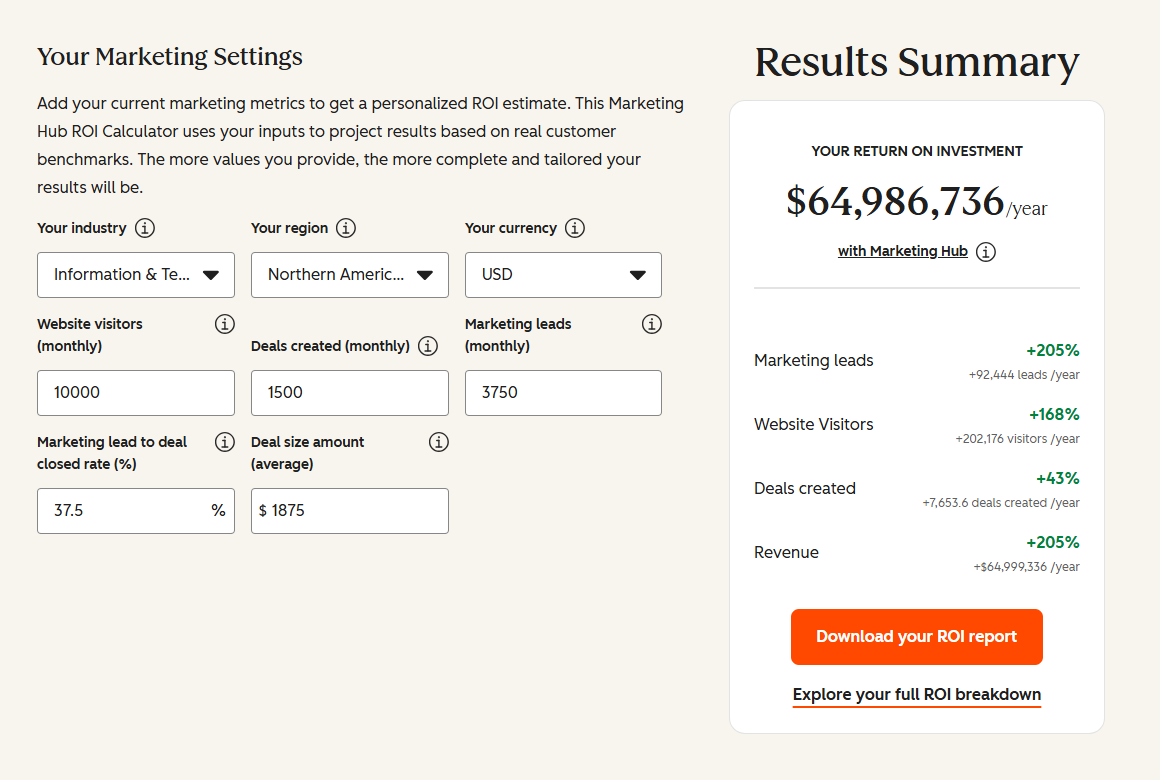
See your 12-month revenue impact with HubSpot CRM
Enter your current numbers — visitors, leads, deal size — and get a personalized projection based on real HubSpot customer benchmarks.
Get Your HubSpot Sync Working the Way It Should
If your HubSpot data is not syncing and the sync health screen points at something deeper than a single bad record, the integration needs rescoping, not another patch. We’ve connected 300-plus systems to HubSpot as a Diamond Solutions Partner, and we sync millions of fields a day for clients who needed their CRM, ERP, and marketing data to finally agree. Our 98.5% client retention rate comes from scoping integrations honestly and building them to hold up under load.
See how we approach it on our HubSpot integration process page, or book a HubSpot integration audit and we’ll map your sync failures to fixes. Most projects go live in about 8 weeks from kickoff.

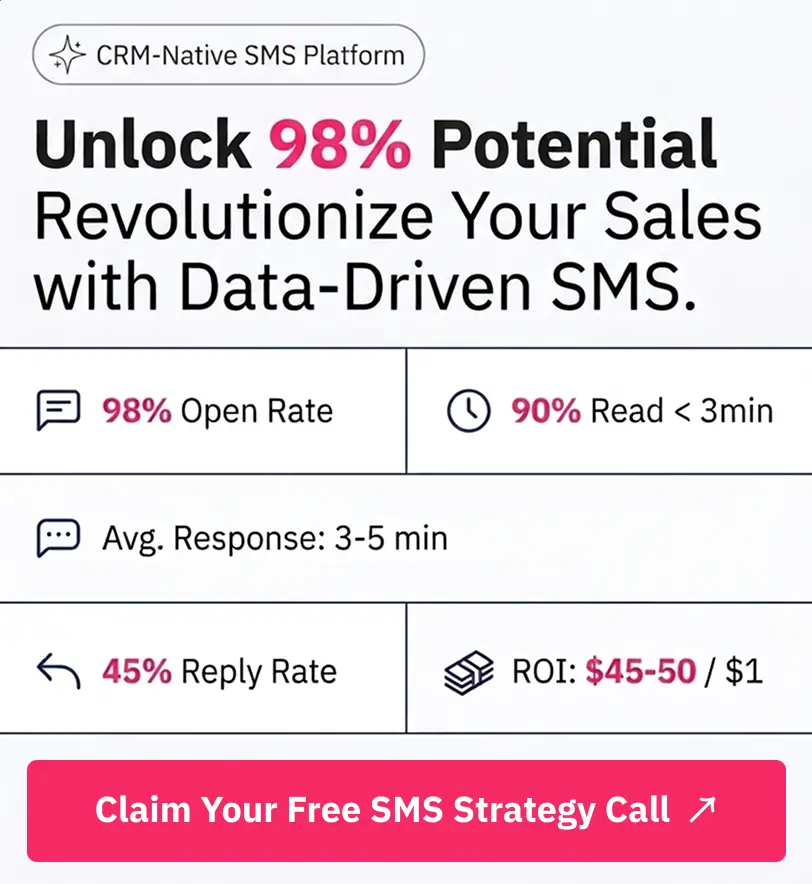
Table of Contents
- Why Your HubSpot Data Is Not Syncing: The Root Causes
- When HubSpot Data Is Not Syncing: How to Run a Full Diagnostic
- The Most Common HubSpot CRM Sync Issues and How to Fix Them
- HubSpot Two-Way Sync Setup: A Step-by-Step Walkthrough
- Real-Time Data Sync Between HubSpot and NetSuite
- Native Connector vs Custom Integration: When to Use Which
- When HubSpot Sync Won't Work
- Frequently Asked Questions
- Get Your HubSpot Sync Working the Way It Should