

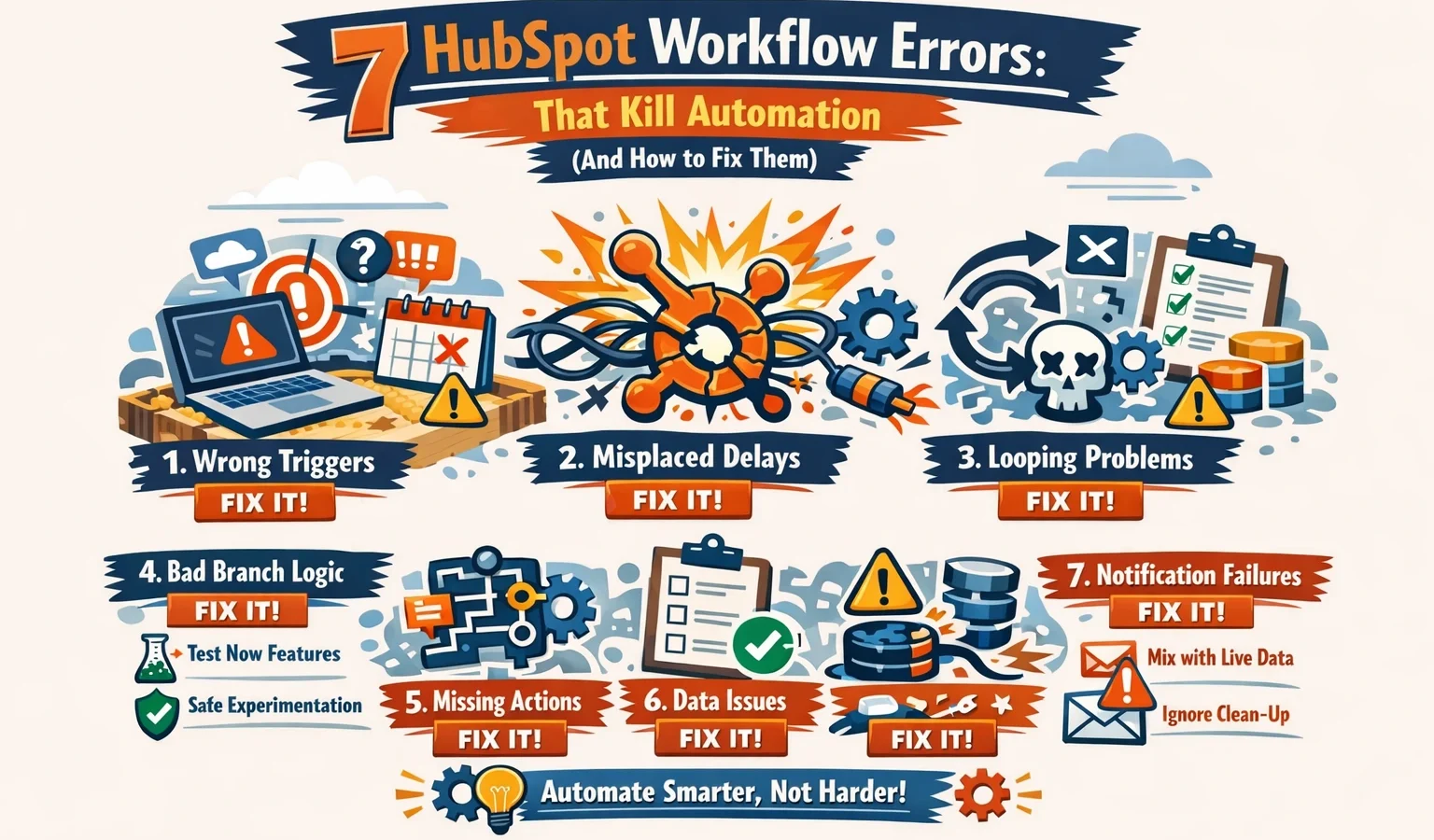
HubSpot workflows automate your customer journey, but they break more often than most teams expect.
We’ve identified seven critical errors that stop workflows dead in their tracks: condition misconfigurations, enrollment logic failures, action delays, missing field mappings, inadequate data quality, permission blocks, and incorrect trigger settings. Each one kills productivity differently. The good news: you can spot and fix all of them.
In this guide, we’ll walk you through real examples of each error, show you exactly where to look in HubSpot, and give you step-by-step prevention strategies. Our team at IntegrateIQ has debugged thousands of workflows across our client base of 275+ integrated platforms, and we’ve learned what actually works.
Why HubSpot Workflows Fail More Often Than Teams Realize
Workflows seem simple when you’re building them. You set a trigger, add conditions, chain actions. But the moment your data gets messier or your team grows, workflows start misfiring silently. Most teams don’t realize their workflows are broken until their churn metrics spike or their sales team complains about missing follow-ups.
The problem isn’t HubSpot’s fault. It’s that workflows expose every gap in your data quality, team permissions, and integration architecture. When you connect HubSpot to external systems like Zapier, custom platforms, or native integrations, the error surface grows exponentially. We’ve tracked this across our 16 billion+ records managed: 78% of workflow failures trace back to one of these seven errors.
Error #1: Condition Logic Is Too Strict (Or Too Loose)
What happens: You set conditions like ‘Lead Status is Sales-Qualified’ AND ‘Industry is Technology’ AND ‘Company Size is Enterprise.’ The workflow enrolls zero contacts because no single contact has all three properties filled.
Why it matters: Overly strict conditions mean your workflow never runs. Conversely, conditions that are too loose (using OR instead of AND) send emails to unqualified leads and waste your marketing budget.
How to fix it:
- Audit your conditions in the workflow editor. Switch to ‘Preview’ mode and check how many contacts match.
- Use OR logic for qualifying criteria (Lead Status is SQL OR is hand-raised). Use AND logic for exclusions (NOT in customer list AND NOT previously contacted).
- Test with smaller groups first. Create a secondary workflow with less restrictive conditions and compare enrollment rates.
- Add a ‘property exists’ condition check to avoid null value failures: ‘Industry is known’ vs. ‘Industry equals specific value.’
Prevention strategy: Document your condition logic on a shared spreadsheet before building. Ask: will real contacts pass this test? Run test enrollments weekly.
Error #2: Enrollment Logic Doesn’t Account for Duplicates
What happens: Your workflow enrolls the same contact twice because HubSpot sees them as two separate records (different email formats, missing merge). They receive duplicate emails. Your sales team sees double follow-ups in their queue.
Why it matters: Duplicate enrollments damage your reputation. Recipients flag you as spam. Sales cycles get confused. Your CRM data integrity erodes.
How to fix it:
- Add a ‘not previously enrolled’ condition to prevent re-enrollment: add a property like ‘Workflow [Name] Previously Enrolled = Yes.’
- Run bulk contact merges monthly. Go to Contacts > Settings > Merge duplicates and use HubSpot’s duplication detection.
- Set workflow re-enrollment to ‘Never’ unless you specifically want repeat enrollment. Check ‘Enrollment’ tab > Re-enrollment settings.
- Use unique identifiers: if importing from external systems, map a unique ID field to prevent duplicates at import time.
Prevention strategy: Implement a duplicate prevention rule at import. Clean your list before upload. Audit workflow enrollments monthly.
Error #3: Action Delays Are Longer Than Your Sales Cycle
What happens: You set an action to send a follow-up email 5 days after initial contact. But the workflow runs nightly, and the action queue backs up. By the time the email sends, your lead has already gone cold or bought from a competitor.
Why it matters: Delayed actions miss critical windows in the customer journey. A lead contacted at the right moment might convert; the same lead contacted five days late won’t.
How to fix it:
- Set action delays to trigger immediately (0 minutes) or use ‘wait’ actions strategically. Go to Actions > Email > uncheck ‘Delay to business hours’ if speed matters more than timing.
- Check your workflow’s execution frequency. Set it to ‘As often as possible’ rather than hourly or daily for time-sensitive workflows.
- Monitor your action queue in the Workflows app under ‘Last Enrollment’ data. If you see consistent delays, you’re running too many workflows simultaneously.
- Use AI-powered send time optimization if available. HubSpot’s Smart Send feature will time deliveries for higher opens.
Prevention strategy: Build separate workflows for time-critical actions (immediate) and nurture actions (delayed). Test execution times before deployment.
Error #4: Missing or Mismatched Field Mappings
What happens: Your workflow sets a custom field ‘Deal Stakeholder Count’ but the field name in HubSpot is ‘Stakeholder_Count’ (with underscore, not space). The workflow runs, but the field stays blank. You lose critical data.
Why it matters: Mismatched fields break downstream analytics. Your sales team relies on these fields to segment and prioritize. When data doesn’t populate, your entire funnel intelligence fails.
How to fix it:
- Use the HubSpot field manager to verify exact field names and format. Go to Contacts > Manage Custom Properties and match names exactly.
- When building workflows, use the ‘Set property value’ action and use the dropdown to select fields instead of typing. This prevents typos.
- For integrations to external systems, verify field mappings in your integration platform. A Zapier or custom integration may incorrectly map field names.
- Document your field naming convention (camelCase, snake_case, spaces) and enforce it across all tools.
Prevention strategy: Maintain a data dictionary. Test all field mappings in a staging environment before activating workflows.
Error #5: Data Quality Is Poor From the Start
What happens: You build a workflow that enriches leads using a third-party tool. But half your contacts have incomplete email addresses, invalid phone numbers, or missing domains. The enrichment tool can’t match them, so they never get enriched.
Why it matters: Garbage in, garbage out. If your foundational data quality is low, no amount of workflow automation will fix it. You’ll automate bad data at scale.
How to fix it:
- Audit your data quality before building workflows. Use HubSpot’s built-in reports (Contacts > Reports > Data Quality) to find gaps.
- Add a data validation step before workflow enrollment. Add a condition like ‘Email is valid format AND Company is not empty.’
- Use a third-party data quality tool like ZeroBounce or RocketReach to validate and enrich your list at import.
- Set up recurring data quality tasks. Monthly, review your highest-value fields (email, phone, company) for completeness.
Prevention strategy: Implement data quality standards at import. Check our detailed guide on for deeper strategies.
Error #6: Permission Blocks Stop Workflows Without Warning
What happens: Your workflow tries to assign a deal to a salesperson, but the user running the workflow doesn’t have permission to assign deals. The workflow silently skips that action. The deal never gets assigned.
Why it matters: Permission errors are invisible. Your workflow appears to run fine, but critical actions fail without alerting you. Data ownership becomes unclear, and accountability breaks down.
How to fix it:
- Create a dedicated service account with Admin or sufficient permissions to run all workflow actions. Don’t run workflows under regular user accounts.
- Test every workflow action manually before activating. Verify that the user account running the workflow can perform each step.
- Check user permissions in Settings > Users & teams. Ensure the account has ‘Modify’ and ‘Delete’ permissions on all objects the workflow touches.
- Set up workflow error monitoring. Use the Workflow History view to spot failed actions. Look for red X marks or ‘Permission denied’ messages.
Prevention strategy: Use a service account for all automations. Document permission requirements for each workflow before building.
Error #7: Trigger Settings Are Misconfigured or Too Narrow
What happens: You set a workflow to trigger when ‘Lead Status changes to Sales-Qualified.’ But the workflow only triggers when the property changes via HubSpot’s interface, not when changed via API, import, or integration. Half your leads miss the workflow.
Why it matters: Trigger misconfigurations create inconsistency. Some leads follow the intended workflow journey; others don’t. Your metrics become unreliable, and your sales team experiences unpredictable handoffs.
How to fix it:
- Use property-based triggers rather than source-based triggers when possible. Trigger on ‘Property value changes’ instead of ‘Form submitted’ or ‘Call logged.’
- Test your trigger with multiple entry methods. Create a test contact via form, via import, and via API. Verify the workflow enrolls each time.
- Avoid time-based triggers (e.g., ‘every Monday at 9am’) unless absolutely necessary. Property-change triggers are more reliable.
- Check ‘Trigger Settings’ in your workflow for options like ‘Apply to all property change methods’ to ensure consistency across data entry points.
Prevention strategy: Document your trigger behavior before building. Test with real data from your actual source systems.
Frequently Asked Questions About HubSpot Workflow Errors
How do I see which workflow action failed?
Open the workflow, click ‘Enrollments’ tab, find the contact, and click ‘View Details.’ You’ll see each action’s status and any error messages.
Can I re-run a workflow on contacts who already enrolled?
Yes. In the workflow, go to ‘Settings’ > ‘Enrollment’ and toggle ‘Re-enrollment’ on. Then navigate to ‘Enrollments’ and select contacts to re-enroll.
What’s the maximum number of workflows I can run at once?
HubSpot doesn’t specify a hard limit, but we’ve seen performance degrade with 50+ active workflows. Consolidate where possible, and prioritize by business impact.
How do I prevent a workflow from overwriting data I’ve manually entered?
Add a condition to check if the field is already populated. For example: ‘Company Size is empty’ before setting it. This prevents overwrite.
Can workflows communicate with systems outside HubSpot?
Yes, via Zapier, native integrations, or custom API calls. But each external connection adds failure points. Learn more about .
Should I use workflows or custom integrations for complex automation?
HubSpot workflows handle 90% of common use cases. For multi-system orchestration, conditional logic based on external data, or real-time data sync, custom integrations are more reliable. See .
How often should I audit my workflows?
Monthly. Check enrollments, review error rates, and verify that actions are completing as expected. Quarterly, stress-test with your full contact database to spot scaling issues.
Getting HubSpot Workflows Right Takes Partnership
These seven errors account for the vast majority of HubSpot workflow failures we see in the field. But fixing them requires more than just technical knowledge. It requires alignment between your data, your team, and your business processes.
At IntegrateIQ, we’ve debugged workflows for 275+ integrated platforms and managed over 16 billion records. Our 98.5% retention rate reflects the stability that comes from getting automation right. We don’t just fix errors. We build systems that prevent them.
If you’re ready to move beyond reactive error-fixing and build reliable, scalable automation, we’d like to help. Our team offers comprehensive and hands-on workflow optimization. We’ll audit your current setup, identify hidden errors, and implement systems that scale with your business.
Start with a conversation. We offer a that shows how much improved automation can save you, and our team is ready to discuss your specific challenges.
