












Explore this article with AI:
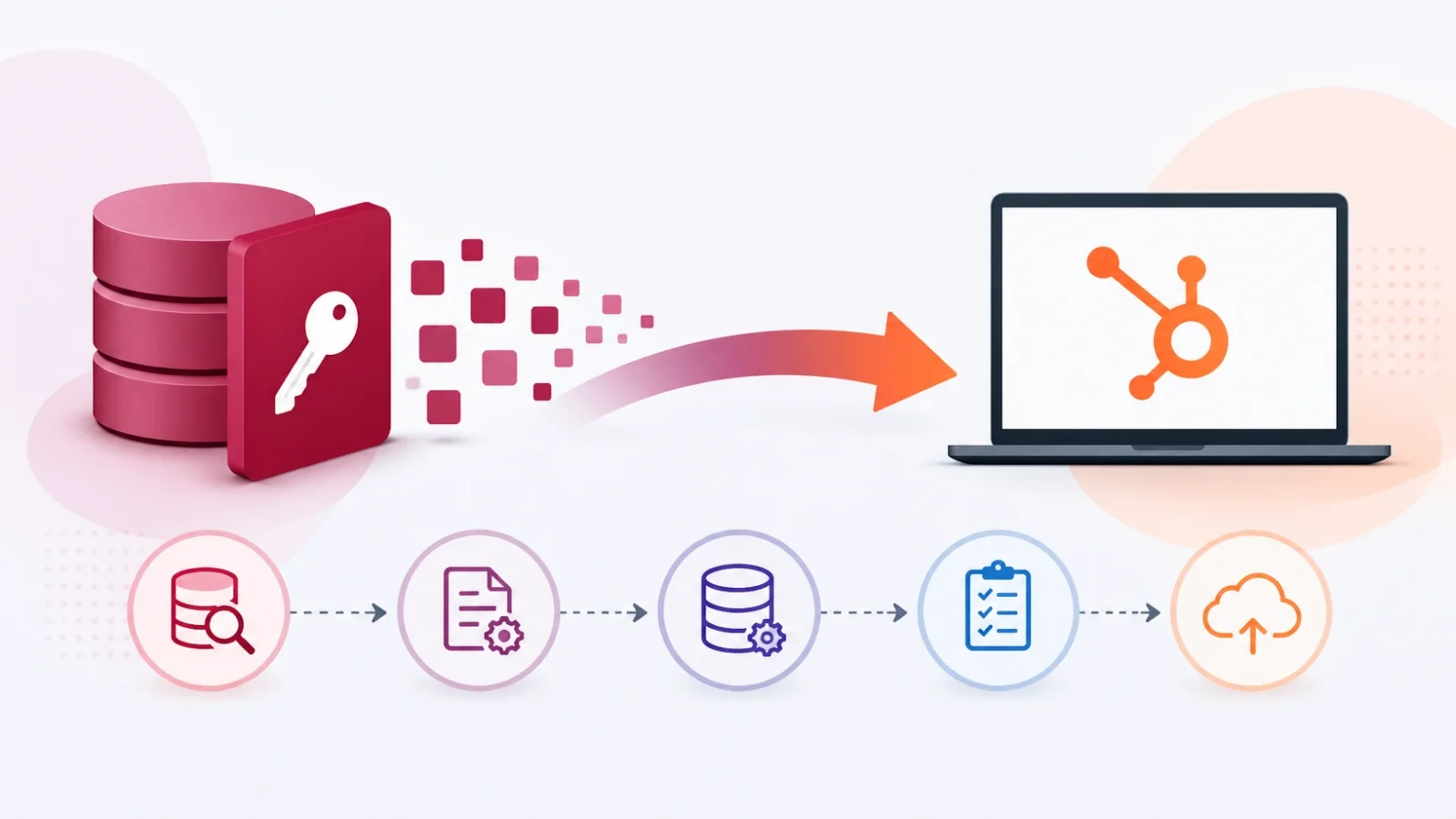
Migrating from Microsoft Access to HubSpot is one of the least-documented CRM transitions in the market which is exactly why it tends to go wrong. The challenge isn’t just moving data. Access stores customer information in relational tables connected by foreign keys. HubSpot stores it in object records connected through a typed association model. Those two architectures don’t map to each other automatically, and no tool bridges them natively.
A Microsoft Access to HubSpot migration is the process of extracting customer data from an Access database’s relational table structure, translating it into HubSpot’s contact, company, deal, and ticket objects, and explicitly recreating every relationship that the Access foreign key system managed automatically.
At Integrate IQ, we’ve handled database-to-CRM migrations as part of our broader integration work across 300+ platforms. The Access migration pattern comes up more often than most people expect especially at small and mid-sized businesses that built their customer database in Access years ago and are now outgrowing it. Here’s the methodology that works.
Free estimator
Know what your HubSpot project costs before the first call.
Select your services and get a transparent price range in minutes. No sales call needed to get a number.
Connect HubSpot to your ERP, billing platform, or database field mapping, custom logic, and support included.
Pipelines, workflows, email templates, and reporting configured for how your team actually works.
Live, role-based sessions with recordings and written guides built around a custom plan for your team.
HubSpot Partner
Client retention
Platforms integrated
Why Companies Move from Microsoft Access to HubSpot
The trigger is usually growth or a talent change. Either the business has scaled to the point where Access’s reporting limitations, lack of automation, and absence of email integration become real operational bottlenecks or the person who built and maintained the Access database has left the company, and nobody else wants to own it.
Access is genuinely good at structured data storage. It handles complex relational schemas well, runs queries efficiently on moderate datasets, and integrates with Excel workflows that many finance and operations teams depend on. But it has fundamental gaps for a modern revenue team:
- No native email integration or outbound marketing capabilities
- No automation engine every workflow is manual or requires custom VBA
- No sales pipeline visualization or deal stage tracking
- No lead scoring, lifecycle stage management, or contact activity timeline
- No API ecosystem connecting Access to marketing tools, analytics platforms, or data warehouses requires significant custom development
- No mobile app or web interface beyond what you build yourself
HubSpot solves all of these gaps from day one. The trade-off is that your data needs to travel across a significant architectural difference to get there.

Mapping Your Access Data Model to HubSpot Objects
This is the foundational work that every Access-to-HubSpot migration hinges on. Before any export runs, you need a schema translation document that maps every Access table to a HubSpot object type.
| Access Table | HubSpot Object | Migration Notes |
| Contacts / Customers | Contacts | Email is required in HubSpot validate all records have a valid email address |
| Companies / Accounts | Companies | Domain name field is HubSpot’s deduplication key for companies |
| Opportunities / Sales | Deals | Map deal stage values to HubSpot pipeline stages no direct transfer |
| Support / Issues / Cases | Tickets | Requires Service Hub subscription; ticket pipeline stages need pre-configuration |
| Products / Services | Products (in HubSpot catalog) | Requires Sales Hub Pro or above |
| Activities / Interactions | Engagements (Notes, Calls, Emails) | Cannot be imported via CSV requires API-based migration |
| Junction/Lookup Tables | Associations (in HubSpot) | Many-to-many relationships require explicit association API calls post-import |
The foreign key problem is the defining technical challenge. In Access, a Customers table and an Orders table are linked by a CustomerID foreign key. HubSpot doesn’t have foreign keys it has Associations. When you import deals into HubSpot, they don’t automatically associate with the contacts and companies they belong to. You have to create those associations explicitly, either through the import file (using a reference column) or through the Associations API post-import.
Junction tables the Access structures you use to model many-to-many relationships (like a contact belonging to multiple companies or a product appearing in multiple deals) also require explicit handling. HubSpot supports many-to-many associations natively, but you have to create each association individually via the API. There’s no bulk junction table import.

Turn HubSpot Into A Real-Time SMS Engine with
Message IQ

Two-Way Conversations

Shared Team Inbox

Automation Triggers

Advanced Reporting

Compliance Tools
-
98%
SMS read within 3 min -
78%
Buy from first responder -
21×
More likely to qualify
3–5 min avg response
$45–$50 ROI / $1

*MessageIQ is an IntegrateIQ product – built natively for HubSpot by the same team.
Three Migration Methods for Access Data
Three paths exist. The right choice depends on your Access schema complexity and how much relationship fidelity you need to preserve.
| Method | Best For | Limitation |
| CSV Export + HubSpot Import | Under 5,000 records, contacts and companies only, no complex relationships | Breaks associations deals won’t link to contacts/companies automatically |
| ODBC Connection (CData Driver) | Ongoing sync needs, teams that want live HubSpot data accessible in Access | One-time migration is clunky; better suited for bidirectional live access than bulk migration |
| Custom API Migration (ETL) | Full schema migration with relationship preservation, complex tables, any record volume | Requires technical expertise; most reliable for fidelity at scale |
CSV Export Method
Export each Access table as a CSV file. Import contacts first (the parent object), then companies, then deals. The critical limitation: each import file is processed independently. A deal CSV has no mechanism to automatically associate with the contact or company it belongs to unless you include a reference field that matches an existing HubSpot record identifier (usually email address for contacts, domain for companies).
Activities, notes, and interaction history stored in Access tables cannot be imported via CSV at all. They require API-based migration to become HubSpot Engagements. If your Access database tracks call logs or customer interaction notes, CSV alone doesn’t get those across.
ODBC Connection Method
The Data HubSpot ODBC Driver connects Microsoft Access directly to HubSpot’s API, allowing you to read and write HubSpot data from Access as if it were a linked database table. This approach works well for teams that need ongoing visibility into HubSpot data within an Access-based reporting environment not as a primary migration path.
For one-time migration, the ODBC method is more complex than it’s worth. For companies that need to keep an Access-based workflow running alongside HubSpot during a phased transition, it’s a useful bridge.
Custom API Migration
The most reliable path for migrations with complex relational schemas. A purpose-built ETL pipeline extracts data from Access, transforms it to match HubSpot’s object model, imports records in the correct dependency order (contacts and companies first, then deals and associations), and validates that every relationship was created correctly.
Integrate IQ builds these pipelines with explicit association mapping so every deal arrives in HubSpot already linked to its contact and company, and every engagement record is attached to the correct deal. We’ve processed 20 billion+ records annually and maintained a 98.5% client retention rate. The Access migration pattern is one we’ve architected before.

How to Access HubSpot’s Migration Tools (Smart Transfer)
If your Access database is straightforward contacts and companies, standard fields, no complex relationships HubSpot’s native Smart Transfer tool may handle the job. Here’s how to reach it.
- Log into your HubSpot account with Super Admin credentials.
- Navigate to Settings (gear icon in the top navigation).
- In the left sidebar, go to Data Management > Data Integration.
- Click Transfer data.
- Search for the source app or data format you’re transferring from.
Smart Transfer runs an audit of your data structure, creates the corresponding properties in HubSpot, and then syncs records. For Access data specifically, you’ll need to export your tables first and use the import flow rather than Smart Transfer, since Access isn’t a natively supported Smart Transfer source.
The standard HubSpot import flow (Contacts > Import > Import file) handles CSV imports for contacts, companies, and deals. The key setup step: create all custom properties in HubSpot before you import, so your Access-specific fields have a destination to land in.
Step-by-Step Migration Process
- Export Access data by table. Export each relevant table as a CSV file. Include the primary key field in each export you’ll use it to link related records during import.
- Build your field mapping document. Map every Access field to its HubSpot property equivalent. Flag fields with no direct match for custom property creation. Flag activity/interaction tables for API-based migration.
- Create custom properties in HubSpot. Build any custom contact, company, or deal properties needed to receive Access-specific fields. Establish your pipeline stages and lifecycle stage values.
- Clean your Access export files. Validate email addresses, resolve duplicates, standardize picklist/dropdown values to match your HubSpot property enumeration options, and format dates consistently.
- Import contacts first. Upload the contacts CSV through HubSpot’s import tool. Map each column to its corresponding HubSpot property. Run a test import on 50 records before the full file.
- Import companies. Same process. HubSpot matches companies by domain name ensure the domain field is populated accurately to prevent duplicate company records.
- Import deals with association references. Include an email address column (referencing an existing contact) and a company domain column in your deals CSV. HubSpot uses these reference columns to automatically create the contact-deal and company-deal associations during import.
- Handle activity records via API. Notes, calls, and interaction history from Access require API calls to HubSpot’s Engagements endpoints. If you’re running a DIY migration, this is the step where a custom script or a migration partner becomes necessary.
- Validate record counts and associations. Verify that the total contact, company, and deal counts in HubSpot match your Access export. Check a sample of deal records to confirm they have the correct contact and company associations.
- Train your team and archive Access. Once validation is complete, ensure every user understands the new workflow. Archive the Access database don’t delete it immediately; it serves as a fallback for 30–60 days while the team settles into HubSpot.
Custom Integration vs DIY: How to Decide
The DIY path works when your Access database has a flat structure essentially one or two tables of contacts with basic fields. If the import maps cleanly to standard HubSpot Contact and Company properties and you don’t need to preserve activity history, the HubSpot import tool gets you there without specialized help.
The moment your Access schema involves multiple related tables, junction tables, or any form of activity/interaction logging, the DIY path starts producing orphaned records that lose their context. Deals that aren’t linked to contacts. Notes that aren’t attached to the relevant deal. Companies with no associated contacts.
Integrate IQ’s standard 8-week delivery covers the full migration from Access audit to HubSpot go-live with explicit association mapping, engagement migration via the Engagements API, and post-migration validation that confirms every relationship transferred correctly. For Access databases with 5,000+ records or any relational complexity, it’s the reliable path.
Frequently Asked Questions
Can you migrate Microsoft Access to HubSpot?
Yes. Access data exports to CSV, which HubSpot’s import tool can receive for contacts, companies, and deals. For more complex migrations including activity history and relational data an API-based ETL approach preserves the full data model. There’s no native one-click migration path from Access to HubSpot, so the migration requires deliberate schema mapping and import sequencing.
How do you export Access data for HubSpot?
In Microsoft Access, open each table you want to migrate, go to External Data > Export > Text File (or Excel), and save as CSV. Clean the CSV for duplicates, validate email formats, and standardize picklist values before importing into HubSpot. Large databases with many related tables benefit from scripted extraction that preserves the relationship identifiers you’ll need for association mapping.
Can HubSpot connect to Microsoft Access?
Not natively. The CData HubSpot ODBC Driver creates a connection that allows Access to read and write HubSpot data as a linked database table. This is useful for hybrid workflows where you want to maintain Access-based reporting while using HubSpot as the live CRM. For pure migration purposes, the ODBC approach is more complex than a well-structured CSV import.
How long does an Access to HubSpot migration take?
A simple Access database with under 5,000 records and basic table structures can migrate in 1–2 weeks through HubSpot’s import tools. A complex schema with multiple related tables, activity logs, and 20,000+ records typically runs 6–8 weeks with proper audit, mapping, testing, and validation phases.
What happens to Access relationships during migration?
They don’t transfer automatically. Access uses foreign keys to define table relationships; HubSpot uses the Associations API. Every relationship that exists in your Access database needs to be explicitly recreated in HubSpot either through reference columns in your import files (for basic contact-deal and company-deal links) or through direct API calls to HubSpot’s associations endpoints (for more complex relationships). This is the step most DIY migrations skip, and it’s why records arrive in HubSpot without their context.
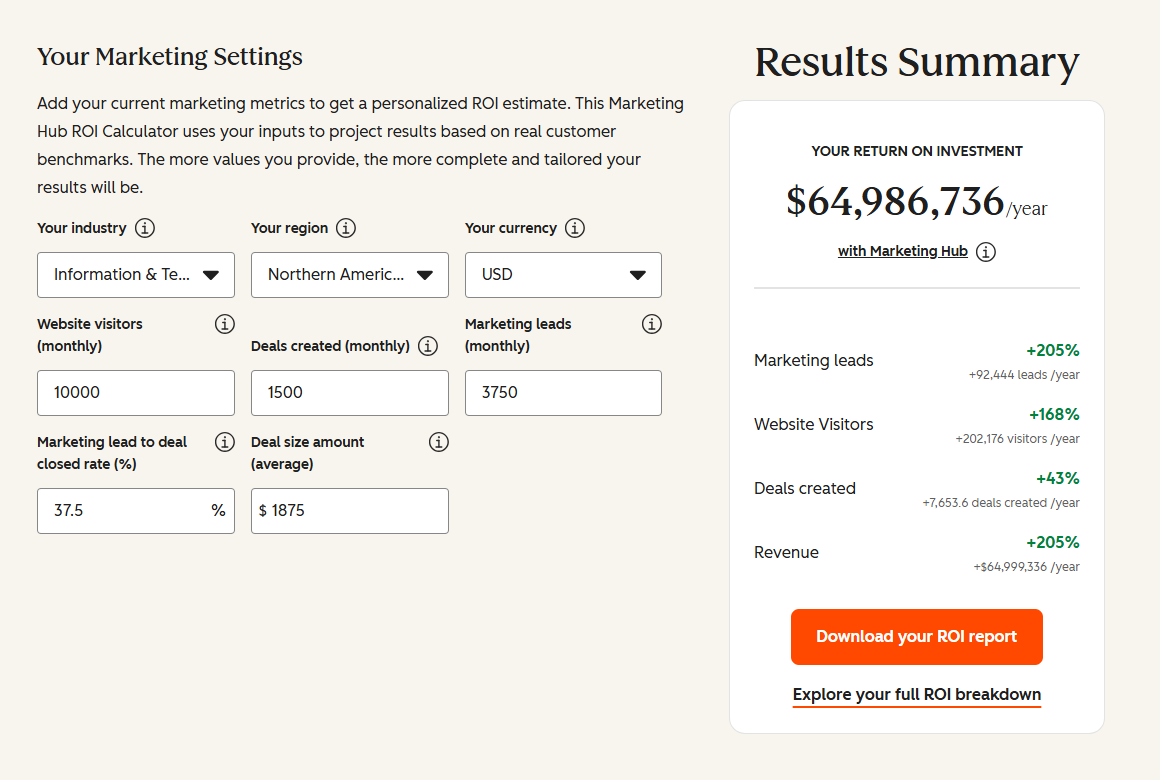
See your 12-month revenue impact with HubSpot CRM
Enter your current numbers — visitors, leads, deal size — and get a personalized projection based on real HubSpot customer benchmarks.
Ready to Migrate Your Access Database to HubSpot?
Legacy databases hold years of customer history that your team has earned. A migration that loses that history or delivers it as a pile of unlinked records wastes both the data and the migration effort.
Integrate IQ handles the schema translation, association mapping, and API-based engagement migration that CSV imports can’t do. Standard 8-week delivery from audit to go-live. Custom integration accreditation from HubSpot. 300+ platforms integrated.
Start the conversation at integrateiq.com/our-hubspot-integration-process/ or contact our team directly at integrateiq.com/contact-us/


Table of Contents
- Why Companies Move from Microsoft Access to HubSpot
- Mapping Your Access Data Model to HubSpot Objects
- Three Migration Methods for Access Data
- How to Access HubSpot's Migration Tools (Smart Transfer)
- Step-by-Step Migration Process
- Custom Integration vs DIY: How to Decide
- Frequently Asked Questions
- Ready to Migrate Your Access Database to HubSpot?