













Explore this article with AI:
If you run a small agency and you have just finished importing your contacts into HubSpot, the screen in front of you probably says something reassuring. A row count. A number of new records. Zero errors.
Post-migration validation is the work of confirming that what the CRM now contains matches what you intended to put there. It is not the same as the import completing. Those are two different things, and the gap between them is where migrations quietly go wrong.
I ran a series of controlled CSV imports into a single HubSpot portal to find out where that gap opens up: both import paths, ten rows of deliberately messy data, two live workflows, a control contact, and two rollback operations. Everything below is what I observed in that portal, on a Marketing Hub Professional trial, between 20 and 24 August 2026. The test file came from an earlier round I had to throw away because every address in it shared one domain, and the results told me nothing. Your portal, tier, and release may differ. The point is not that HubSpot behaves badly. The import summary is a narrower report than most people read it as.
Free estimator
Know what your HubSpot project costs before the first call.
Select your services and get a transparent price range in minutes. No sales call needed to get a number.
Connect HubSpot to your ERP, billing platform, or database field mapping, custom logic, and support included.
Pipelines, workflows, email templates, and reporting configured for how your team actually works.
Live, role-based sessions with recordings and written guides built around a custom plan for your team.
HubSpot Partner
Client retention
Platforms integrated
The Success Screen Tells You About Rows, Not About Records
Three results from the tests make this concrete.
In one run, HubSpot reported three updated records and zero errors, while the property I was updating did not change. I imported three existing contacts with Lifecycle Stage set to Customer, which worked. Then I re-imported the same three contacts with Lifecycle Stage set to Lead. The summary again reported three updated records and zero errors. All three contacts were still Customer.
In another, the summary reported no association count while associations were being created. A contacts-only quick import showed a dash in the New Associations field. Afterwards, three company records existed, and contacts were associated to them.
In a third, a clean pre-flight did not mean a clean import. The advanced import mapping screen reported zero errors found across ten rows scanned. The final result still returned one duplicate-row error and one row not imported.
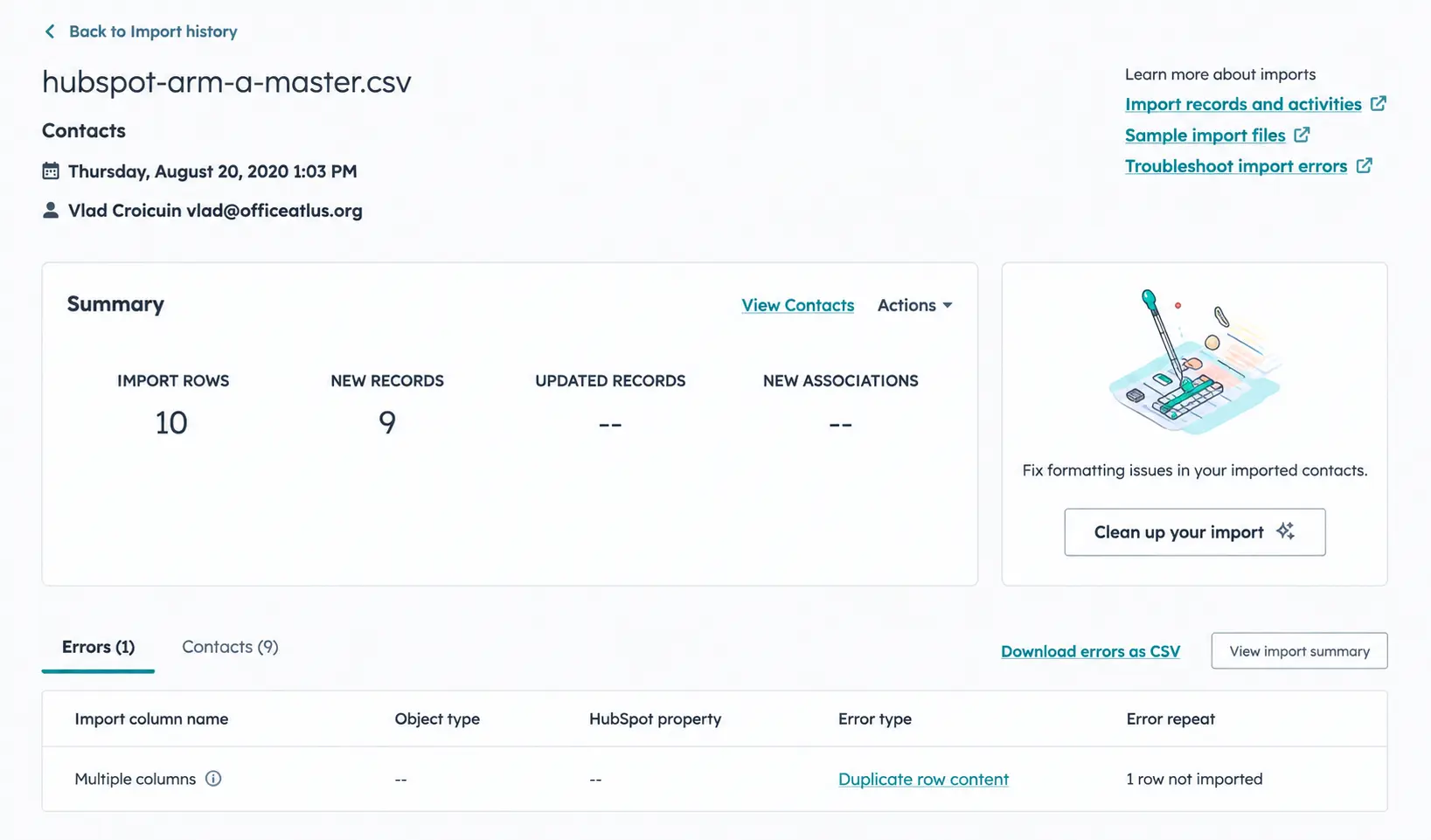
Ten rows in, nine records created, one duplicate row rejected. The New Associations field reports nothing. Three company records existed afterwards.
None of these are failures of the importer. In each case, HubSpot did something defensible. But a person reading only the summary would have walked away with the wrong picture three times out of three.
Choose Your Import Path Before You Touch Any Data
HubSpot offers two routes into a CSV import, and they are not two versions of the same tool.
Quick import is contact-focused. In my test, its mapping screen offered contact properties only. When I added a Company Domain Name column to the file expecting to control company matching, the field stayed unmapped because the flow had no company properties to map it to.
Advanced import understands multiple objects. It let me select Contacts and Companies together, upload one file, map fields to properties on both objects and configure the association between them in the same pass.
The difference in outcome was large enough to settle the question.
| Result | Quick import | Advanced import |
| Rows in the file | 10 | 10 |
| Records created | 9 contacts | 9 contacts and 3 companies |
| Company names | blank on all three | correct on all three |
| Associations reported | dash | 9 |
| Free-mail contacts associated | no | yes |
| Contact with no email associated | no | yes |
Both tools work. Picking the wrong one costs you a cleanup project.
My rule after these tests: use advanced import for any migration where contacts and companies need to stay linked. Reserve quick import for contact-only updates where you already know no company relationship is at stake.

Turn HubSpot Into A Real-Time SMS Engine with
Message IQ

Two-Way Conversations

Shared Team Inbox

Automation Triggers

Advanced Reporting

Compliance Tools
-
98%
SMS read within 3 min -
78%
Buy from first responder -
21×
More likely to qualify
3–5 min avg response
$45–$50 ROI / $1

*MessageIQ is an IntegrateIQ product – built natively for HubSpot by the same team.
The Company Name Trap
This is the finding I would want a small agency to read twice, because nothing about it looks like an error.
HubSpot can associate contacts with companies automatically, matching the domain in a contact’s email address against a company’s domain name. That behaviour is documented, and it is controlled by a setting under your Companies object settings. It is also on by default in many portals, which means a “contacts only” import is not necessarily contacts only.
Here is what that produced in my quick import test.
Three company records were created automatically, and all three had blank names. They were identifiable only by domain. Nothing on the import screen mentioned they had been created, let alone that they had no names.
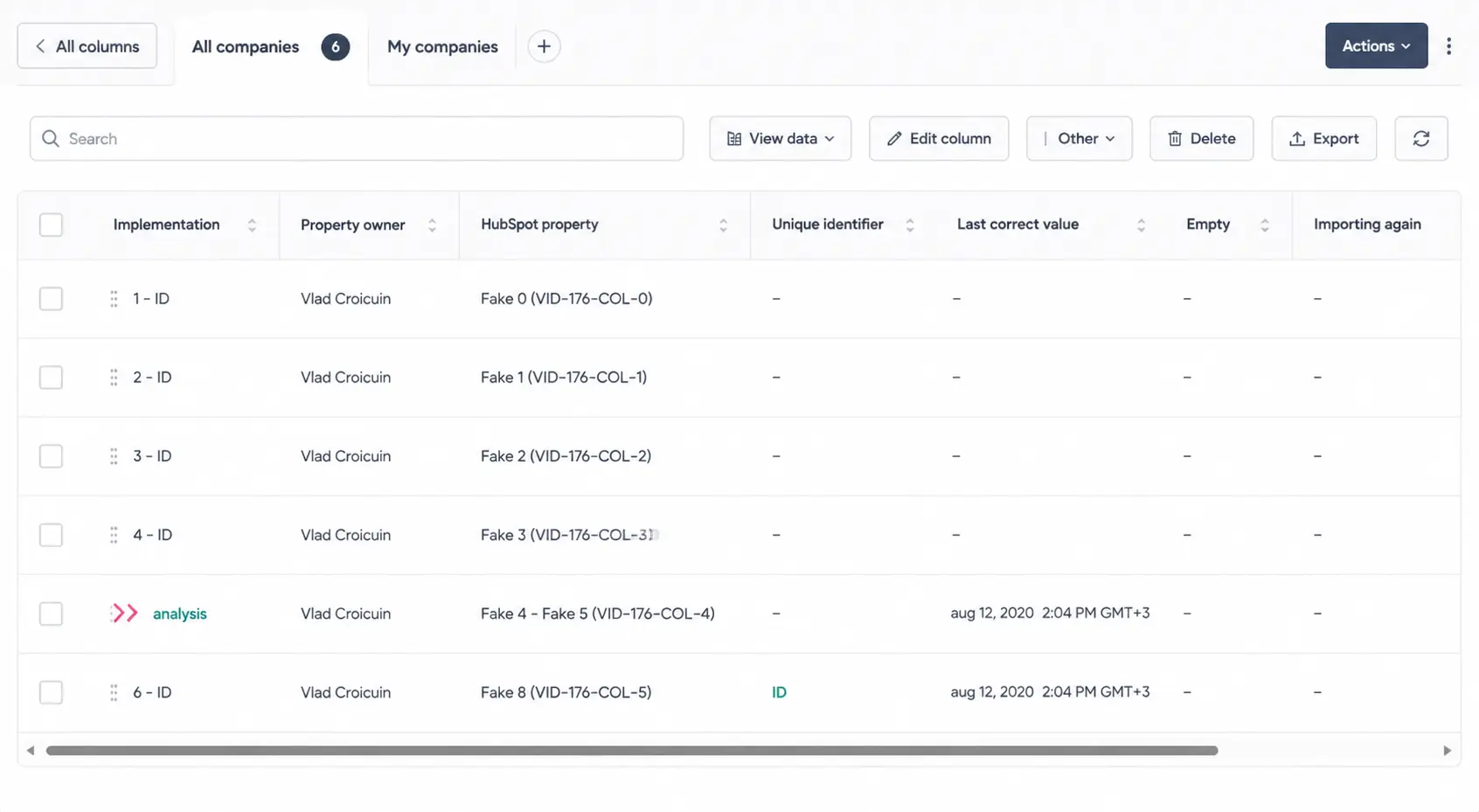
Three company records created automatically by a contacts-only import, at the same minute as the import itself. None of them has a name.
The contact Company name property and the associated company record are separate things. One contact carried the Company name value from my CSV, Meridian Studio, while the company record she was actually associated with was the blank-named record tied to her email domain. HubSpot’s own property documentation notes that a contact’s Company name can be set independently of the associated company’s name.
Where the CSV company name and the email domain disagreed, the association followed the domain. The imported name stayed on the contact as a text value. It had no effect on which company record the contact was linked to.
Contacts on free email domains imported successfully and were not associated at all. For free-mail addresses, HubSpot also checks the contact’s Website URL property to find a matching company domain, and my test rows did not have one. They carried a company name in the contact property and had no company relationship behind it.
The contact with no email address imported successfully and was also left unassociated. In messy agency data, that is often a founder or an owner.
Put those together, and you get the failure mode that matters. A record can look complete because the Company name field is populated, while the company object behind it is blank-named, missing or a different company entirely. Loud failures get fixed. Plausible-looking wrong structure survives for months.
I documented the full association test, including how the same file behaves through both import paths, in my Pipedrive to HubSpot migration notes.
Your Small Corrective Import Can Fire Live Automation
Most people are careful with the big migration file and casual with the small correction that follows. That is backwards.
I built a workflow with one enrollment condition, Job Title is “Workflow Trigger”, and one harmless action, set City to “Workflow Fired”. Re-enrollment was off. Before turning it on, HubSpot confirmed zero contacts met the criteria.
Then I imported a single row containing two columns: an email address and a job title. There was no City column in the file.
The import reported one row, one updated record, zero errors. On the contact afterwards, Job Title read “Workflow Trigger” and City read “Workflow Fired”. Property history attributed the City change to the workflow, fifteen minutes after the manual value it replaced. The workflow’s enrollment history recorded the run.
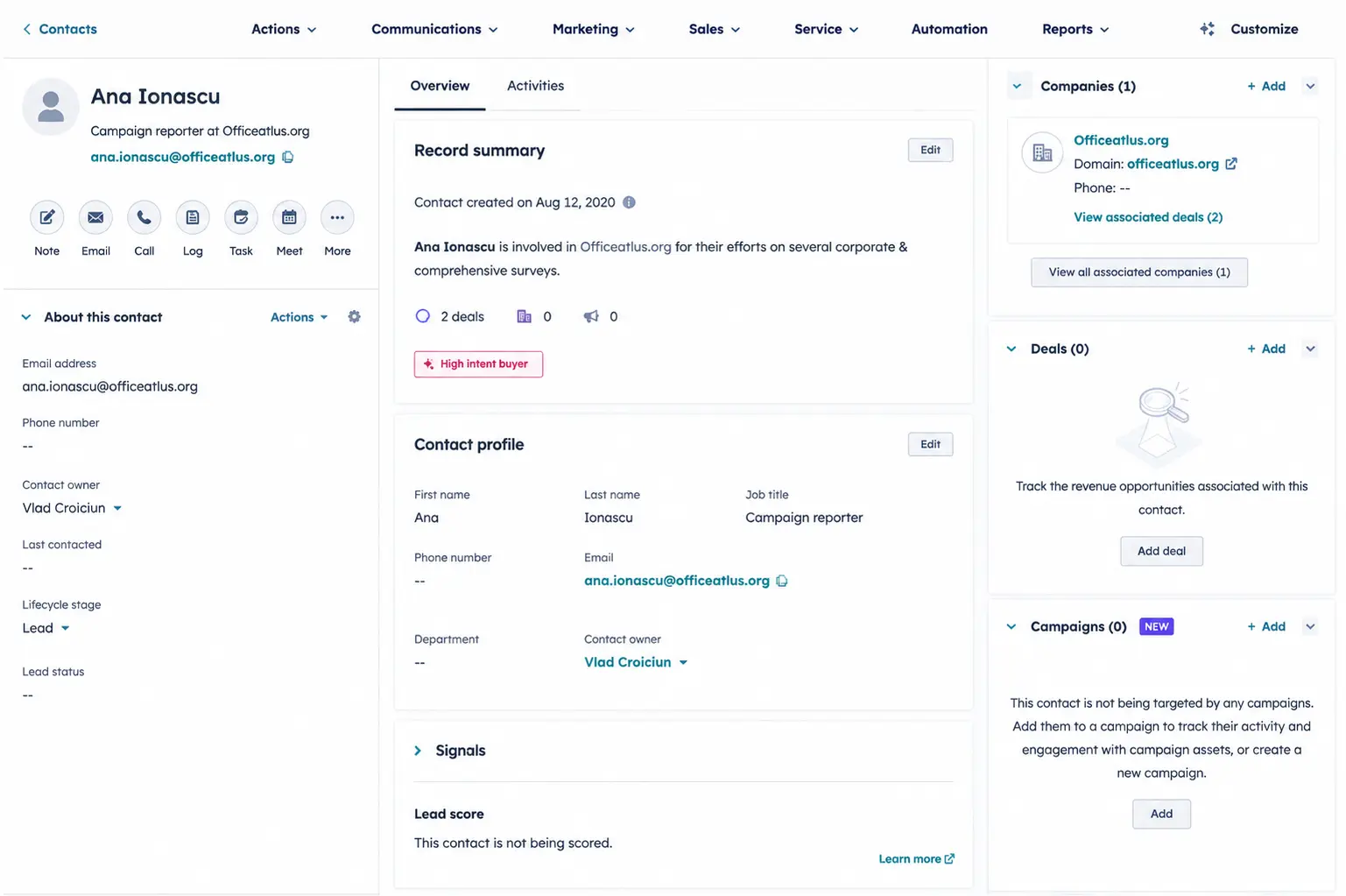
City was not a column in the imported file. The workflow wrote it in response to the job title the import changed.
HubSpot did warn me. Before I finished, the final details screen displayed a line reading “Properties in your import are used in: Workflows 1”. That is a real signal, and it is worth crediting.
What the warning did not say was which workflow, whether this contact would enroll, what the workflow would change, or that a property absent from my file was about to be overwritten.
For a small team where the person running the import is also the person who built the automations, treat any workflow dependency notice as a stop sign. Open the workflow, read the actions, then decide.
Lifecycle Stage Moves Forward, and Only Forward
The lifecycle result from the first section deserves its own line, because it changes how you plan a rollback.
In my portal, importing a lifecycle stage that sits earlier in the sequence than the current value did not move the record backward and produced no error. The import reported the records as updated. Property history showed no backward change.
The practical consequence: if your source data carries wrong lifecycle stages, a corrective re-import is not an undo. Snapshot your lifecycle distribution before you migrate, and add lifecycle stage to the list of things you check by eye afterwards.
Rollback Is Real, but It Is Scoped by Source
HubSpot does have a rollback tool. Under Backup and Restore, Restore CRM changes will roll records back to an earlier point. It previews before it acts; it names the old and new value of every property it intends to change, and it makes you type the number of changes to
confirm. In one test, it correctly identified the three company records an import had created and removed them.
Then I tested what happens where an import and a workflow have both touched the same record.
The starting state was a contact with Job Title “Consultant” and City “Bucharest”. The import wrote Job Title. The workflow, in response, wrote City. I then restored the import.
Job Title went back to “Consultant”. Not blank. The previous value, attributed in property history to Property Restore.
City stayed at “Workflow Fired”. It was not offered in the import restore’s property selector at all, so I could not have included it even if I had wanted to.
HubSpot records the source of every property change, and it restores by source. Job Title returned to its pre-import value. City, written by the workflow, did not.
That is not a limitation. It is a model, and it becomes obvious once you open the restore panel directly rather than from the import. The Source dropdown lists four options: CRM Changes, Import, Integration and Workflow. Selecting Workflow changes the form. Instead of choosing properties, you choose a workflow and a run window. When I built that restore for the workflow in question, the preview offered to return City from “Workflow Fired” to “Bucharest”. There is a second route to the same place, from a workflow’s enrollment history.
So the finding is not that HubSpot cannot reverse what your automation did. It can. The finding is this:
HubSpot restores changes by source, not by the chain of events that followed the original action. Restoring the import restores the import. If that import also triggered three workflows and an integration, each of those is its own restore operation, with its own scope.
Two practical constraints come with it. The search window is fourteen days. Once a preview is prepared, you have twenty-four hours to act on it. And in one earlier test I deleted a contact before requesting a restore, at which point the preview found nothing to restore. Validate first, restore second, delete last.
One more result worth reporting with its limits attached. I set up a second workflow watching for Job Title “Consultant”, turned it on while the contact did not qualify, and then let the restore write that exact value. The contact did not enroll. A control contact, edited manually to the same value while the same workflow was live, did enroll. Re-enrollment was off in both cases and HubSpot documents that restoring data may trigger workflows where re-enrollment is allowed, which I did not test. Within those limits: a restored value and a typed value did not behave identically.
The Ten-Minute Check
Run this immediately after any import, before anyone starts working in the CRM.
- Count both objects. Compare source rows to contacts created and companies created, not just to the summary figure.
- Open three records by hand. Pick one ordinary, one exception, one from the middle of the file.
- Check the association, not the field. A populated Company name does not prove a company relationship exists.
- Look at your company list for blank names. Sort by name and check the top.
- List your exceptions. Free-mail addresses and missing emails need their own report before cutover.
- Spot-check lifecycle stage. Confirm the value you intended, not the count of records updated.
- Open the enrollment history of every workflow touching an imported property. Look for runs at the import timestamp.
- Note your restore deadline. Fourteen days from the import date, with a named owner for the decision.
If you want a structured way to record all of this before you migrate rather than during, I keep a free CRM evaluation template that covers the same ground.
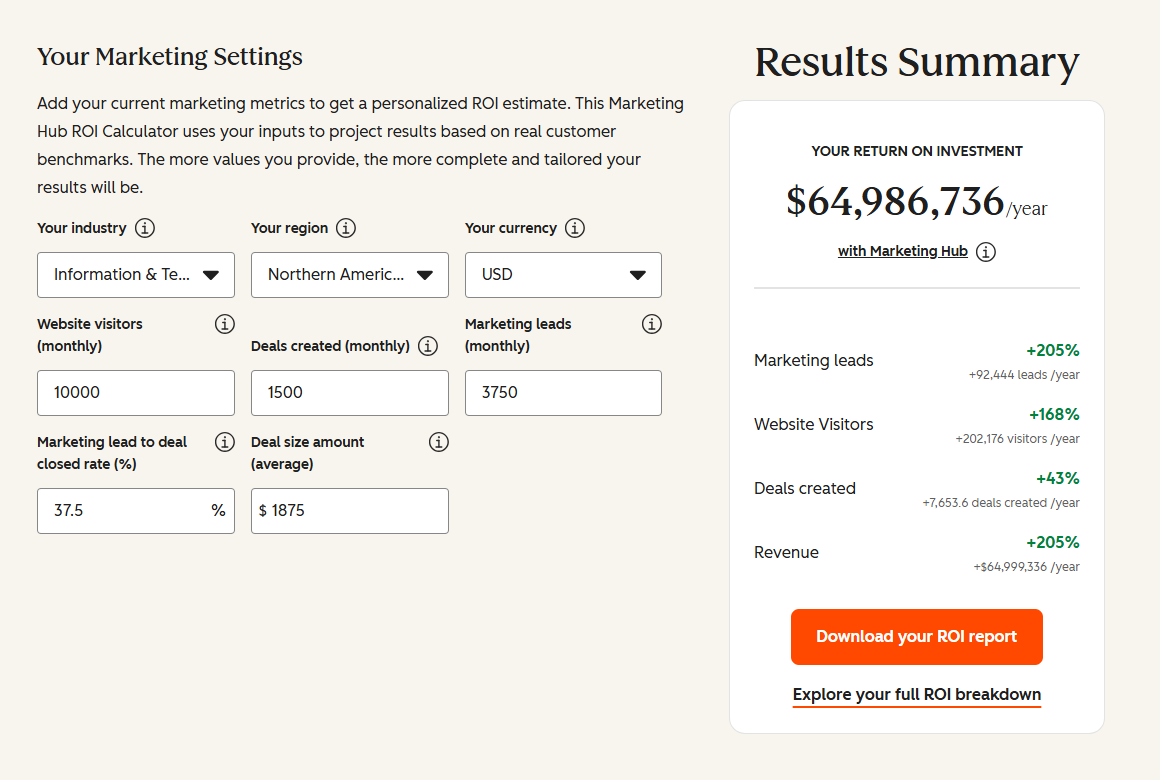
See your 12-month revenue impact with HubSpot CRM
Enter your current numbers — visitors, leads, deal size — and get a personalized projection based on real HubSpot customer benchmarks.
FAQ
Does a “zero errors” import mean my data is correct?
It means no row was rejected. In my tests, records were reported as updated while the target property did not change, and associations were created while the summary reported none. Zero errors is a statement about rows, not about the resulting data model.
Should I use quick import or advanced import?
For any migration where companies matter, use advanced import. In my tests, it created named company records, reported an explicit association count, and correctly associated contacts on free email domains and one contact with no email address at all. Quick import did none of those.
Will importing contacts trigger my workflows?
It can. A single-row update to one existing contact enrolled that contact in a live workflow, which then set a property that was not in my file. HubSpot flags on the final import screen that an imported property is used by a workflow, but the notice does not name the workflow or describe what it will do.
Can I undo a HubSpot import?
Yes, within limits. Restore CRM changes previews the exact changes it will reverse and requires confirmation. The search window is fourteen days, and a prepared preview expires after twenty-four hours. It restores by source, so an import restore reverses the import and not what other systems did in response.
How long do I have to decide whether to roll back?
Technically, fourteen days. Practically, I would give a migration a validation window of twenty-four to forty-eight hours, because deleting records before requesting a restore can leave nothing for the restore to find.



Table of Contents
- The Success Screen Tells You About Rows, Not About Records
- Choose Your Import Path Before You Touch Any Data
- The Company Name Trap
- Your Small Corrective Import Can Fire Live Automation
- Lifecycle Stage Moves Forward, and Only Forward
- Rollback Is Real, but It Is Scoped by Source
- The Ten-Minute Check
- FAQ