
Explore this article with AI:
There is no native tool to move data from one HubSpot portal to another. You need a third-party migration tool or a custom API build to get your data from Point A to Point B when consolidating portals after an acquisition, splitting a business unit into its own account, or starting fresh in a clean portal.
HubSpot to HubSpot migration is the act of moving CRM records, associations, engagements, custom objects and files from one HubSpot account to another. Typically it’s the records themselves that travel incident free. The hard part is everything that comes with them: the deal that’s tied to a company, the five years of email history tied to a contact, the custom object no one remembers creating until a rep needs it.
This guide covers the whole process: what data moves and what stays behind, step-by-step instructions for the migration, a comparison of the tools available, common pitfalls, and the costs. We built Migrate IQ to solve the problems we kept hitting during client portal consolidations and we’ll reference it throughout, but the process guidance here applies no matter what tool you choose.
Free estimator
Know what your HubSpot project costs before the first call.
Select your services and get a transparent price range in minutes. No sales call needed to get a number.
Connect HubSpot to your ERP, billing platform, or database field mapping, custom logic, and support included.
Pipelines, workflows, email templates, and reporting configured for how your team actually works.
Live, role-based sessions with recordings and written guides built around a custom plan for your team.
HubSpot Partner
Client retention
Platforms integrated
Migrate IQ: HubSpot to HubSpot Portal Migration
Move CRM records, associations, custom objects and files between portals. Every migration runs into a sandbox first. One license, unlimited runs. Free sample migration available (up to 100 companies, no card required).
Why Teams Migrate Between HubSpot Portals
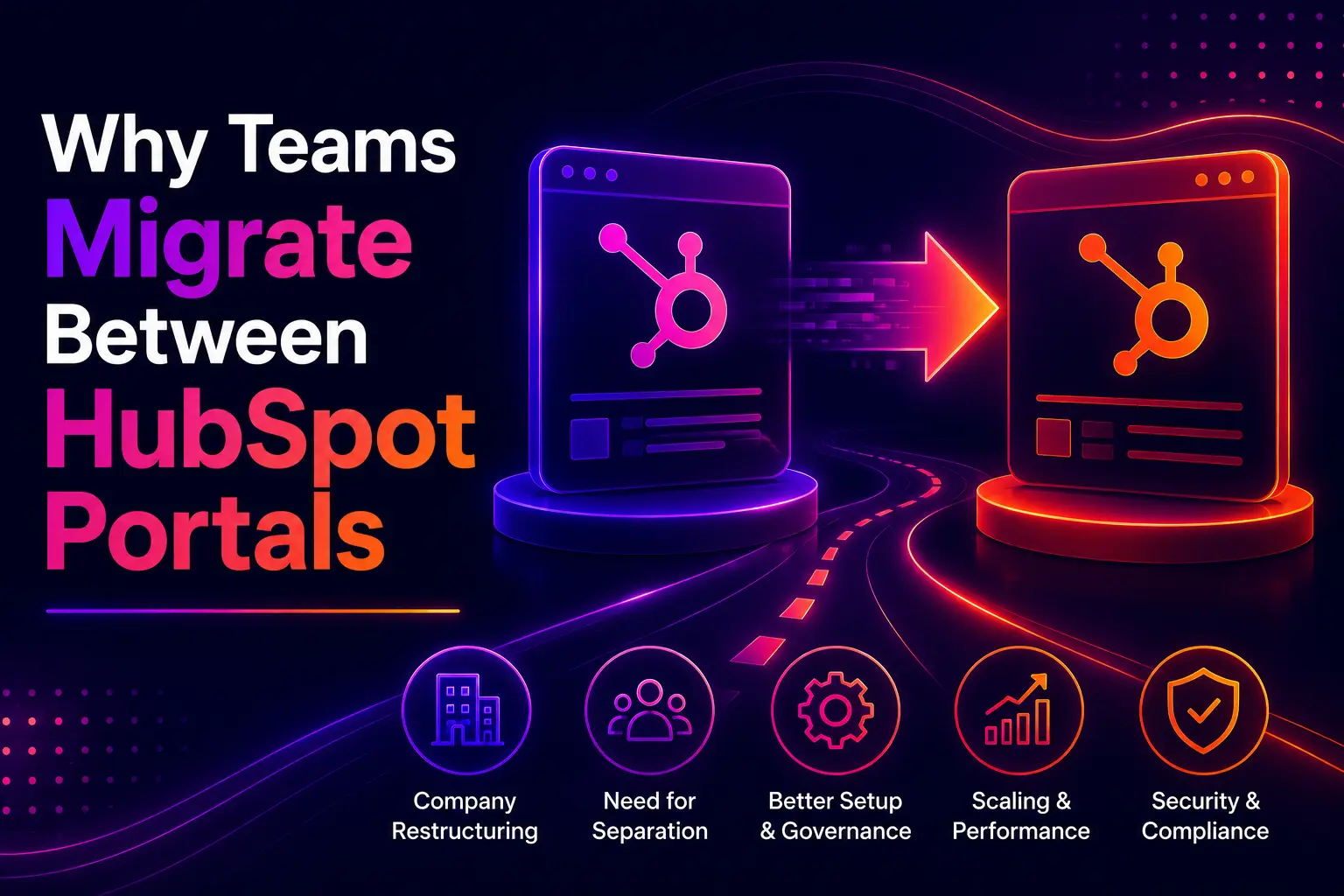
Portal migrations aren’t something teams do for fun. They’re triggered by a structural change in the business that makes the current portal setup untenable. Here are the five scenarios we see most often.
Merging Two Portals After an Acquisition
Two companies. Two portals. One revenue team. The acquired company’s deal history, pipeline stages and contact associations all need to arrive in the surviving portal with their relationships intact. This is the migration scenario with the highest stakes, because if the association is broken, the rep loses context on every inherited account.
Splitting a Business Unit Into Its Own Portal
You have to sift through that brand’s records, move those to another portal and leave everything else behind. The challenge is surgical: pull out what belongs to the unit, leave what does not, and don’t accidentally break cross-unit connections.
Consolidating Regional Portals
Until reporting became impossible, separate portals per region made sense. 3 or 4 regional portals should be merged into 1 in phases region by region and validated after each. That is how you get 40,000 orphaned deal records with no way to know what region they came from when you try to do it all at once.
Starting Fresh in a Clean Portal
Years of accumulated portal debt, broken workflows, unused properties, and test records that never got deleted. Sometimes the best way forward is via a new portal. Filter out what you do not want to bring with you, migrate only what still has its place, and leave the rest behind.
Testing Structural Changes Before Production
Need to rename deal stages, re-structure your pipelines or re-organize custom objects? Migrate first to a sandbox , make your changes and see how it looks and feels with real data before anything touches your live portal.

Turn HubSpot Into A Real-Time SMS Engine with
Message IQ

Two-Way Conversations

Shared Team Inbox

Automation Triggers

Advanced Reporting

Compliance Tools
-
98%
SMS read within 3 min -
78%
Buy from first responder -
21×
More likely to qualify
3–5 min avg response
$45–$50 ROI / $1

*MessageIQ is an IntegrateIQ product – built natively for HubSpot by the same team.
What Data Moves in a HubSpot Portal Migration (And What Doesn’t)
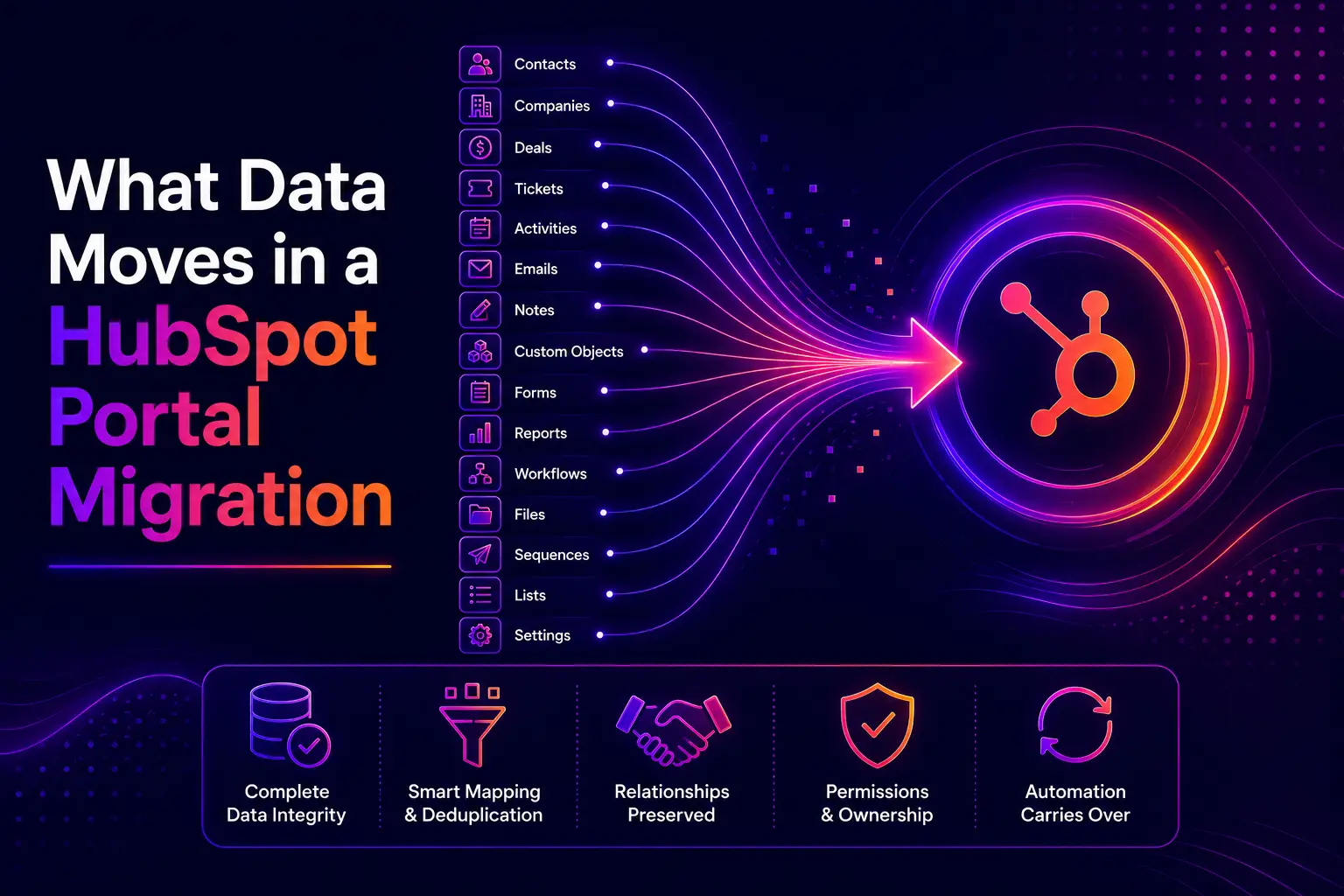
Most portal migrations don’t fail on the contact record. They fail on everything attached to it. Here’s what you should expect to move, and what will stay behind.
What Moves
- CRM records: Contacts, companies, deals, tickets, products, line items, and quotes
- Associations: The relationships between records survive the trip. A deal stays connected to its company and contacts. Custom association labels carry across.
- Custom objects: Object definitions, properties, pipelines, and records. The schema is created in the target portal before any data is written, so nothing lands orphaned.
- Engagements: Calls, meetings, notes, and tasks migrate with the records they belong to.
- Email history: Logged emails move with their associated records.
- Files and attachments: Documents attached to records transfer to the target portal.
- Pipelines and stages: Deal, ticket, and custom object pipelines are recreated in the target.
- Properties: Custom properties are detected in the source, matched or created in the target, with their field types and dropdown options preserved.
- Lists: Static and active lists are recreated.
- Owners: Record ownership is matched between portals.
What Stays Behind
- Marketing assets: Landing pages, website pages, blog content, templates, HubDB tables, forms, and workflows do not migrate with self-serve tools.
- Historical analytics: Contact web traffic history, marketing email interaction history, form submission history, and lifecycle stage history are not part of standard migrations.
- CMS content: Pages, modules, and theme files stay in the source portal.
- Automation: Workflows need to be rebuilt or migrated separately through specialized tools.
If your project requires marketing assets, historical analytics, or workflow migration, you’ll need either an enterprise-tier tool or a managed migration built by API engineers. Integrate IQ offers both through Migrate IQ’s managed migration track, scoped and quoted per project.
How a HubSpot to HubSpot Migration Works (Step by Step)
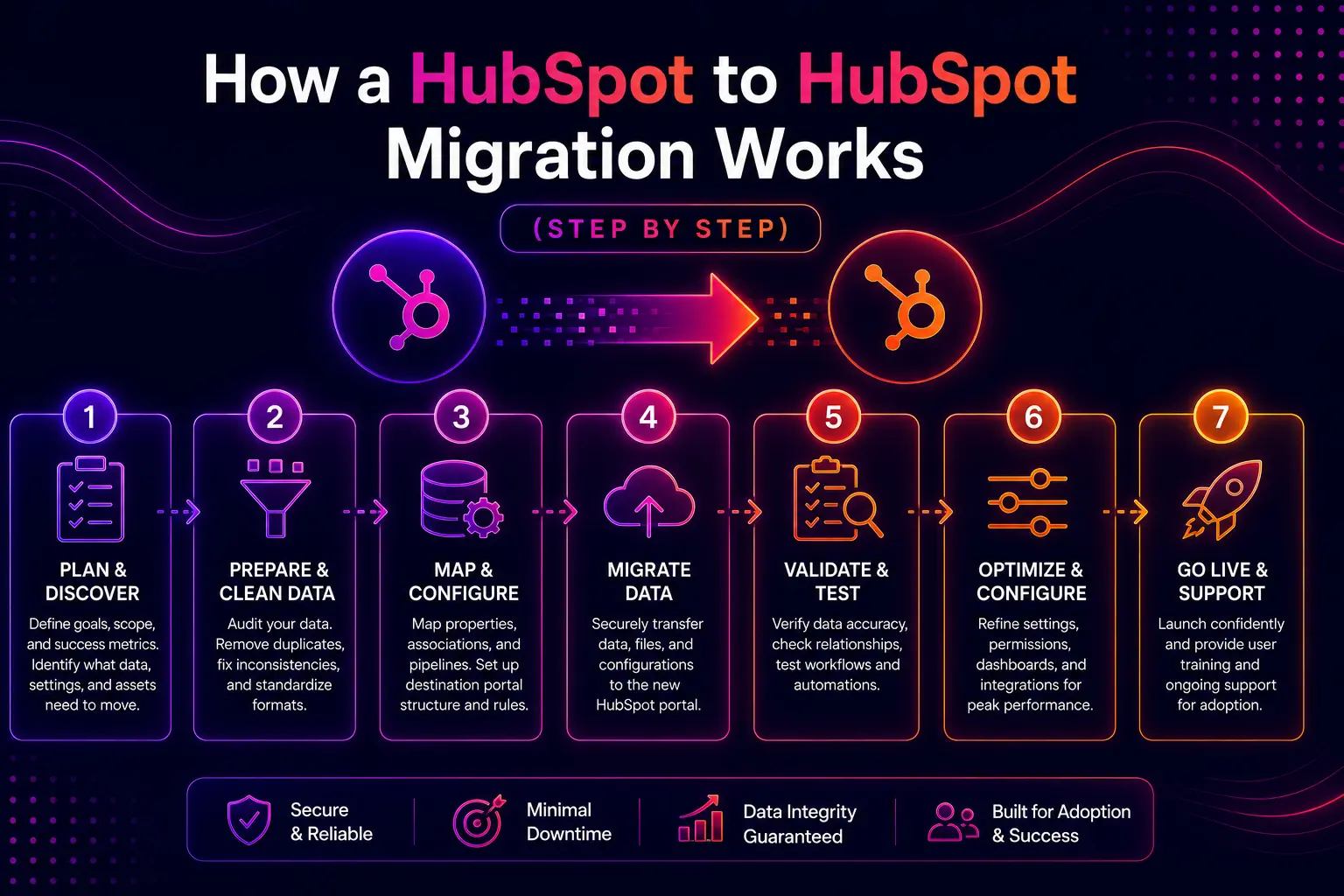
The process below reflects the workflow we built into Migrate IQ, but the sequence applies to any well-run portal migration. The key differentiator is whether your tool lets you iterate safely before touching production.
- Connect both portals. Authorize the source portal and the target portal through HubSpot OAuth. You need Super Admin access on both. The source portal is read-only throughout the migration. Nothing there is modified or deleted.
- Provision a sandbox. Create the HubSpot sandbox that will receive the migration data. This is where all the work happens. Production is not where you experiment.
- Review the field mapping. The migration tool reads the source schema, identifies which properties are in use, compares both portals, and handles the mapping. You review what it proposes, change anything you want handled differently, and confirm. No spreadsheets, no manual property creation.
- Choose what moves. Select the objects to include. Apply source-side filters if you’re migrating a segment rather than the full portal. Define by region, brand, date range, or pipeline.
- Sync into the sandbox. Run the migration and review the result. Check record counts by object. Confirm associations held. Verify custom object schema landed correctly.
- Sync again until the data is right. Adjust filters, run incremental syncs, move the next segment. This is where unlimited runs matter. Tools that charge per run punish the exact behavior that makes migrations succeed: iteration.
- Promote to production. When the sandbox data is right, promote it to your live portal. Nothing reaches production until you’ve already seen it work.
The sandbox-first approach eliminates the need for a rollback button. A rollback assumes bad data has already reached production and now has to be cleaned up. With sandbox-first, bad data never makes it there.
See How Your Data Lands Before You Commit
Migrate IQ runs every migration into a sandbox first. Sync, review, adjust, and sync again. Unlimited runs on one license, no delta charges. Connect both portals and move up to 100 companies free.
Three Ways to Run a HubSpot Portal Migration
Not every migration needs the same approach. Here’s how the three main methods compare, and when each one makes sense.
| Method | Best For | Pros | Cons |
| Manual CSV Export/Import | Small portals (<1,000 records), simple data | Free, full control over data cleaning | Associations break, no engagement history, extremely time-consuming at scale |
| Self-Serve Migration Tool | Standard CRM data migrations with <2.5M records | Automated mapping, associations preserved, sandbox testing, fast execution | Marketing assets and historical analytics not included in most tools |
| Managed Migration (Custom API Build) | Complex requirements, data transformation, multi-system dependencies | Handles anything: CMS content, analytics, custom logic, data transformation | Higher cost ($5,000-$50,000+), longer timeline |
For most portal migrations, a self-serve tool will meet the project needs. Migrate IQ offers sandbox-first execution, unlimited runs, and published pricing starting at $599 for the self-serve track. If the project requires something outside of what can be reached by the self-serve product, Integrate IQ’s managed migration track handles the unusual object relationships, data transformation during transit, or systems outside HubSpot in the migration path. Same engineering team. Custom scope.
How HubSpot Portal Migration Tools Compare
The differences between migration tools show up in what a license actually covers, whether you can prove the migration before it touches production, and whether you pay again to run it twice.
| Feature | Migrate IQ | Datawarehouse.io | SyncMatters | Import2 |
| Migration runs per license | Unlimited | One | One | One |
| Cost to run again | Included | $199 per delta | New purchase | Included |
| Sandbox on the same license | Yes | Separate app | Not published | Not published |
| Promote sandbox to production | Yes, from the app | Not published | Not published | Not published |
| Incremental syncs | Included | $199 add-on | Not published | Included |
| No field mapping required | Yes | Yes | Yes | Yes |
| Confirm or adjust mapping | Yes | Not published | Not published | Yes |
| Custom objects | All tiers | $999+ tier | Yes | Custom scope |
| Source filtering / segments | All tiers | $799+ tier | Add-on | Yes |
| Free sample migration | Yes | No | Yes | Yes |
| Built by a HubSpot Diamond Partner | Yes | No | Elite Partner | No |
| Starting price | $599 | $499 | Not published | Not published |
Based on each vendor’s published documentation and pricing as of September 2026. Vendors change their products, so verify current details on their sites before deciding.
What Can Go Wrong During a Portal Migration
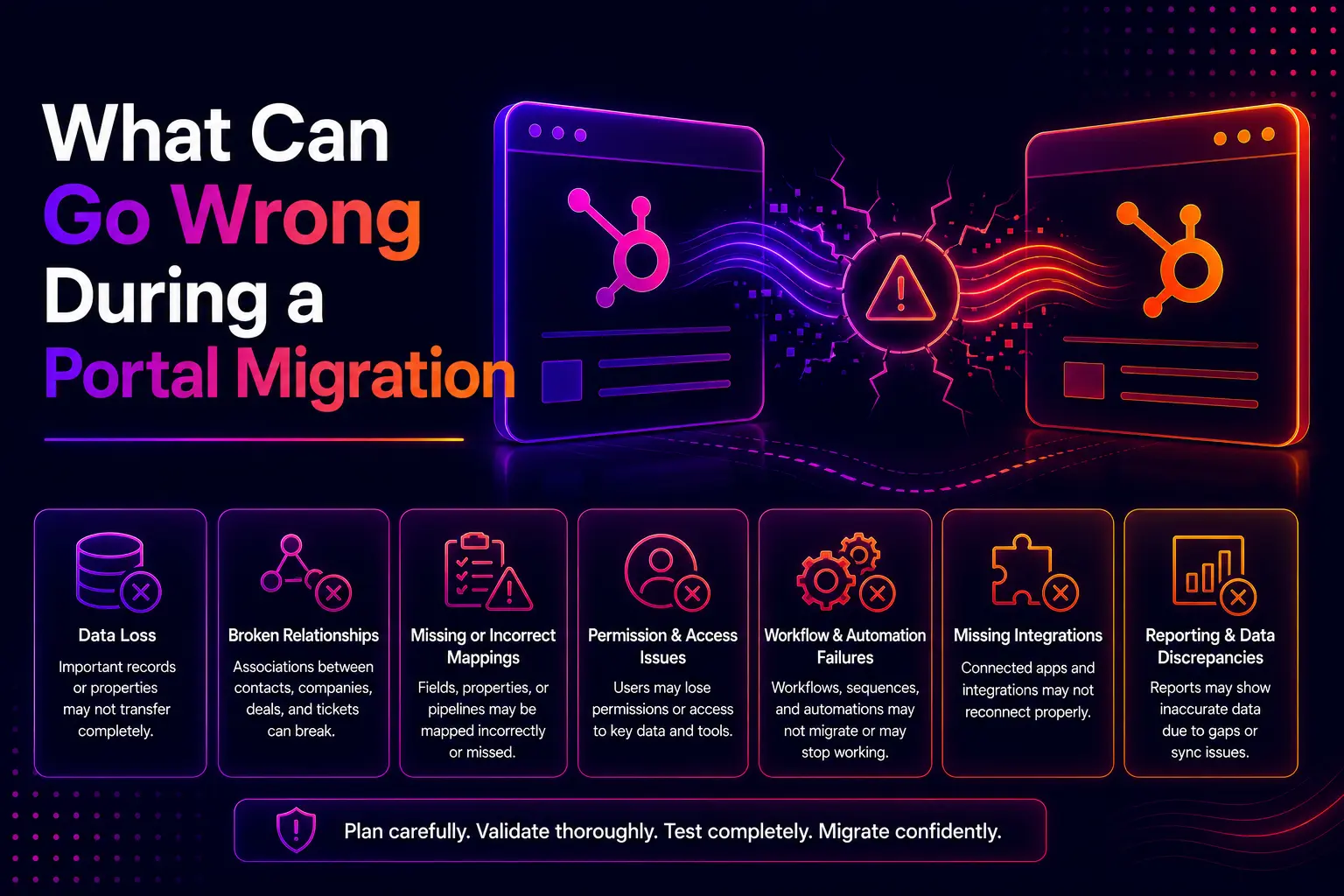
Every migration tool will move your contact records. The failures happen in the details. Here are the five most common problems we see, and how to prevent each one.
Association Loss
A deal enters the target portal divorced from company. Ticket loses connection. The #1 failure point in portal migrations is association integrity, and it’s invisible until a sales rep opens a record and finds nothing attached to it. The fix: run first in a sandbox and validate associations before going into production.
Orphaned Custom Objects
The custom object records are landing in the target portal but the object schema was not created first. There is no place for the records to go so they either fail silently or attach to the wrong object type. Migrate IQ creates the object schema in the target prior to writing any records. The other tools are different. Check before you leave.
Field Type Mismatches
In source a single line text field maps to a drop down in target. Date field format is not preserved. These mismatches break reporting, list segmentation and workflow triggers down the line. Most cases are handled automatically but check the proposed mapping before confirming.
Duplicate Records
If you are migrating to an existing portal that has some of the same contacts you will have duplicates unless the tool deduplicates on a unique identifier like email address. Before you run check your tool’s dedup logic. It’s far harder to clean up duplicates after a migration than to avoid them in the first place.
Missing Engagement History
Email logs, call logs, meeting notes and tasks are attached to records, but stored differently than regular properties. A tool that moves the contact, but not the engagement, gives your reps half the story. Make sure your tool moves engagements not just records. Test a sample in the sandbox.
How Much Does a HubSpot to HubSpot Migration Cost?
Migration pricing depends on the method, the volume of records and the complexity of the project. Here’s what each approach actually costs.
Self-Serve Tool: Migrate IQ Pricing
| Plan | Records | Price |
| Sample Migration | Up to 100 companies + associated records | Free |
| Standard | Up to 40,000 records | $599 |
| Growth | Up to 125,000 records | $1,195 |
| Scale | Up to 510,000 records | $2,395 |
| Enterprise | Up to 1.2 million records | $4,795 |
| Enterprise | Up to 2.5 million records | $6,495 |
| Custom | Over 2.5 million records | Custom quote |
Every Migrate IQ license includes unlimited runs, sandbox migration, incremental syncs, and the production promotion. There’s no per-run fee and no delta charge. The only variable is record volume.
Managed Migration
Custom migrations built by API engineers typically cost between $5,000 to $50,000+ depending on data volume, schema complexity, number of systems involved and whether CMS assets or historical analytics need to move. Integrate IQ managed the migrations on a case-by-case basis. If your project needs something the self serve product cannot cover, a short conversation typically brings out the constraints that matter.
Manual CSV Migration
Low in tool cost, high in time. When you consider exporting data, cleaning it up, reformatting it, sequencing the import, and rebuilding the associations, a 50,000-record portal with deals, tickets, and custom objects can take 40-80 hours of manual effort. Labor is almost always the biggest expense for organizations more than the price of a self-serve tool.
Start With a Free Sample Migration
Connect both portals and move up to 100 companies with their associated records. See how your data lands, how properties are handled, and whether associations held. No cost, no card. One sample per portal.
Frequently Asked Questions
Can you migrate custom objects between HubSpot portals?
Yes. IQ moves custom object definitions, properties, pipelines and records at every pricing level. The object schema is created in the target portal before any records are written, so nothing is orphaned. Some competing tools hide custom objects behind enterprise pricing.
Does HubSpot have a native portal-to-portal migration tool?
No. With HubSpot’s Smart Transfer, you can move your data from another CRM (like Salesforce or Pipedrive) into HubSpot. It is a one-way import tool and not intended to transfer data from one HubSpot portal to another. If you have to do portal to portal work you will need a dedicated migration tool like Migrate IQ or a managed migration by a solutions partner.
How long does a HubSpot to HubSpot migration take?
This will depend on the volume of records and the size of the file library. Simple migrations can be configured in minutes and data starts flowing instantly. Large, complex migrations with hundreds of thousands of records and large file libraries can take days to configure, test, filter and finish. With IQ’s unlimited run model, you can work at the pace your project demands without the fear of burning a paid run on a test.
Can a HubSpot portal migration be undone?
That question rarely comes up with Migrate IQ. And because every migration will go through a sandbox first, the production is only written when you are promoting data that you have already vetted. A rollback is when you have bad data that has made it to your live portal and you need to fix it. Sandbox-first prevents it from getting there in the first place.
What happens to record associations during a migration?
The records accompany the associations. Deal comes in still tethered to its company and contacts. Association labels are kept custom. The most common failure point in portal migrations is association integrity, which is the exact reason every Migrate IQ migration lands in a sandbox where you can confirm associations before promoting to production.
Do I have to map fields manually?
Not with Migrate IQ. The tool reads the schema of the source portal, finds the properties used, compares the two portals and maps them automatically. You see what it proposes and can change anything you want done differently before it writes anything to the target. No spreadsheets, no exports, no properties to manually build.
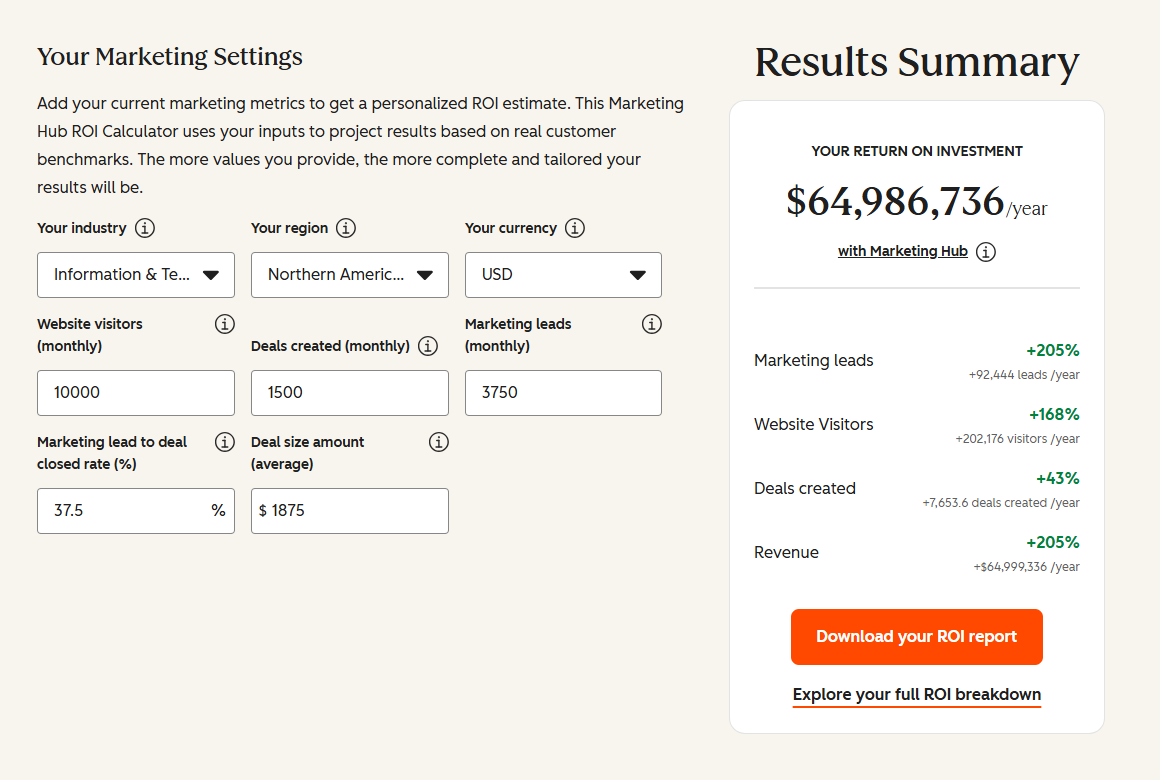
See your 12-month revenue impact with HubSpot CRM
Enter your current numbers — visitors, leads, deal size — and get a personalized projection based on real HubSpot customer benchmarks.
Your Portal Migration, Proven Before It Runs
Integrate IQ has been integrating HubSpot to operational systems since 2013. We’ve processed 20+ billion records through our integrations and have a 98.5% client retention rate on 300+ platform integrations. The reason we built Migrate IQ is that during our own client consolidations the tools available simply didn’t do what the project needed, and the ones that came close charged us every time we moved another piece of data.
If your migration is a standard CRM data move, start a free sample migration and see how your data lands before you commit. If your project needs marketing assets, historical analytics, or data transformation that a self-serve tool can’t reach, our API engineers scope managed migrations individually.
Have questions about what your migration requires? Book a short conversation and we’ll tell you honestly what’s possible and what it takes.

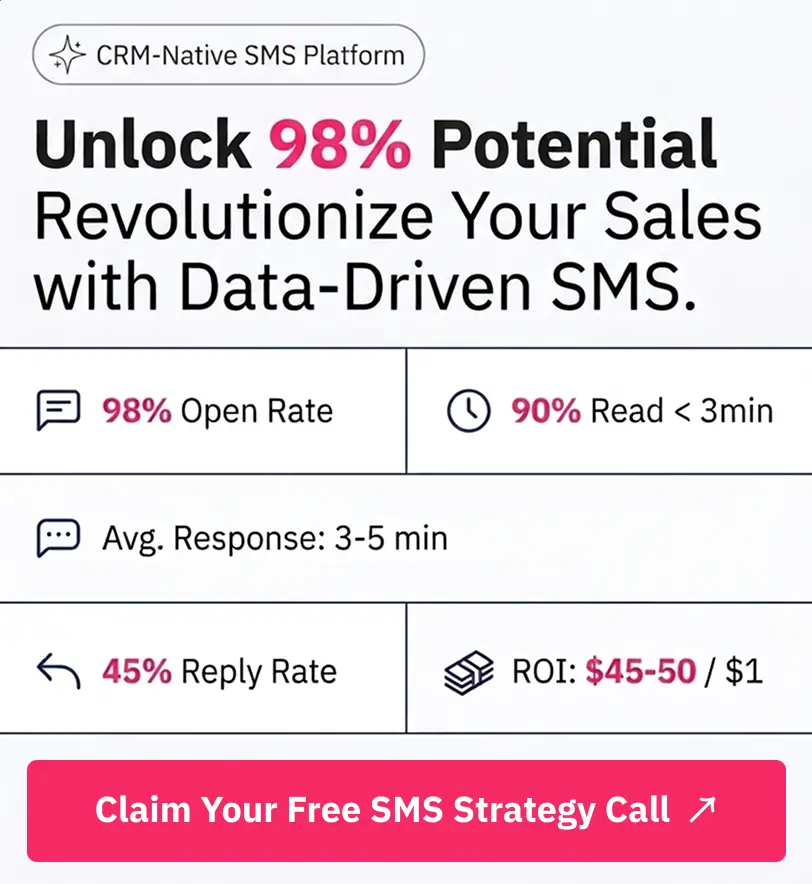
Table of Contents
- Migrate IQ: HubSpot to HubSpot Portal Migration
- Why Teams Migrate Between HubSpot Portals
- What Data Moves in a HubSpot Portal Migration (And What Doesn't)
- How a HubSpot to HubSpot Migration Works (Step by Step)
- See How Your Data Lands Before You Commit
- Three Ways to Run a HubSpot Portal Migration
- How HubSpot Portal Migration Tools Compare
- What Can Go Wrong During a Portal Migration
- How Much Does a HubSpot to HubSpot Migration Cost?
- Frequently Asked Questions
- Your Portal Migration, Proven Before It Runs